When desktop icons disappear in Windows 11, the files and shortcuts are often still there — they just are not being shown. In other cases, the desktop itself may not be loading correctly, or a sync tool, display setting, or Windows issue may be hiding them.
This guide walks through the most likely causes and the fixes that actually matter, starting with the quickest checks and moving to deeper troubleshooting if the problem keeps coming back.
Check Whether the Icons Are Just Hidden
The first thing to check is whether Windows is simply hiding desktop icons. This can happen after a right-click menu change, especially if the desktop was clicked accidentally.
- Right-click an empty area of the desktop.
- Open View.
- Make sure Show desktop icons is checked.
Make Sure the Desktop Folder Still Contains Your Files
If icons appear to be gone only from the desktop, the items may still exist in the Desktop folder. Checking the folder helps you tell the difference between hidden icons and missing files.
- Open File Explorer.
- Go to C:\Users\YourName\Desktop, or open the Desktop folder from the left sidebar if it is shown there.
- Look for the missing shortcuts or files.
- If the items are there, the issue is with how Windows is displaying the desktop rather than with the files themselves.
Restart File Explorer
Windows 11 sometimes fails to refresh the desktop properly. Restarting File Explorer is often enough to bring the icons back without affecting your files.
- Press Ctrl + Shift + Esc to open Task Manager.
- Find Windows Explorer in the list.
- Right-click it and choose Restart.
Check Desktop Icon Settings
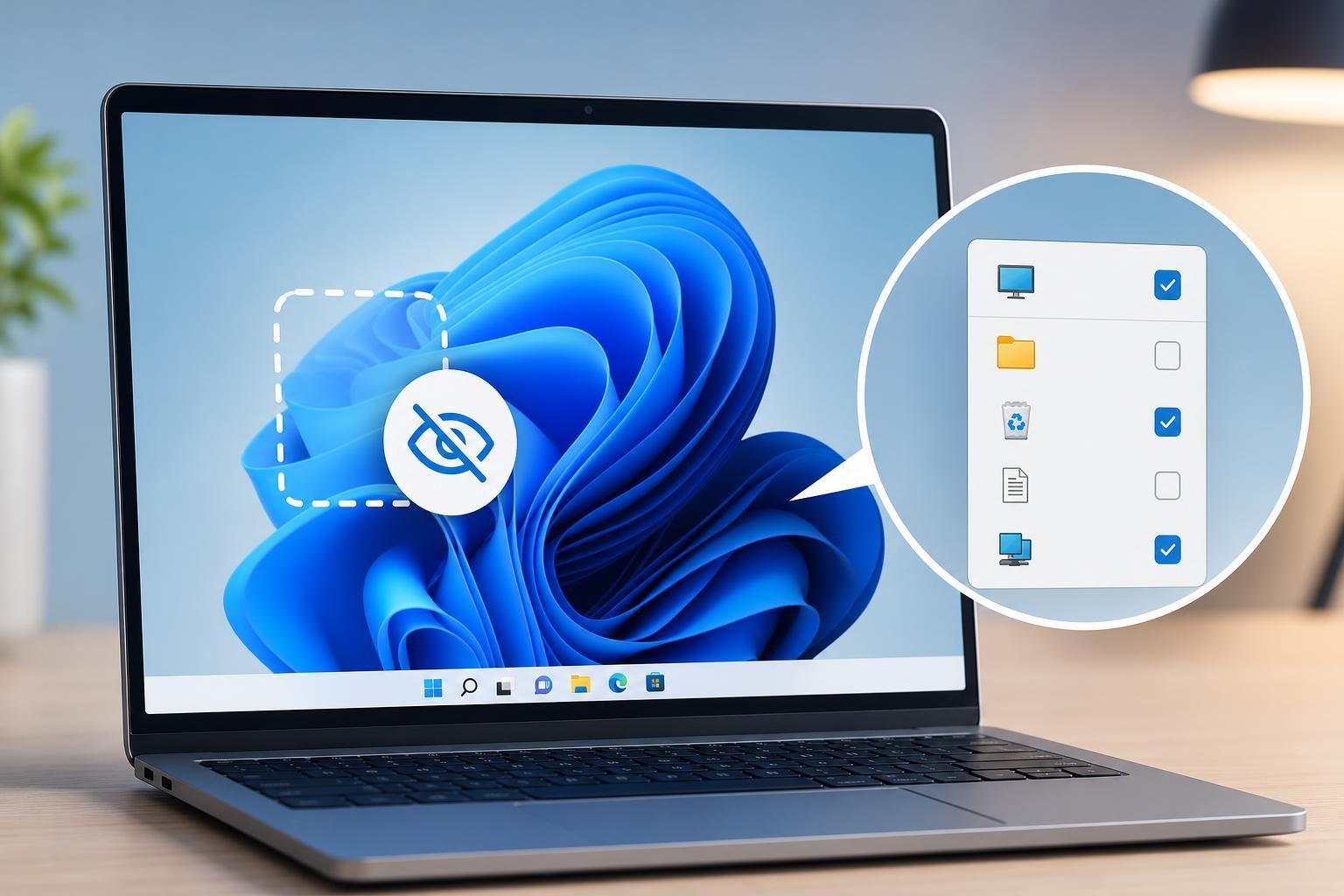
If only system icons such as This PC, Recycle Bin, Network, or Control Panel are missing, the problem may be in the desktop icon settings rather than the desktop itself.
- Open Settings.
- Go to Personalization.
- Open Themes.
- Select Desktop icon settings.
- Check the icons you want to show, then click OK.
Look for OneDrive or Cloud Sync Interference
If you use OneDrive or another sync service, your Desktop folder may be redirected or backed up. That can make icons seem to disappear if sync is paused, the account signs out, or files are moved between local and cloud storage.
- Open OneDrive and check whether sync is paused or showing an error.
- Confirm that you are signed into the correct Microsoft account.
- Check whether Desktop backup is enabled in OneDrive settings.
- Open File Explorer and compare the local Desktop folder with the OneDrive Desktop folder if both exist.
Check for Display or Multi-Monitor Issues
Sometimes desktop icons appear to vanish because Windows is showing the desktop on a different display, or because the monitor arrangement changed. This is more common after unplugging a monitor or changing docking station setups.
- Press Windows + P and check the current projection mode.
- Make sure you are not viewing only a disconnected display arrangement.
- Right-click the desktop and check whether icons appear on another monitor.
- If you use multiple displays, reconnect them in the same order if possible.
Run an Update for Windows and Graphics Drivers
If the desktop keeps failing to load or icons disappear repeatedly, outdated system components or graphics drivers may be contributing to the problem.
- Open Settings.
- Go to Windows Update and install any available updates.
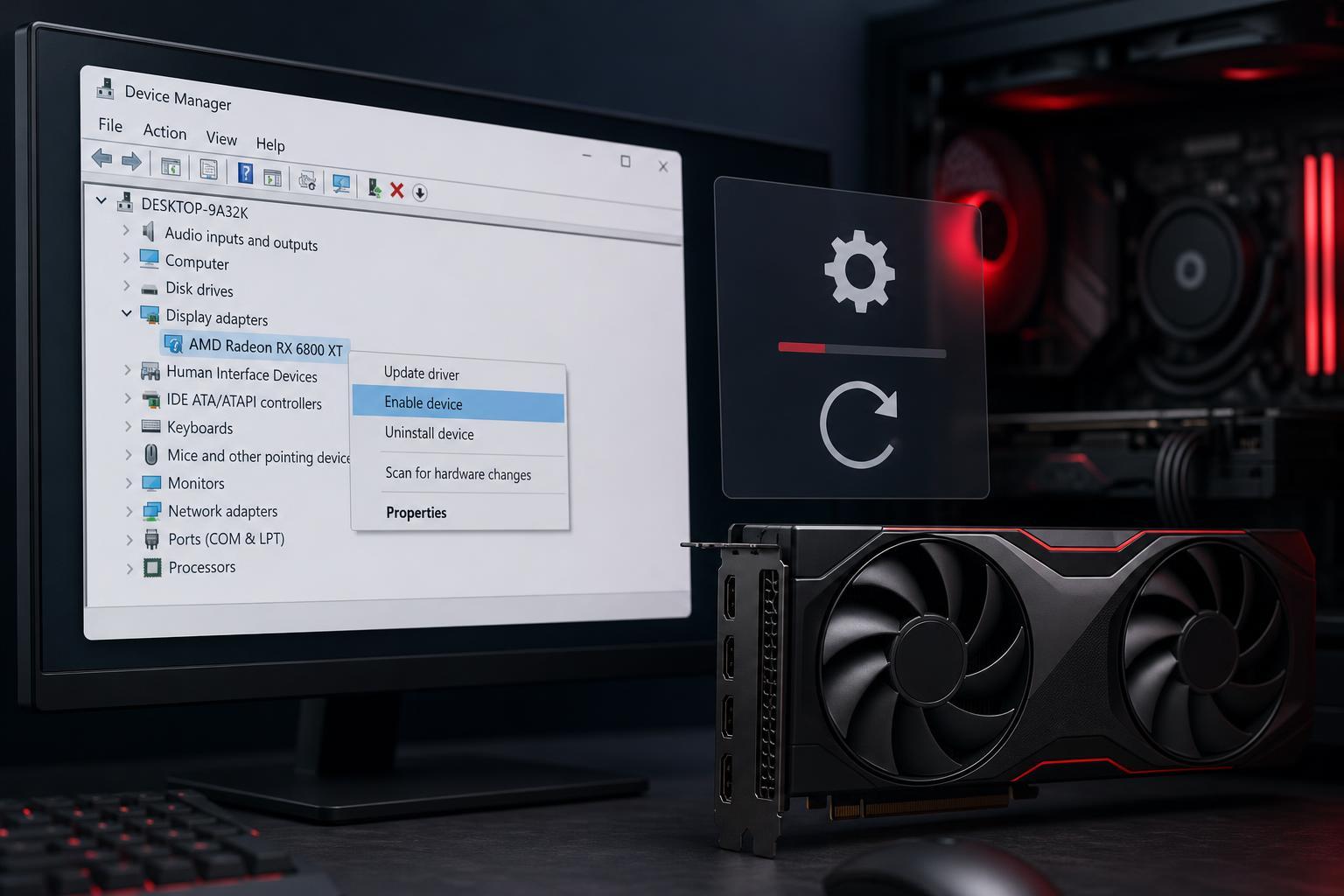
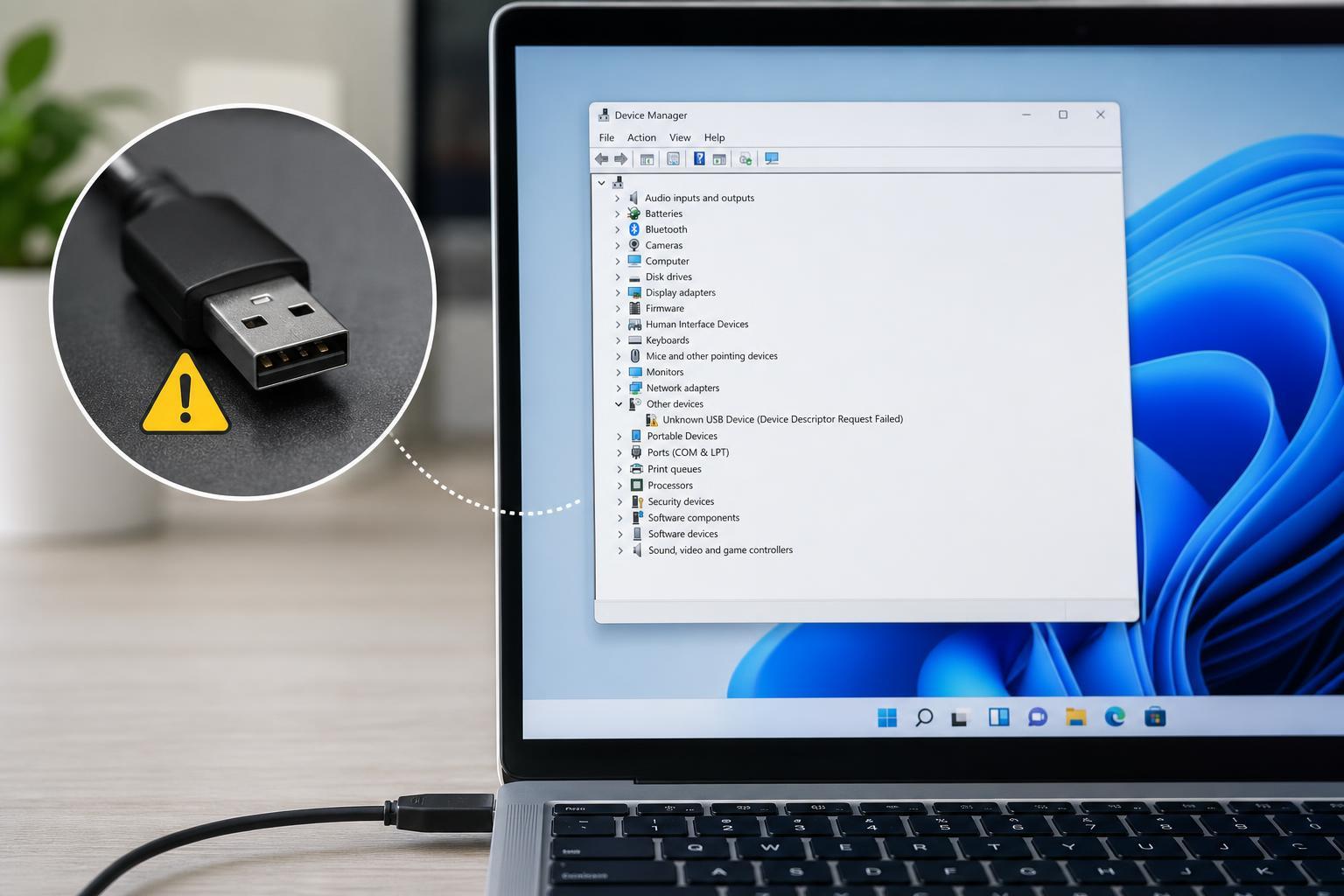
- Open Device Manager.
- Expand Display adapters.
- Update the graphics driver if a newer version is available.
Repair Corrupted System Files
If the desktop icons still disappear after the basic checks, Windows system files may be damaged. Running the built-in repair tools can fix issues that affect Explorer and the desktop shell.
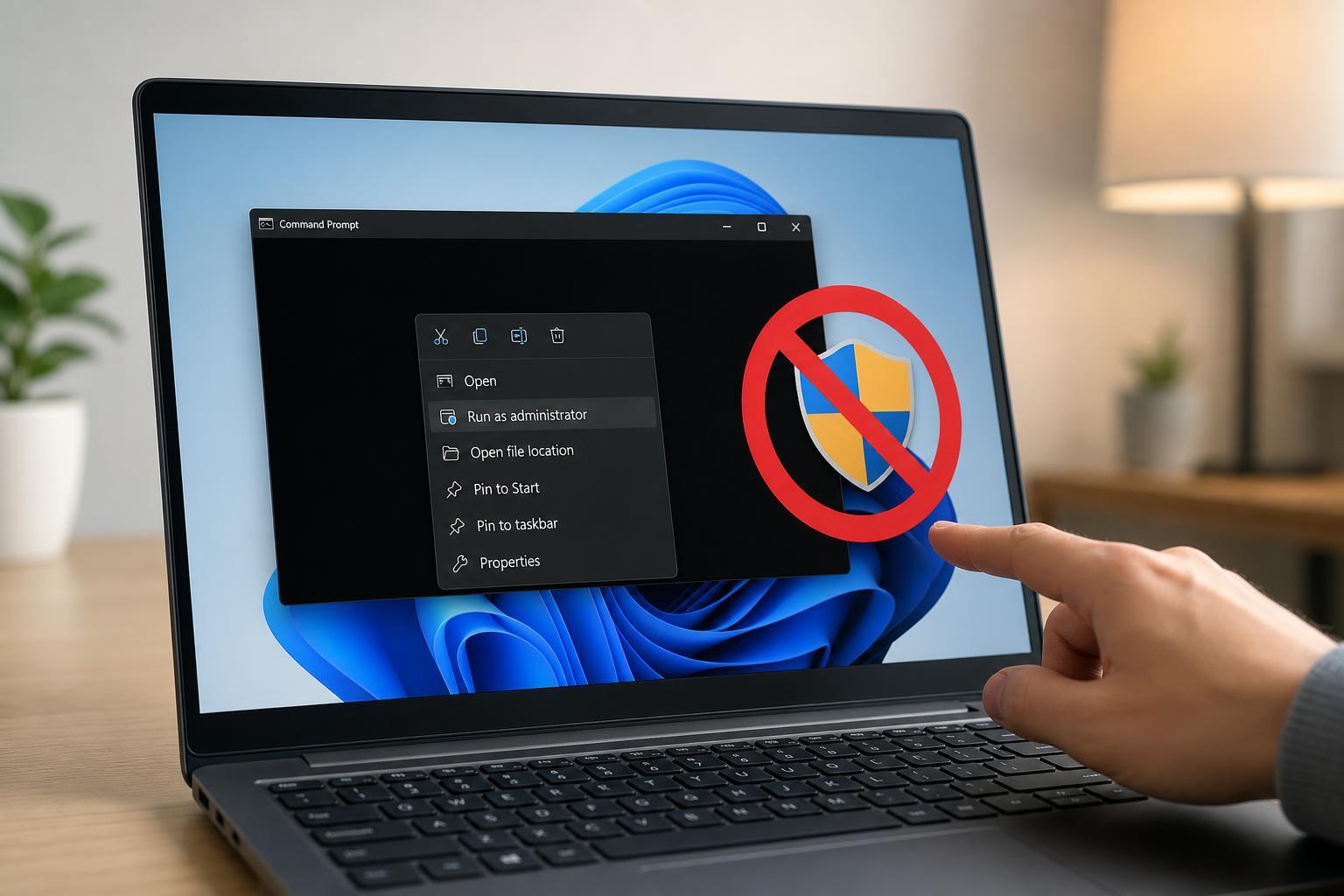
- Open the Start menu, type cmd, and select Command Prompt as administrator.
- Run sfc /scannow and let it finish.
- If problems remain, run DISM /Online /Cleanup-Image /RestoreHealth.
- Restart the PC after the repairs complete.
Use Safe Mode to Rule Out Third-Party Software
If icons only disappear after you sign in normally, a third-party app, shell extension, or startup program may be interfering with the desktop.
- Boot into Safe Mode.
- Check whether the desktop icons stay visible.
- If they do, disable recently installed startup apps or shell utilities one at a time until the problem stops.
When the Problem Keeps Coming Back
If desktop icons keep disappearing even after repairs, the issue is usually tied to one of three things: a hidden desktop setting, a sync or profile problem, or a Windows shell issue that keeps returning after login.
- Make sure Show desktop icons stays enabled.
- Check whether your desktop content is stored locally or through OneDrive.
- Test with a new Windows user account to see whether the problem is tied to your profile.
- Use Safe Mode to isolate startup software.
What to Try First
For most users, the fastest fixes are checking Show desktop icons, restarting File Explorer, and confirming that the items still exist in the Desktop folder. Those three steps solve a large share of desktop icon disappearance problems without deeper system repair.