
If your Windows 11 PC feels slower than it used to, the cause is usually something you can fix. Startup apps, low storage, background processes, outdated drivers, and heavy visual effects can all make a computer feel laggy without any major hardware failure.
This guide focuses on the most useful ways to speed up Windows 11, starting with quick fixes that help most people and moving to deeper checks if your PC is still sluggish.
Start With the Most Common Causes
Before changing a lot of settings, look for the obvious bottlenecks. If Windows takes a long time to boot, the problem is often startup apps. If everything feels slow all the time, storage space, memory pressure, or background software is more likely. If the PC only slows down during games or heavy apps, drivers, overheating, or hardware limits may be involved.
Turn Off Unnecessary Startup Apps
Many apps set themselves to launch automatically when Windows starts. That can make boot times longer and use memory before you even open anything.
- Right-click the Start button and open Task Manager.
- Select the Startup apps tab.
- Look for apps with high impact that you do not need immediately after sign-in.
- Right-click an app and choose Disable.
- Repeat for other unnecessary startup items.
Free Up Disk Space
Windows runs better when the system drive has breathing room. If your SSD or hard drive is almost full, file access, updates, and caching can all slow down.
- Open Settings and go to System > Storage.
- Check how much space is left on your main drive.
- Use Temporary files to remove safe-to-delete junk.
- Uninstall apps you no longer use.
- Move large files such as videos, game installs, or backups to another drive or external storage.
Check for Background Apps and Heavy Processes
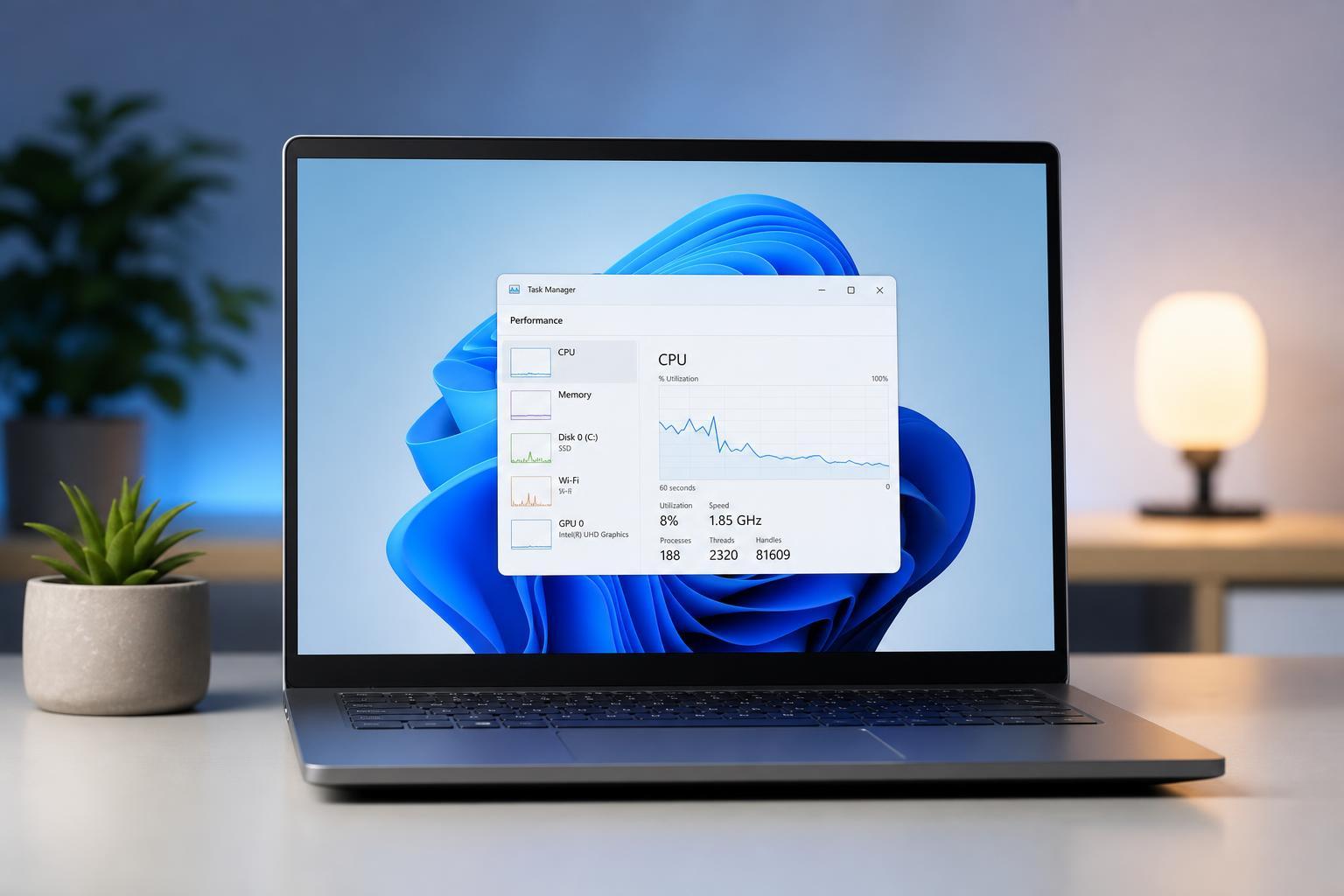
Sometimes a single app is using too much CPU, memory, or disk activity. Task Manager can show you what is happening in real time.
- Open Task Manager with Ctrl + Shift + Esc.
- On the Processes tab, click the CPU, Memory, or Disk column to sort by usage.
- Look for apps using unusually high resources when you are not actively using them.
- Close or uninstall the app if it is not needed.
- If a browser is consuming too much memory, reduce open tabs and extensions.
Update Windows 11
Updates often include performance improvements, bug fixes, and driver-related patches. If your system has been ignored for a while, updating can help more than people expect.
- Open Settings.
- Go to Windows Update.
- Check for updates and install anything available.
- Restart only if Windows asks you to finish the update process.
Update Graphics and Chipset Drivers
Driver issues can make a PC feel slow, especially if you are seeing stutter in games, slow app rendering, or poor responsiveness after a Windows update. Graphics drivers are the most obvious place to start, but chipset and storage drivers can matter too.
- Open Device Manager.
- Expand Display adapters.
- Right-click your graphics device and check for driver updates, or use the manufacturer’s update tool if you have one.
- If your PC came from a major brand, check the support page for your exact model.
- Install only drivers made for your device and Windows 11.
Reduce Visual Effects
Windows 11 uses animations and transparency effects that look nice but can slow down older or low-powered PCs. Turning some of them off can make the interface feel more responsive.
- Open Settings and go to Accessibility > Visual effects.
- Turn off Transparency effects if you want a lighter interface.
- Turn off Animation effects to reduce movement and speed up UI reactions.
- For a bigger change, search for 'adjust the appearance and performance of Windows' and choose best performance or a custom setup.
Scan for Malware or Unwanted Software
Malware, adware, and shady browser extensions can slow a PC by running in the background, opening pop-ups, or hijacking browser performance.
- Open Windows Security.
- Run a Quick scan first.
- If you still suspect a problem, run a Full scan.
- Check installed browser extensions and remove anything unfamiliar.
- Uninstall suspicious programs from Settings > Apps > Installed apps.
Check Your Power Mode
Windows 11 can limit performance to save power, especially on laptops. That is useful on battery, but it can make a PC feel slower than necessary when plugged in.
- Open Settings and go to System > Power & battery.
- Look for Power mode.
- Set it to Best performance when you want maximum responsiveness.
- If you use a laptop, remember that battery saver modes can reduce speed and screen responsiveness.
Clear Up Browser Slowdowns
A slow browser can make the whole PC feel sluggish, especially if most of your work happens in tabs. Too many extensions, cached data, and dozens of open tabs can use a surprising amount of memory.
- Close tabs you are not using.
- Remove browser extensions you do not recognize or need.
- Clear cached data if the browser has become unusually slow.
- Try opening the same sites in a different browser to see whether the slowdown is browser-specific.
- Check whether video conferencing, cloud sync, or web apps are running in the background.
Look for Overheating or Throttling
If the PC starts fast but slows down during gaming, rendering, or long sessions, overheating may be forcing the CPU or GPU to reduce speed. That is called throttling.
- Fans are running loudly even during light use.
- Performance drops after the machine has been on for a while.
- The laptop chassis feels unusually hot.
- Games stutter more as the session goes on.
- The PC feels faster again after cooling down.
If you suspect overheating, clean dust from vents, make sure the PC has good airflow, and check that fans are working properly. For desktops, dust buildup around the cooler and case filters is a common cause.
Use Storage Health and Cleanup Tools
If the drive is healthy but still feels slow, Windows tools can help you identify unnecessary clutter and storage-related issues.
- Use Storage Sense to automatically remove temporary files.
- Uninstall large apps you rarely use.
- Check whether downloads folders and desktop files are packed with old clutter.
- For hard drives, use Defragment and Optimize Drives. SSDs should be optimized, not manually defragmented with old third-party tools.
Consider a Hardware Upgrade
If you have already trimmed startup apps, cleaned storage, updated Windows, and checked for malware, the issue may be hardware limits rather than software clutter.
- Add more RAM if your system regularly runs out during normal use.
- Upgrade from an HDD to an SSD if Windows is still installed on a mechanical drive.
- Replace a very old or heavily used SSD if it is failing or performing poorly.
- Use a stronger GPU only if your slowdown is mostly in games or graphics-heavy work.
Which Fix Should You Try First?
If you want the fastest path to a quicker Windows 11 PC, start with startup apps, storage space, and Task Manager checks. Those three steps solve a large share of everyday slowdowns. After that, update Windows and drivers, reduce visual effects if needed, and scan for unwanted software. If performance still feels poor, look at overheating or hardware upgrades.
The best fix depends on when the slowdown happens. Slow boot times usually point to startup load. Constant lag often points to storage, memory, or background software. Slowdowns under heavy use often point to cooling or hardware limits.





