
Windows 11 widgets can be easy to ignore, especially if you only use the default weather card or never open the Widgets panel at all. But a few of them are genuinely useful for checking information quickly without switching apps.
If you want the widget board to earn its place on your desktop, these three Windows 11 widgets are among the most practical ones to try.
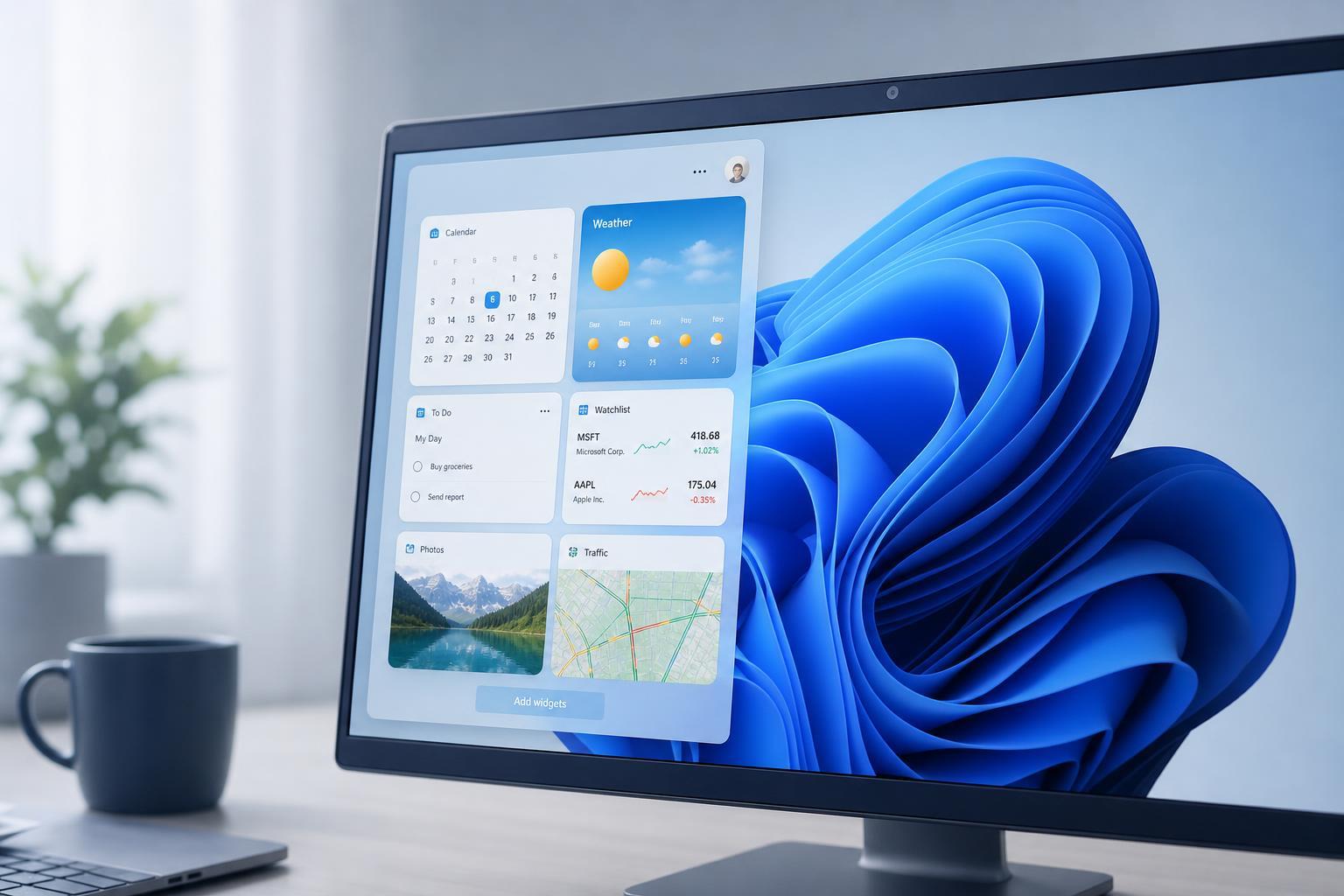
1. Watchlist
The Watchlist widget is one of the most useful options for people who keep an eye on stocks, ETFs, or a few favorite companies. It gives you a quick snapshot of market movement without needing to open a browser or a finance app.
It is especially helpful if you only need to monitor a small list of symbols during the day. You can glance at price changes, see whether a stock is moving up or down, and open a more detailed view when needed.
2. Microsoft To Do
Microsoft To Do is one of the best widgets if you want a simple task list that stays visible. It is more useful than it first appears because it lets you see upcoming tasks, reminders, and quick to-dos at a glance.
This widget works well for small personal task lists, daily priorities, and reminder-style tasks that you do not want to forget. It is not meant to replace a full project manager, but it is very good for day-to-day organization.
3. Spotify
The Spotify widget is easy to overlook, but it can be handy if you use Spotify regularly. It gives you fast access to what you were listening to recently and makes it easier to jump back into music or podcasts.
Instead of opening the full app every time, you can use the widget to resume playback faster or check recent content. For people who work while listening to music, that small convenience adds up.
How to Add or Remove Windows 11 Widgets
You can customize the Widgets board so it only shows items you actually use. That is often the best way to make the panel feel helpful instead of cluttered.
- Open the Widgets panel from the taskbar or press Windows key + W.
- Select the settings or add widgets option in the panel.
- Browse the widget gallery and add the ones you want.
- Use the menu on each widget to remove anything you do not need.
- Reorder widgets so the most useful ones appear near the top.
Which Widgets Are Worth Keeping?
The best widgets are the ones you actually check often. If a widget only gives you information you already get elsewhere, it is probably not worth keeping on your board.
- Keep widgets that save time by showing information you check multiple times a day.
- Remove widgets that duplicate data from apps you already open regularly.
- Prefer widgets that stay readable at a glance instead of showing too much detail.
- Choose a small set of widgets so the panel stays fast and easy to scan.
A Better Way to Use the Widgets Panel
Windows 11 widgets are most useful when treated like a quick dashboard, not a full app replacement. The best setup usually combines a few glanceable widgets that match your daily routine.
For most users, that means keeping only the widgets that help you check important information quickly: one for tasks, one for updates, and one for something personal you use often, such as music or finances.





