If you own a Fire TV Stick but are not sure exactly which model it is, there are a few easy ways to check. That can be helpful when you need the right remote, a compatible power adapter, or model-specific troubleshooting steps.
The quickest method is usually inside the Fire TV settings, but you can also identify the model from the packaging, the device label, or Amazon account information if the Stick is already set up.
Check the Model in Fire TV Settings
If your Fire TV Stick is connected and working, this is the most reliable place to start. The settings menu shows the device name, model details, and software information.
- On the Fire TV home screen, open Settings.
- Select My Fire TV.
- Choose About.
- Look for the Model name, Device name, or serial information shown on the screen.
Use the Serial Number or Model Label on the Device
If you can unplug the stick, the physical device itself may have a label or printed information that helps identify it. This is useful if the Fire TV menu is unavailable or the device will not boot.
- Unplug the Fire TV Stick from the HDMI port and power cable.
- Look for any printed text on the back or underside of the device or on the packaging label if you still have it.
- Write down the serial number, model number, or SKU if it is shown.
- Compare that information with Amazon’s device support pages or your purchase history.
Check Your Amazon Account Purchase History
If you bought the Fire TV Stick from Amazon, your order history may tell you exactly which version you purchased. This is especially helpful if you have multiple Fire TV devices in the house.
- Sign in to your Amazon account.
- Open Your Orders or order history.
- Find the Fire TV Stick purchase.
- Check the product name in the order details.
Order names may include terms like Fire TV Stick Lite, Fire TV Stick, Fire TV Stick 4K, or Fire TV Stick 4K Max. Those names are often the easiest way to distinguish the model family.
Identify the Model by Its Remote and Features
This method is less exact than checking the settings, but it can still help narrow things down if you are unsure which generation you have.
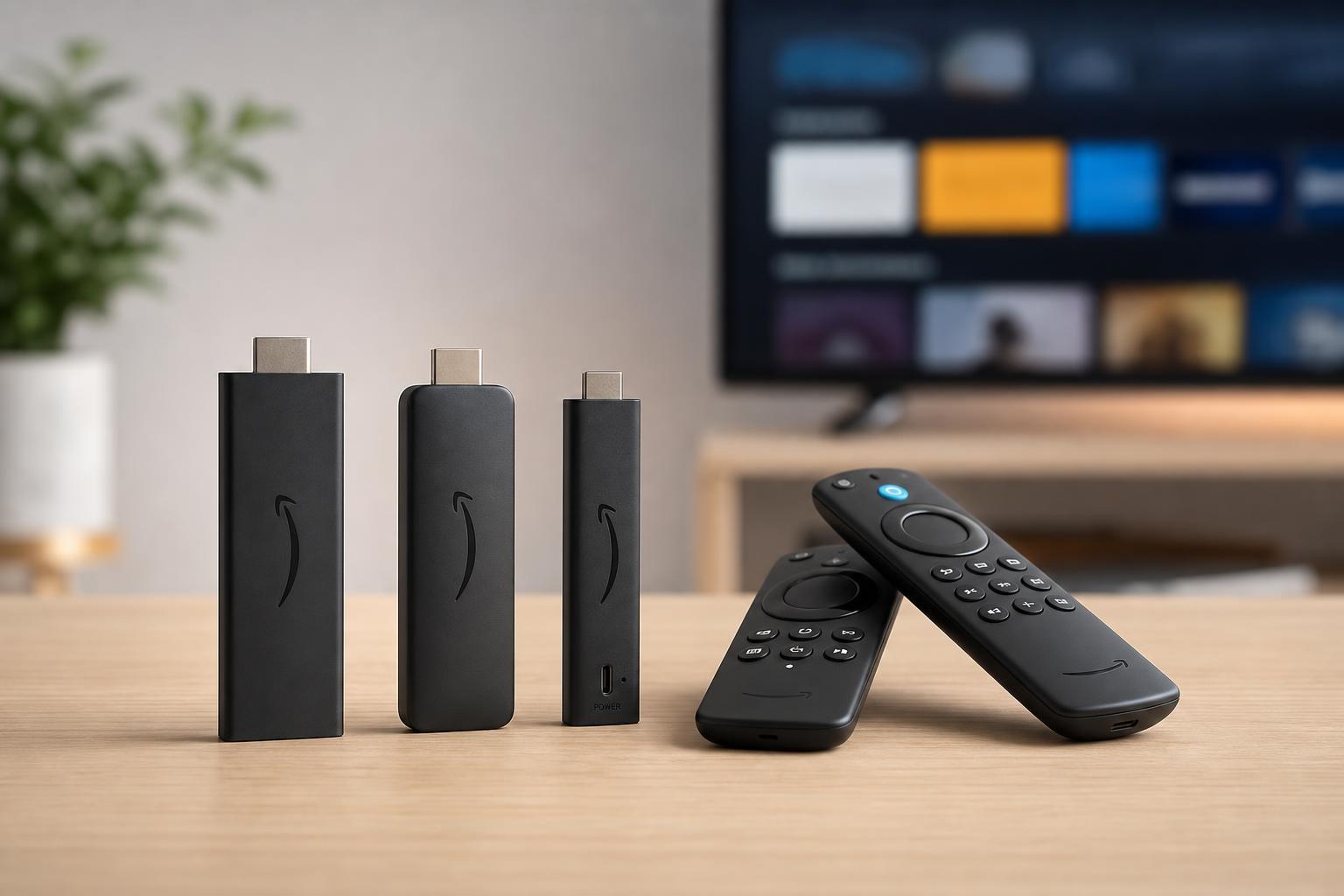
- Fire TV Stick Lite usually comes with a basic Alexa Voice Remote Lite without TV power or volume buttons.
- Fire TV Stick 4K and 4K Max models are designed for 4K streaming on compatible TVs.
- Newer remotes may include TV power, volume, and mute buttons.
- Some older models use a micro USB power connection, while newer ones may still look similar but belong to different generations.
Compare the Model Against Amazon’s Product Names
Amazon’s Fire TV Stick lineup includes several closely named versions. If you know the product family, you can usually match it to the correct accessories and support articles.
- Fire TV Stick Lite
- Fire TV Stick
- Fire TV Stick 4K
- Fire TV Stick 4K Max
- Older generations of Fire TV Stick from previous years
If you are comparing generations, focus on the exact product name and not just the words “Fire TV Stick.” Different versions can have different remotes, video output support, and power requirements.
If You Still Can’t Tell Which One It Is
If the model name is not obvious, try these practical checks:
- Look at your Amazon order history for the original product listing.
- Check the serial number on the device and compare it with Amazon support documentation.
- Open Settings > My Fire TV > About and note every device detail shown.
- If needed, contact Amazon support with the serial number for confirmation.
Which Method Should You Use First?
If the device is working, start with the Fire TV settings. If it is not set up or will not boot, check the packaging, Amazon order history, or the label on the device itself. Those methods are usually enough to identify the model without guesswork.