
If someone sends you a video in X (formerly Twitter) Direct Messages, saving it is not always as straightforward as downloading a public post. The exact options depend on whether you are using the X app, the mobile browser, or a PC, and in many cases X does not provide a direct download button for DM videos at all.
This guide explains what you can and cannot do, the safest ways to save a DM video on PC and mobile, and a few practical workarounds when X does not offer a built-in download option.
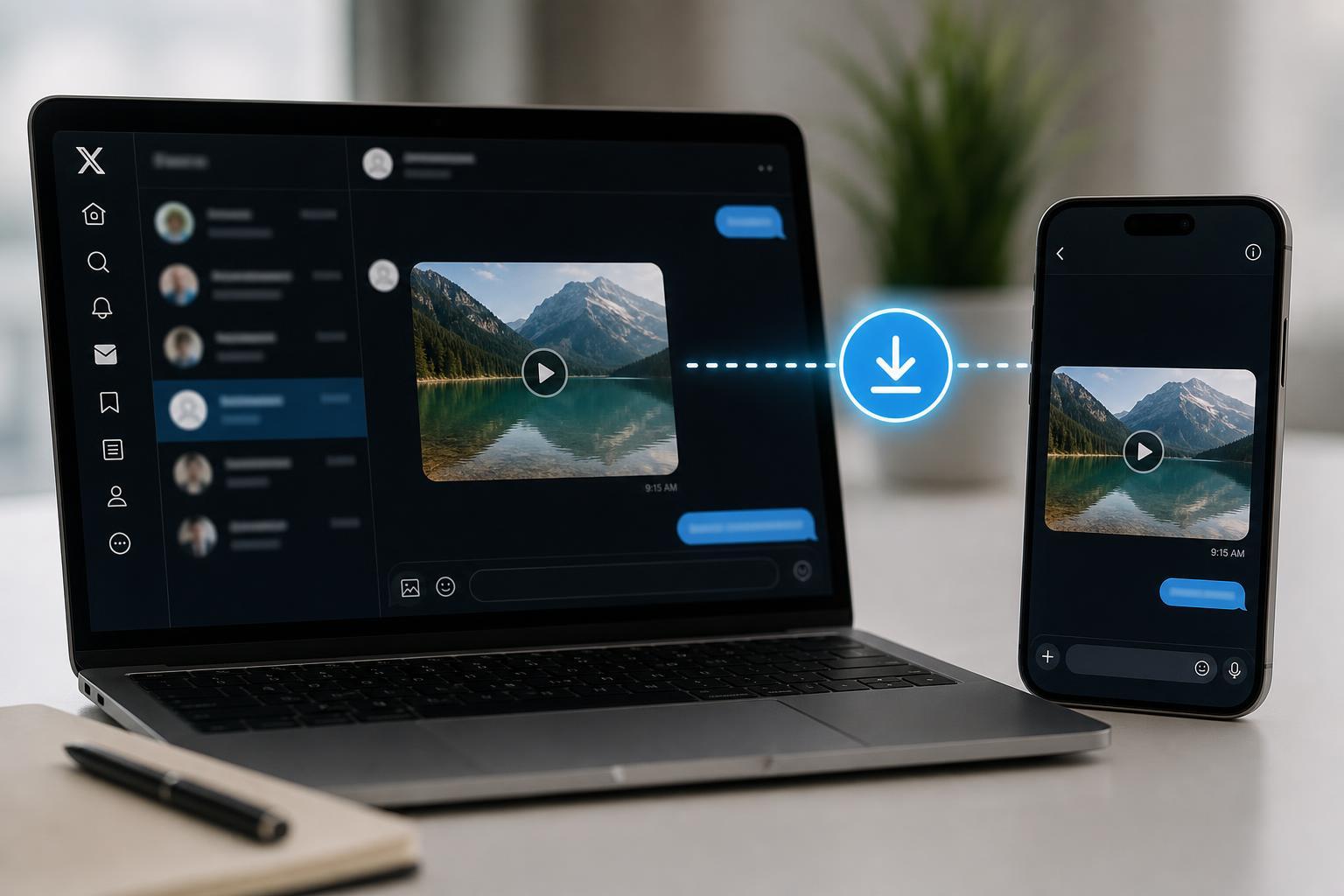
Can You Directly Download Videos From X DMs?
In most cases, X does not offer a true one-click download option for videos inside direct messages. That means you usually cannot simply tap or right-click a DM video and save the original file the way you might with a document attachment.
What you can do depends on how the video was shared. If the sender attached a video file in a way your device can access, you may be able to save it. If the video is embedded inside the X conversation, you may need to use a screen recording method or a browser-based workaround.
How to Save a Video From X DMs on PC
On a PC, the first thing to check is whether the video can be opened in a separate view or downloaded through the browser. Some DM videos behave like embedded media and only offer playback controls, while others may open in a tab with more options.
- Open X in your browser and go to your Direct Messages.
- Open the conversation that contains the video.
- Click the video once to see whether it opens in a larger player or a new tab.
- Look for a three-dot menu, download icon, or browser save option.
- If a download option appears, use it to save the file to your PC.
If no download option appears, the most reliable alternative on PC is screen recording. This does not give you the original video file, but it does let you save the clip for personal viewing when no direct save button exists.
- Open the DM video so it is visible on screen.
- Use a screen recording tool such as Xbox Game Bar on Windows or another trusted screen recorder.
- Start recording before playing the video.
- Play the video in full while keeping the window visible.
- Stop the recording when the clip ends and save the file.
How to Save a Video From X DMs on iPhone or Android
On mobile, the process is similar: first look for a built-in save or share option, then fall back to screen recording if X does not give you a direct download path.
- Open the X app and go to your Direct Messages.
- Open the chat containing the video.
- Tap the video to see whether it opens in a larger player.
- Check for a share button, menu icon, or save option.
- If the app offers a way to save or share the media file, choose the location you want and confirm.
If no file-saving option is available, use your phone’s built-in screen recorder. Both iPhone and most modern Android devices include screen recording tools in the quick settings or control center.
- Turn on screen recording from Control Center on iPhone or Quick Settings on Android.
- Open the DM video and make sure it is ready to play.
- Start recording, then play the video from the beginning.
- Stop recording after the video finishes.
- Trim the recording if needed using your phone’s photo or gallery app.
If the Video Is Sent as a File Attachment
Some messages may include a video file or a link that opens outside the standard X player. In those cases, your device may treat it more like a normal attachment, and saving it may be easier.
- A visible download arrow or file icon usually means the media can be saved more directly.
- If the video opens in the browser’s media viewer, check the browser menu for a download option.
- If a sender shared a link to cloud storage or another platform, the download method may depend on that service instead of X.
Why the Download Option May Be Missing
The most common reason is that the video is embedded in the DM conversation rather than shared as a standard downloadable file. In that case, X is designed to let you watch the clip without exposing the source file directly.
- The sender posted media in a format that X streams instead of downloads.
- You are viewing the DM inside an app or browser that hides file controls.
- The media is protected by platform restrictions.
- Your browser or app version does not expose the save option even if one exists.
Tips for Better Results
What to Do If Nothing Works
If you cannot find any way to save the video, ask the sender whether they can share it by another method, such as a cloud link or a file transfer service. That is often the easiest way to get an original file instead of a recording.
If the video is important for work, reporting, or archiving, keep in mind that the safest option is usually to request the original file from the person who sent it.
Choosing the Right Method
If X gives you a direct download or save option, use it. If it does not, screen recording is the most practical fallback on both PC and mobile. For the cleanest result, ask the sender for the original file when possible.
- Use direct download if the option is available.
- Use screen recording if X only allows playback.
- Ask the sender for the original file if you need the best quality or a reusable copy.





