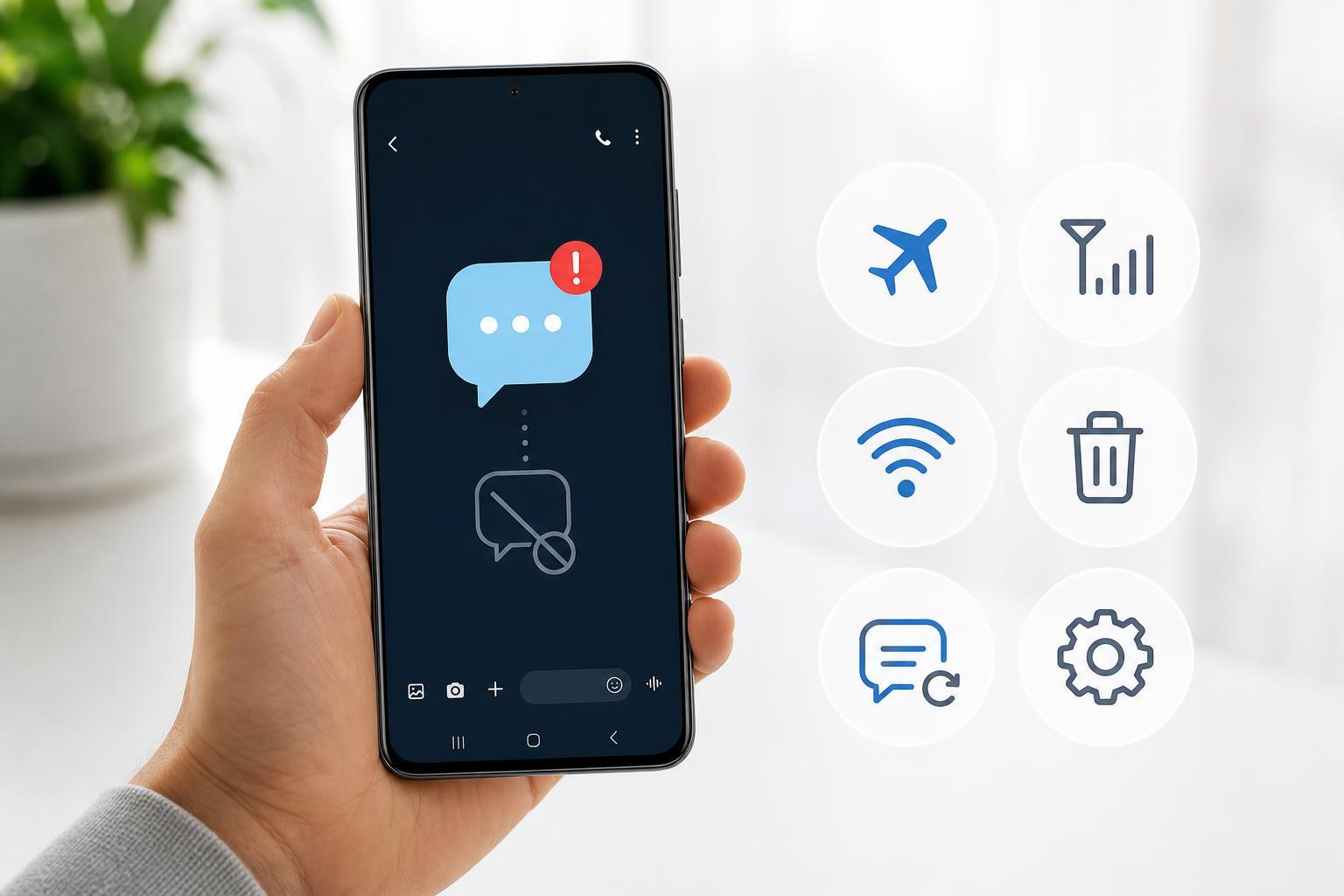
You can use an Amazon Echo on a mobile hotspot when you do not have regular home Wi‑Fi, but the setup is a little different from connecting to a normal network. The main things that matter are your phone’s hotspot settings, the Echo’s Wi‑Fi setup process, and whether the hotspot allows the Echo to stay connected reliably.
This guide walks you through the setup step by step and covers the most common problems, such as the Echo not showing up in the Alexa app, hotspot passwords not being accepted, and spotty connections caused by power-saving features or weak cellular signal.
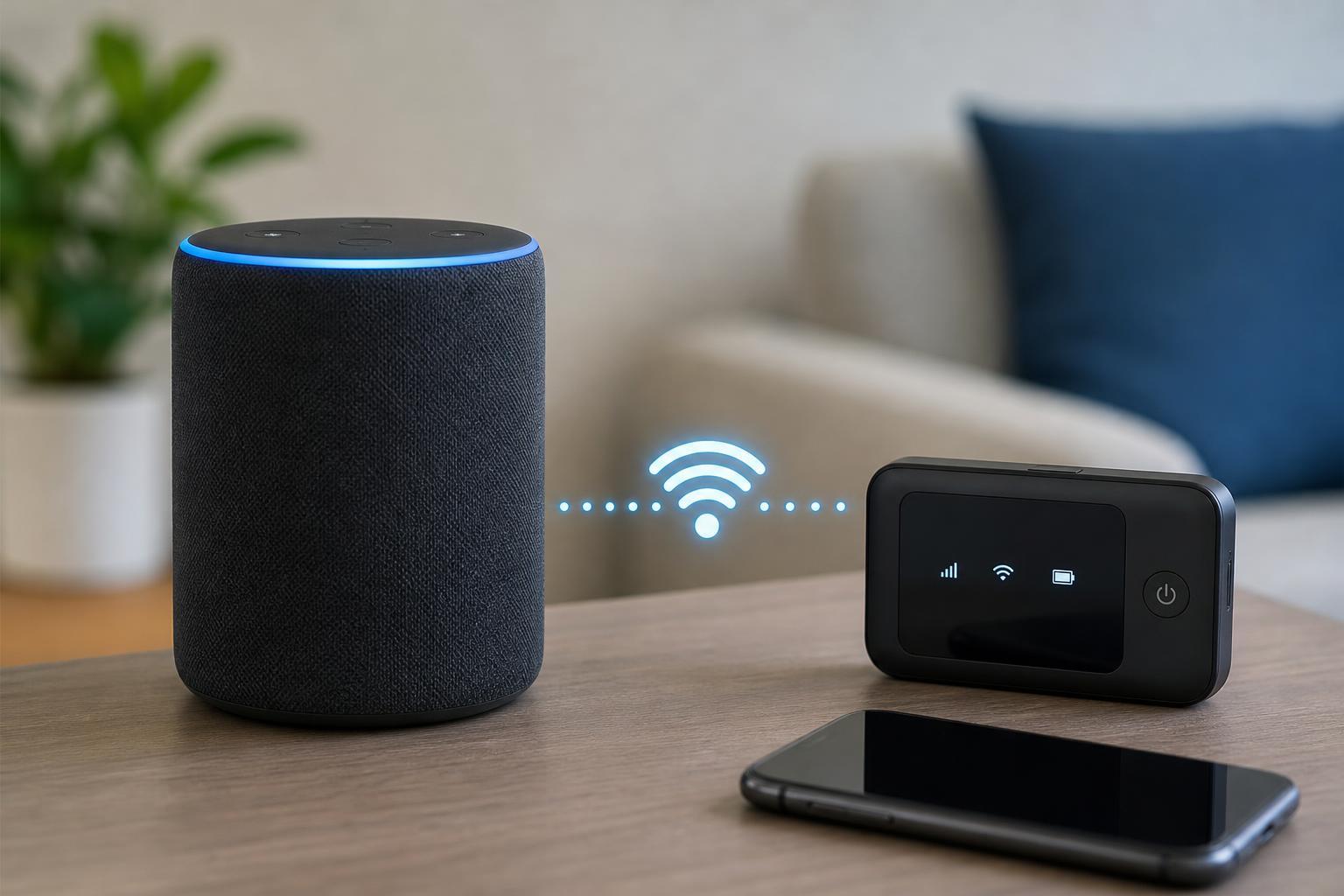
What You Need Before You Start
- An Amazon Echo device and the Alexa app installed on your phone or tablet
- A phone with a working mobile data connection and hotspot feature enabled
- The hotspot name and password you plan to use
- Enough mobile data for the Echo to stay online, especially if you use music, smart home controls, or Alexa features often
- A strong cellular signal, since weak signal can make the Echo disconnect or respond slowly
Connect the Echo to Your Mobile Hotspot
- Turn on the mobile hotspot on your phone. On most phones, this is found in Settings under Mobile Hotspot, Personal Hotspot, or Tethering.
- If possible, set the hotspot to a simple network name and password. Avoid special characters if the Echo has trouble finding or joining the network.
- Plug in your Echo and wait for it to enter setup mode. If it is already set up, you can also use the Alexa app to change its Wi‑Fi network.
- Open the Alexa app on your phone and sign in to the same Amazon account linked to the Echo.
- In the Alexa app, go to Devices, choose Echo & Alexa, and select your device.
- Open Device Settings, then choose Wi‑Fi Network or Change under the network section.
- Put the Echo into setup mode if the app asks for it. On many Echo devices, this means holding the Action button until the light ring changes to orange.
- When prompted, select your mobile hotspot from the list of available networks and enter the hotspot password.
- Wait for the app to confirm the connection. Once connected, test Alexa with a simple command such as asking for the weather or a timer.
If the Hotspot Does Not Appear
If your mobile hotspot does not show up in the Wi‑Fi list, the problem is usually with the phone’s hotspot settings rather than the Echo itself. Many phones hide the hotspot when it is inactive, when no devices are allowed to connect, or when the hotspot is set to a compatibility mode the Echo does not like.
- Make sure the hotspot is actually turned on and broadcasting.
- Check that the hotspot is not limited to only approved devices.
- Move the Echo closer to the phone during setup.
- Use the 2.4 GHz hotspot band if your phone offers both 2.4 GHz and 5 GHz options. Many smart devices connect more reliably on 2.4 GHz.
- Disable battery saver or low-power mode temporarily, since some phones reduce hotspot availability when power saving is enabled.
If the Echo Connects but Keeps Dropping Offline
A connection that works at first but drops later usually points to signal strength, cellular instability, or hotspot power management. This is especially common if the phone is far from the Echo, the cellular signal is weak, or the phone locks itself down after being idle.
- Keep the phone and Echo closer together, at least during setup and testing.
- Make sure the phone has a strong cellular signal and stable data service.
- Turn off hotspot auto-off or any setting that disables the hotspot when no devices are active.
- Disable battery optimization for the Alexa app if your phone aggressively manages background apps.
- Avoid moving the phone between rooms or placing it where the signal is weak, such as in a basement or near thick walls.
Best Practices for a Stable Setup
- Use a strong, simple hotspot name and password.
- Keep the phone plugged in if possible so the hotspot does not drain the battery too quickly.
- Place the phone where it gets the best cellular reception, not just where it is convenient.
- Limit other devices using the hotspot while the Echo is being set up.
- After the Echo is connected, test key features such as voice commands, smart light control, and Alexa responses to make sure the connection is dependable.
When a Mobile Hotspot May Not Be a Good Fit
A hotspot can work well for basic Alexa use, but it is not always ideal for heavy daily use. If your Echo is constantly streaming music, checking weather, running routines, or controlling many smart devices, your mobile plan may hit data limits quickly. Some carriers also throttle hotspot speeds after a certain amount of usage, which can make Alexa responses slower or less reliable.
Troubleshooting Checklist
- Confirm the hotspot is on and broadcasting a visible Wi‑Fi network.
- Make sure the Echo is in setup mode and the Alexa app is signed into the correct Amazon account.
- Try 2.4 GHz if 5 GHz is causing connection issues.
- Move the phone and Echo closer together.
- Check that battery saver, hotspot timeouts, or app power limits are not interfering.
- Restart the Alexa app only if it is frozen or not refreshing the device list.
- If needed, forget the network on the Echo and add the hotspot again from scratch.
What to Try First if It Still Won't Connect
If setup still fails, the fastest path is usually to simplify the hotspot settings: use 2.4 GHz, remove unusual characters from the password, keep the phone very close to the Echo, and make sure the hotspot stays active long enough to complete pairing. In most cases, one of those changes is enough to get the Echo online.