
An Android mobile hotspot can fail in a few different ways: it may not turn on, nearby devices may not see it, or other devices may connect but still have no internet. The right fix depends on which of those symptoms you’re seeing.
This guide covers the most useful checks first, starting with simple settings and moving on to network and carrier-related problems.
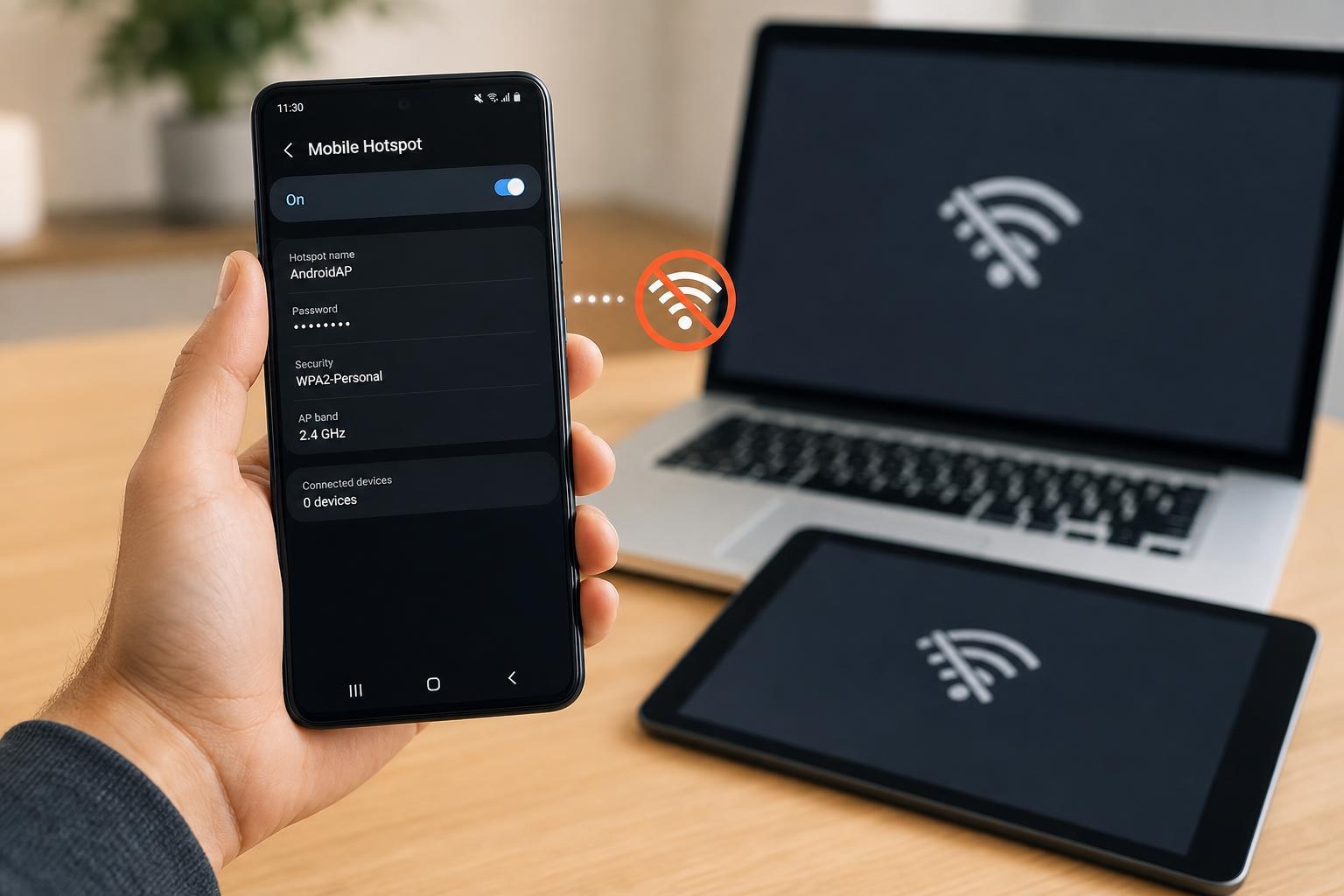
1. Make Sure the Hotspot Is Actually Enabled Correctly
Start with the hotspot setting itself. On many Android phones, the hotspot can be turned on in Quick Settings or under Network & internet / Connections, depending on the phone brand.
- Open Settings and go to Hotspot & tethering, Mobile Hotspot, or a similar menu.
- Turn the hotspot on and confirm the hotspot name and password.
- If the hotspot is already on, turn it off and on again from the settings screen rather than only from Quick Settings.
- Check whether the hotspot is set to hide its network name, because hidden networks are harder for other devices to find.
2. Check Your Mobile Data Connection
An Android hotspot shares your phone’s mobile data connection, not Wi‑Fi. If mobile data is off, weak, or blocked, the hotspot may still appear to work while connected devices have no internet.
- Make sure mobile data is enabled on the phone.
- Check that you actually have cellular signal where you are.
- If your plan has limited data or hotspot restrictions, the hotspot may connect but not pass traffic.
- Open a website on the phone itself to confirm the phone has internet access.
3. Verify the Hotspot Password, Band, and Device Compatibility
Sometimes the hotspot is working, but the other device cannot connect because of a mismatch in settings.
- Re-enter the hotspot password carefully. A typo can look like a hotspot failure.
- Try a simpler password if your device keeps rejecting the connection.
- If your phone offers both 2.4 GHz and 5 GHz hotspot bands, try switching bands.
- Use 2.4 GHz for older devices or longer range, and 5 GHz for better speed at shorter range.
4. Turn Off Battery Saver and Data-Saving Restrictions
Battery Saver, Data Saver, and some device-optimization features can limit background networking or shut down tethering to conserve power. On some phones, these modes can interfere with hotspot stability.
- Disable Battery Saver or Power Saving mode temporarily.
- Turn off Data Saver if it is enabled.
- Check whether hotspot auto-turn-off features are enabled and, if needed, disable them for testing.
- Keep the phone plugged in while testing, since some phones throttle hotspot behavior on low battery.
5. Reset the Network Settings
If the hotspot used to work and suddenly stopped after a settings change, a network reset can clear broken Wi‑Fi, Bluetooth, and mobile network configuration without erasing your photos or apps.
- Open Settings on the Android phone.
- Search for Reset options, Reset network settings, or System reset.
- Choose the option to reset Wi‑Fi, mobile, and Bluetooth settings.
- Confirm the reset, then set up the hotspot again and test it.
6. Check Carrier Restrictions and APN Settings
Some mobile plans do not allow hotspot use, or they allow it only up to a certain limit. In other cases, the phone’s APN settings may be incorrect, which can break tethering even when normal mobile data still works.
- Review your plan details or carrier app to see whether hotspot is included.
- Check whether you have used up your hotspot allowance for the billing period.
- If your carrier requires a specific APN, confirm that the correct APN is selected.
- If you recently changed SIM cards or carriers, the hotspot settings may need to be updated.
7. Update Android and Test for Software Bugs
If none of the earlier fixes help, the issue may be caused by a software bug. Android updates, carrier updates, and manufacturer patches can all affect hotspot behavior.
- Go to Settings and check for system updates.
- Install any pending Android or security updates.
- If your phone has a carrier services or system app update available, install that too.
- After updating, test the hotspot again with a different device.
How to Narrow Down the Cause Quickly
Use the symptom to guide your next step. If the hotspot will not turn on at all, focus on settings, battery optimization, and software updates. If the hotspot turns on but no one can see it, check the band, visibility, and hotspot name. If devices connect but have no internet, the problem is usually mobile data, carrier restrictions, or APN settings.
- Hotspot won’t turn on: settings, battery saver, software bug
- Hotspot visible but won’t connect: password, compatibility, band selection
- Connected but no internet: mobile data, carrier limits, APN, signal strength
When to Contact Your Carrier or Phone Support
If your phone has strong mobile data but tethering still fails after a reset and update, the issue may be account-related or tied to a carrier-side restriction. Contact your carrier if you suspect hotspot blocks, missing plan features, or APN issues you cannot correct yourself.
If the hotspot fails on multiple networks and multiple devices, the phone itself may have a hardware or firmware issue and may need manufacturer support.





