
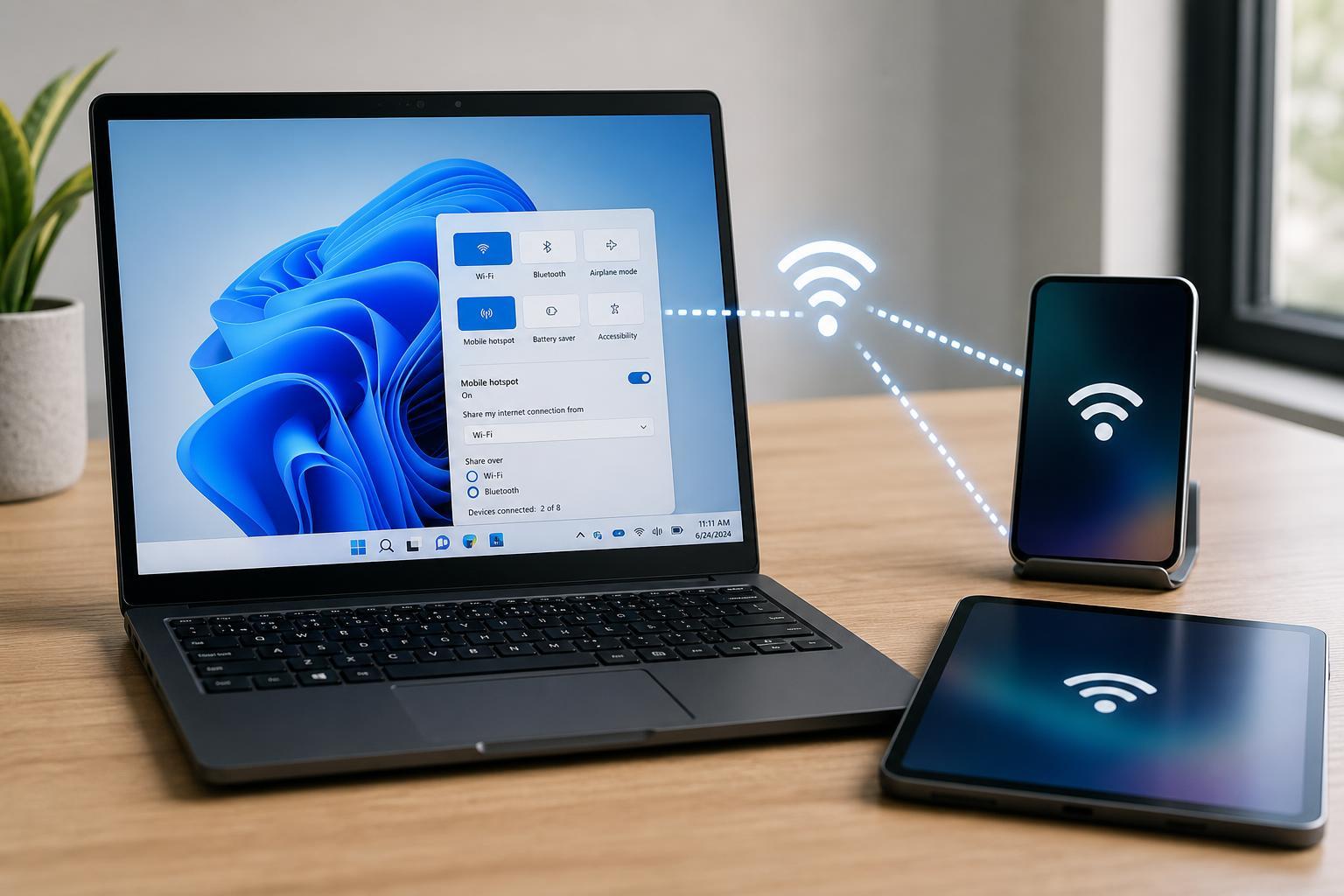
Windows 11 can share your PC’s internet connection with phones, tablets, and other devices by turning the computer into a mobile hotspot. This is useful when you want to give another device internet access over Wi-Fi without setting up a separate router or hotspot device.
The process is built into Windows, but the exact options you see can depend on whether your PC is connected by Wi-Fi, Ethernet, or cellular data. Once it is set up, other devices can connect to your PC just like they would connect to a normal wireless network.
What You Need Before You Start
- A Windows 11 PC with a working internet connection
- A Wi-Fi adapter that supports hotspot sharing
- An administrator account if you need to change network settings
- A device to connect, such as a phone, tablet, or another computer
How to Turn On Mobile Hotspot in Windows 11
- Open Settings by pressing Windows + I.
- Select Network & internet.
- Click Mobile hotspot.
- In the Share my internet connection from box, choose the connection you want to share.
- In the Share over box, choose Wi-Fi if it is not already selected.
- Turn on the Mobile hotspot switch.
Once the hotspot is on, Windows will show the network name and password. Use those details on the device you want to connect.
How to Connect Another Device
- On the phone, tablet, or laptop you want to connect, open its Wi-Fi settings.
- Find the network name shown in Windows 11.
- Select the network and enter the password from the Windows hotspot settings.
- Wait for the device to connect.
Change the Hotspot Name and Password
Windows lets you change the default hotspot name and password so the network is easier to recognize and more secure.
- Go to Settings > Network & internet > Mobile hotspot.
- Click Edit next to the network name, password, and network band.
- Type a new network name and a stronger password.
- Click Save.
Choose the Best Network Band
Windows 11 may let you choose between 2.4 GHz and 5 GHz, depending on your adapter. The band you choose affects compatibility and speed.
- 2.4 GHz: Better range and wider device compatibility, but usually slower
- 5 GHz: Faster and less crowded, but shorter range and not supported by every older device
- Any available band: Lets Windows choose the best option for your adapter and situation
How to Turn the Hotspot On and Off Quickly
After you set it up, you do not have to return to the full Settings app every time. Windows 11 includes a quick control for hotspot sharing.
- Open Quick Settings by pressing Windows + A or clicking the network, sound, or battery area on the taskbar.
- Find the Mobile hotspot tile.
- Click it to turn sharing on or off.
Common Problems and Fixes
- The Mobile hotspot option is missing: Your Wi-Fi adapter may not support hotspot sharing, or the wireless driver may need updating.
- Other devices cannot find the network: Try changing the band to 2.4 GHz and make sure the hotspot is actually turned on.
- A device connects but has no internet: Check that the PC itself still has working internet access through the selected source connection.
- The hotspot turns off by itself: Power-saving settings or inactivity can sometimes disable sharing to save battery.
- The Wi-Fi adapter is disabled: Open Device Manager or Network Connections and make sure the wireless adapter is enabled.
When to Use a Windows 11 Hotspot
- Sharing a wired Ethernet connection with a phone or tablet
- Providing temporary internet for a second device
- Getting online when a router is unavailable
- Testing how a device behaves on a different network connection
- Sharing internet in a hotel room or office when you only have one usable connection
A Few Practical Limits to Keep in Mind
Using your PC as a hotspot can use more battery, increase heat, and reduce performance on older systems. If several devices are connected at once, speeds may drop because your PC is handling both the internet connection and the wireless broadcast.
Need a More Reliable Setup?
For occasional sharing, Windows 11’s built-in hotspot feature is usually enough. If you need stronger wireless range, longer uptime, or support for many devices, a dedicated mobile hotspot device or router may be a better option.





