
Facebook Watch uses your viewing activity to shape recommendations, so clearing your history can help reset what shows up in your feed. If you want to remove videos you watched on Facebook, the process is a little different on mobile and desktop, but both are easy once you know where to look.
This guide explains how to delete Facebook Watch history on both platforms, how to remove a single video from your history, and what to do if you want to limit future tracking.
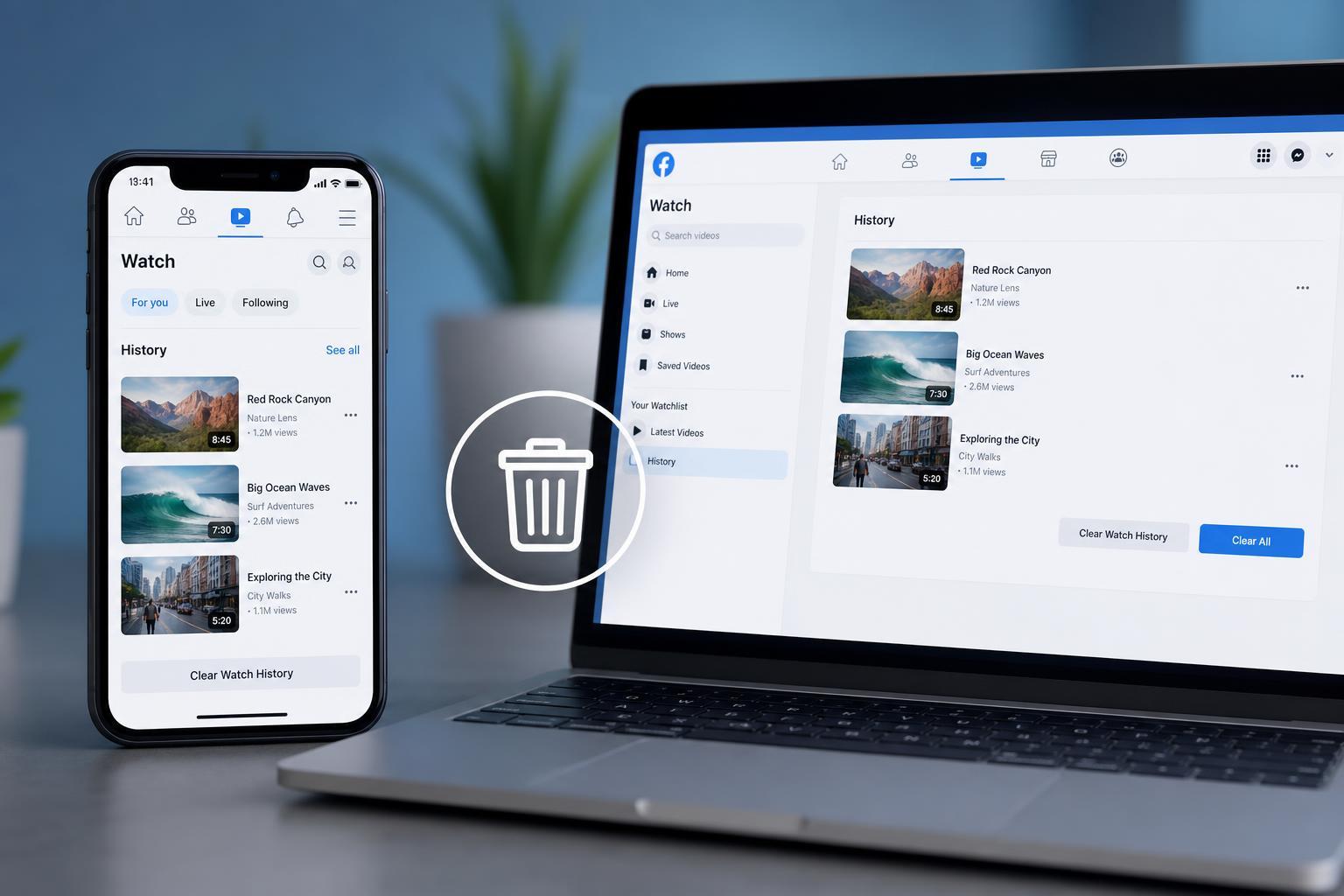
What Facebook Watch History Actually Is
Facebook does not always label this area as a separate "Watch history" page the way some other apps do. In many cases, your viewing activity is stored inside your Facebook activity log or recent video history, and that activity can influence future recommendations.
How to Delete Facebook Watch History on Mobile
The mobile app is the most common place to manage Watch activity. The menu names may vary slightly between Android and iPhone, but the steps are similar.
- Open the Facebook app and sign in if needed.
- Tap the Menu button, usually shown as three horizontal lines.
- Go to Settings & privacy, then tap Settings.
- Scroll to the Activity section and open Activity log.
- Look for videos you watched, watch history, or recently watched activity.
- Tap the menu next to a video entry and choose Delete or Remove from history.
If you only see broad activity categories, open the video-related section and remove entries one by one. Facebook often lets you delete individual items rather than clearing everything with one button.
How to Delete Facebook Watch History on Desktop
On a computer, Facebook often provides a clearer view of your activity log, which makes it easier to remove watched videos.
- Open Facebook in a web browser and sign in.
- Click your profile picture or the Menu icon.
- Open Settings & privacy, then choose Activity log.
- Find the section for videos you watched or Watch history.
- Select the video entry you want to remove.
- Click the options menu next to the item and choose Delete or Remove from history.
If you are using Facebook in a browser and the layout looks different, try opening the Activity log from your profile page. Facebook frequently reorganizes the menu, but the activity log remains the main place to manage viewing history.
How to Remove a Single Watch Item
If you only want to delete one video from your history, this is usually the best option. It removes that item without affecting everything else you have watched.
- Useful when one video keeps affecting your recommendations
- Safer than deleting broader activity categories
- Good if you want to keep most of your Watch history intact
After removing a video, it may take some time before Facebook updates recommendations across your feed and Watch tab.
Can You Clear All Facebook Watch History at Once?
In some accounts and app versions, Facebook does not offer a simple one-click button to erase all Watch history. Instead, you may need to delete items individually or clear broader activity data from the Activity log.
If your goal is to reduce recommendations rather than erase every trace of activity, deleting the most recent or most relevant videos is usually enough.
How to Stop Facebook From Using Watch Activity in the Future
You cannot always fully disable Facebook from tracking Watch activity, but you can reduce how much it influences your feed by adjusting your habits and content controls.
- Use the options menu on videos you do not want to see again and choose Not interested when available.
- Unlike or unfollow pages that repeatedly post unwanted video content.
- Review your ad preferences and feed preferences if recommendations feel too repetitive.
- Clear watched items periodically if you want a fresher recommendation feed.
If You Do Not See the Option You Expected
If the Delete or Remove option is missing, the most likely reasons are that Facebook has changed the menu layout, you are in the wrong activity section, or the item is being shown under a different category such as recent activity or videos watched.
- Check Activity log instead of the Watch tab only
- Try the desktop version if the mobile app is confusing
- Update the Facebook app if menus look outdated
- Use the search or filters inside Activity log to narrow the results
If Facebook still does not show a way to remove the item, wait and check again later. Menu changes and account-specific layouts can affect what appears.
What to Expect After Deleting Watch History
Deleting Facebook Watch history does not always instantly change every recommendation. The Watch tab, home feed, and suggested videos may still reflect older activity for a while, especially if you continue watching similar content.
For the best results, combine history cleanup with better feed controls, such as marking unwanted videos as not interesting and unfollowing sources you no longer want to see.





