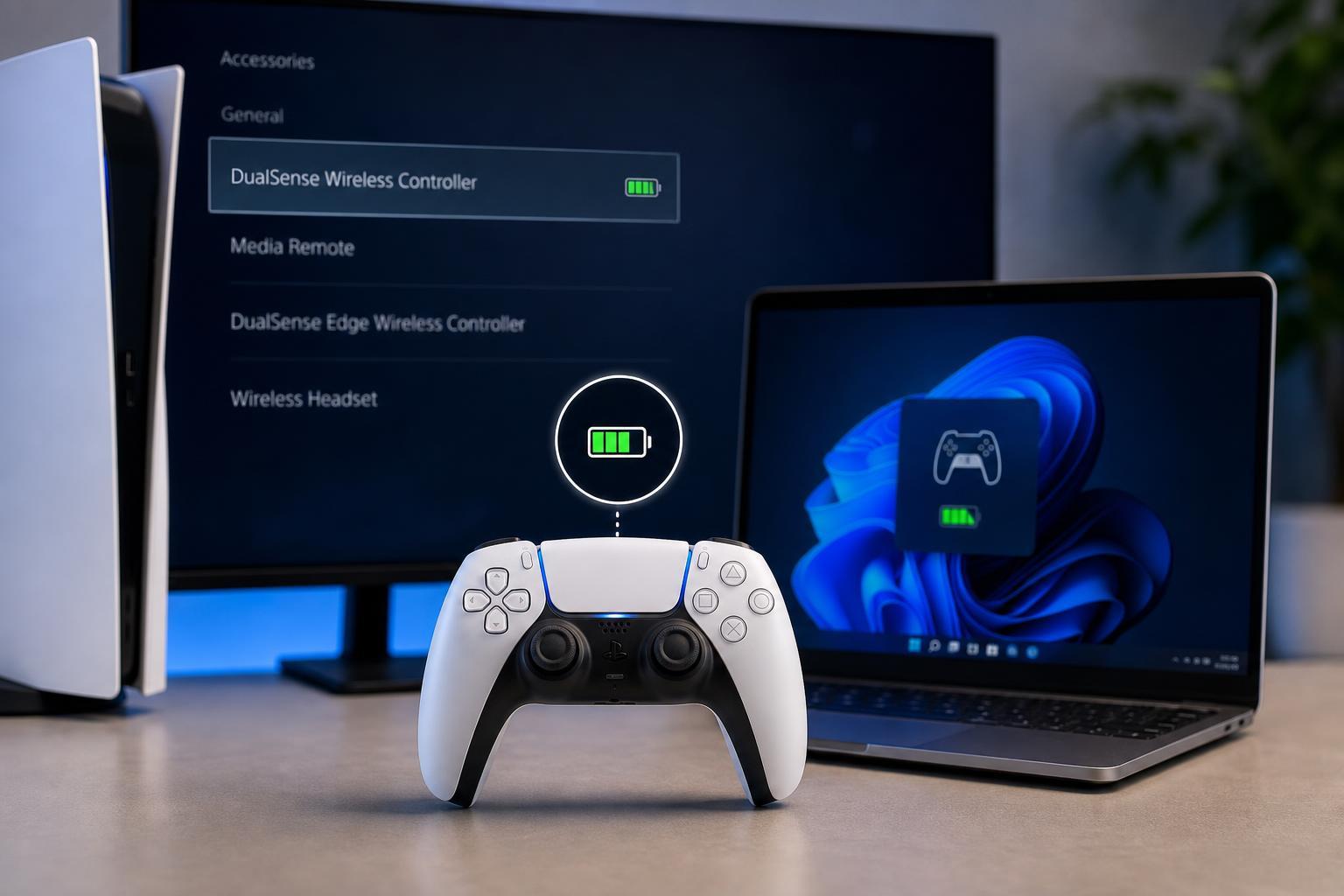
The DualSense controller does not have a physical battery meter on the device itself, so the easiest way to check its charge is through the system it is connected to. On PS5, the battery level is built into the quick menu. On PC, the method depends on how you are connected and what software you are using.
If you only need a quick battery check, this guide shows the most reliable places to look on both PS5 and PC, along with a few limitations that can affect the reading.
Check DualSense Battery on a PS5
- Press the PS button on the DualSense controller to open the Control Center.
- Move to the Accessories icon, which shows your connected controllers and accessories.
- Select the DualSense controller to view its battery level.
- Look for the battery indicator, which usually appears as a small icon with charge bars or a percentage-style visual depending on the system interface.
If the controller is charging, you may also see a charging symbol next to the battery icon. This makes it easy to tell whether the controller is actively gaining power or simply connected by cable.
Check DualSense Battery on PC
On PC, there is no single universal battery screen for the DualSense controller. The battery level you can see depends on whether you are using Bluetooth, USB, Steam, or another game launcher.
- Steam can show battery information for connected controllers in its controller settings or overlay, depending on your setup.
- Windows itself does not always display a clear DualSense battery percentage in the same way it does for some other wireless devices.
- If the controller is connected through a third-party app, that software may show the battery status instead.
- If you use Steam, open Steam and go to the controller-related settings or controller overview area.
- Check whether Steam shows the DualSense under connected devices with a battery icon or charge level.
- If you are not using Steam, look in the software you are launching the game through, or check any controller utility you installed for battery details.
- If no battery status appears, disconnect and reconnect the controller to refresh the connection.
What the Battery Indicator Can and Cannot Tell You
- It can show whether the controller is low, partly charged, or nearly full.
- It can confirm whether the controller is charging when connected by USB.
- It may not update instantly, especially right after plugging or unplugging the cable.
- It may be unavailable on PC if the software does not expose controller battery data.
If the Battery Status Does Not Appear
- Make sure the controller is actually connected to the PS5 or PC and not in a stale Bluetooth state.
- Try opening the accessory or controller menu again after a few seconds.
- On PC, check whether Steam or another controller app is handling the connection instead of Windows.
- Use a USB cable if you want to confirm the controller is charging, even if the battery display is missing.
Best Way to Monitor Battery Long Term
If you often use your DualSense on both PS5 and PC, the simplest habit is to check the battery through the device or app you use most. On PS5, the Control Center is the fastest option. On PC, Steam is usually the most convenient place to look if it is your main launcher.
If you want, I can also turn this into a step-by-step troubleshooting guide for when the DualSense battery level is not showing up on PS5 or PC.