You can make Chrome, Edge, and Firefox report a different location to websites without changing your device’s real GPS position. This is useful for testing local search results, checking region-specific features, or seeing how a site behaves for users in another place.
The exact method depends on what you want to change. Some websites use browser-based geolocation, while others also look at your IP address, so changing location in the browser does not always make a site think you are physically somewhere else.
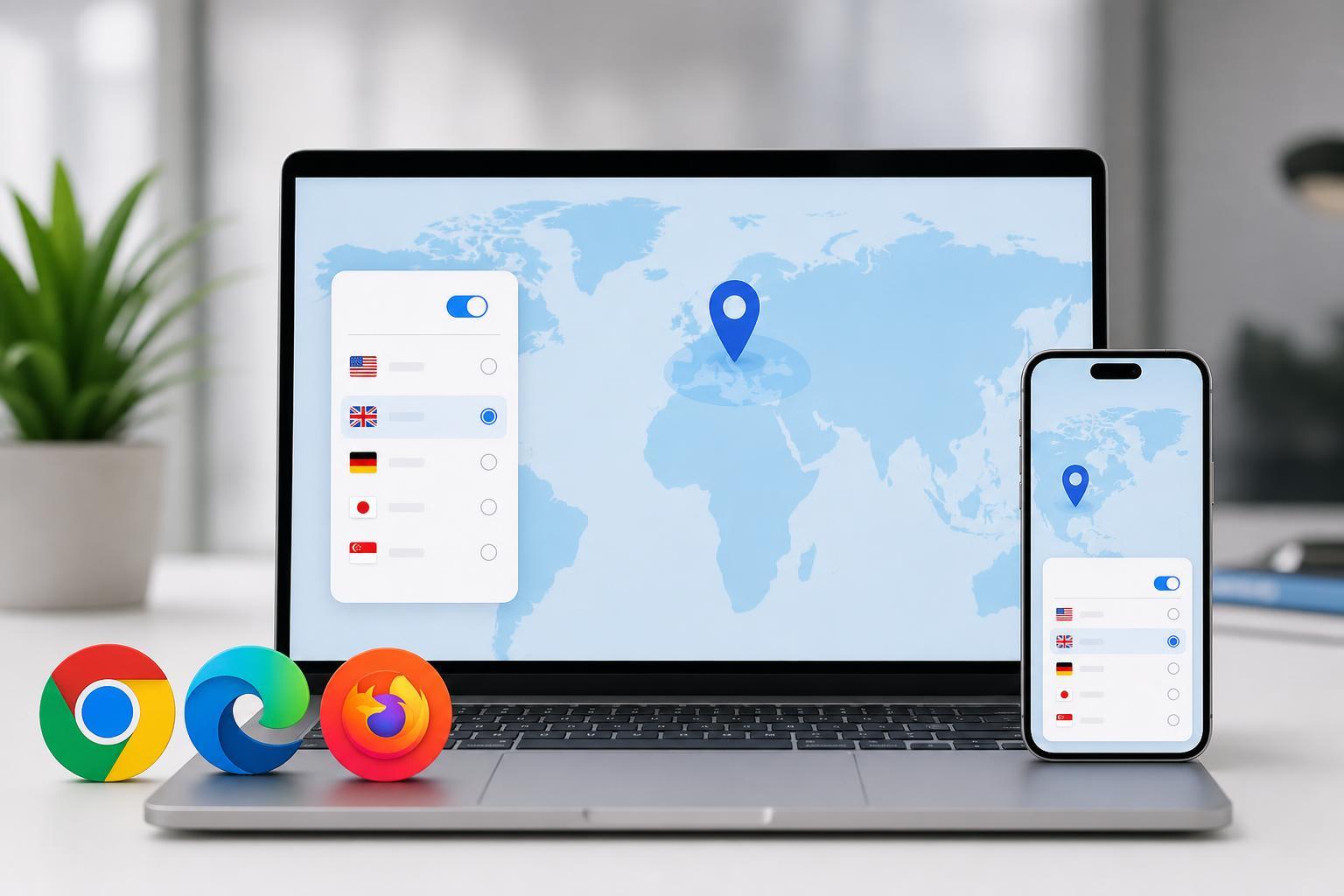
What Browser Location Spoofing Actually Changes
Browsers can provide a website with an approximate location through the Geolocation API. That location is usually based on browser permissions, Wi-Fi data, or manually entered developer-tool coordinates. If you override it, the website will read the fake coordinates you set instead of your normal location.
Before You Start
- You need access to the browser’s developer tools.
- You must allow the site to request your location if you want the override to take effect.
- The method is temporary and usually resets when you close the browser or refresh certain settings.
- Private browsing mode can still use the same developer-tool location override.
How to Change Location in Google Chrome
- Open Chrome and go to the website you want to test.
- Press Ctrl+Shift+I on Windows or Cmd+Option+I on Mac to open Developer Tools.
- Click the three-dot menu inside Developer Tools, then choose More tools > Sensors. If you do not see Sensors, use the Command Menu and search for it.
- In the Sensors panel, find Geolocation.
- Select a preset location or choose Other to enter custom latitude and longitude coordinates.
- Reload the page if the site does not update immediately.
- If the page asks for location permission, allow it so the fake geolocation can be used.
How to Change Location in Microsoft Edge
- Open Edge and visit the website you want to test.
- Press F12 or Ctrl+Shift+I to open Developer Tools.
- Open the Command Menu or the More tools menu and find Sensors.
- Set the Geolocation override to a preset city or custom coordinates.
- Refresh the page if needed.
- Grant location permission in the browser prompt if the website requests it.
Edge is Chromium-based, so the steps are very similar to Chrome. If you know how to do it in Chrome, the Edge process will feel nearly identical.
How to Fake Location in Firefox
- Open Firefox and load the website you want to test.
- Press F12 or Ctrl+Shift+I to open Developer Tools.
- Open the web console or toolbox menu.
- In the browser address bar, type about:config and press Enter if you need to adjust geolocation-related testing settings.
- For a quick override, use the developer console to set a mock geolocation through Firefox’s internal testing tools or extensions designed for location spoofing.
- Refresh the page and allow location access if prompted.
Firefox handles geolocation testing differently from Chrome and Edge, and the exact menu placement can vary by version. If the built-in override is not obvious in your version, a testing extension or the browser’s configuration tools may be needed.
If You Need a More Complete Location Change
- Browser geolocation override: changes what the website sees from the Geolocation API.
- VPN: changes your visible IP address and may affect region checks.
- Proxy: can also change IP-based location, though quality varies.
- Account region settings: some services use your account country or storefront region.
- Mobile device location services: may need to be changed separately on phones and tablets.
Troubleshooting Common Problems
- The website keeps showing your real location: the site may be using your IP address instead of browser geolocation.
- The fake location does not stick after refresh: some pages reset the location after reloading or when you clear developer-tool overrides.
- The site says location access is blocked: check the browser permission icon and allow location for that site.
- Maps or nearby results do not change: clear the site’s cookies or sign out, then test again.
- Firefox options look different: your version may not include the same built-in tools as Chrome-based browsers.
When to Use a VPN Instead
Use browser location spoofing when you only need to change what a website sees from the browser’s geolocation request. Use a VPN when the site uses your IP address to determine region, pricing, or content availability.
For the most realistic test, you may need both: a fake browser location and a network-level location change. Even then, some services can still identify your account region or device settings.
Which Method Should You Use?
- Use Chrome or Edge developer tools if you want the fastest built-in geolocation test.
- Use Firefox testing tools or extensions if you need to spoof location in Firefox.
- Use a VPN if the site is checking your IP address instead of browser geolocation.
- Use both browser spoofing and a VPN if you are testing region-sensitive content or local search behavior.
For most browser testing, the built-in developer-tool override is the simplest and safest option because it changes only the location data sent by the browser.