
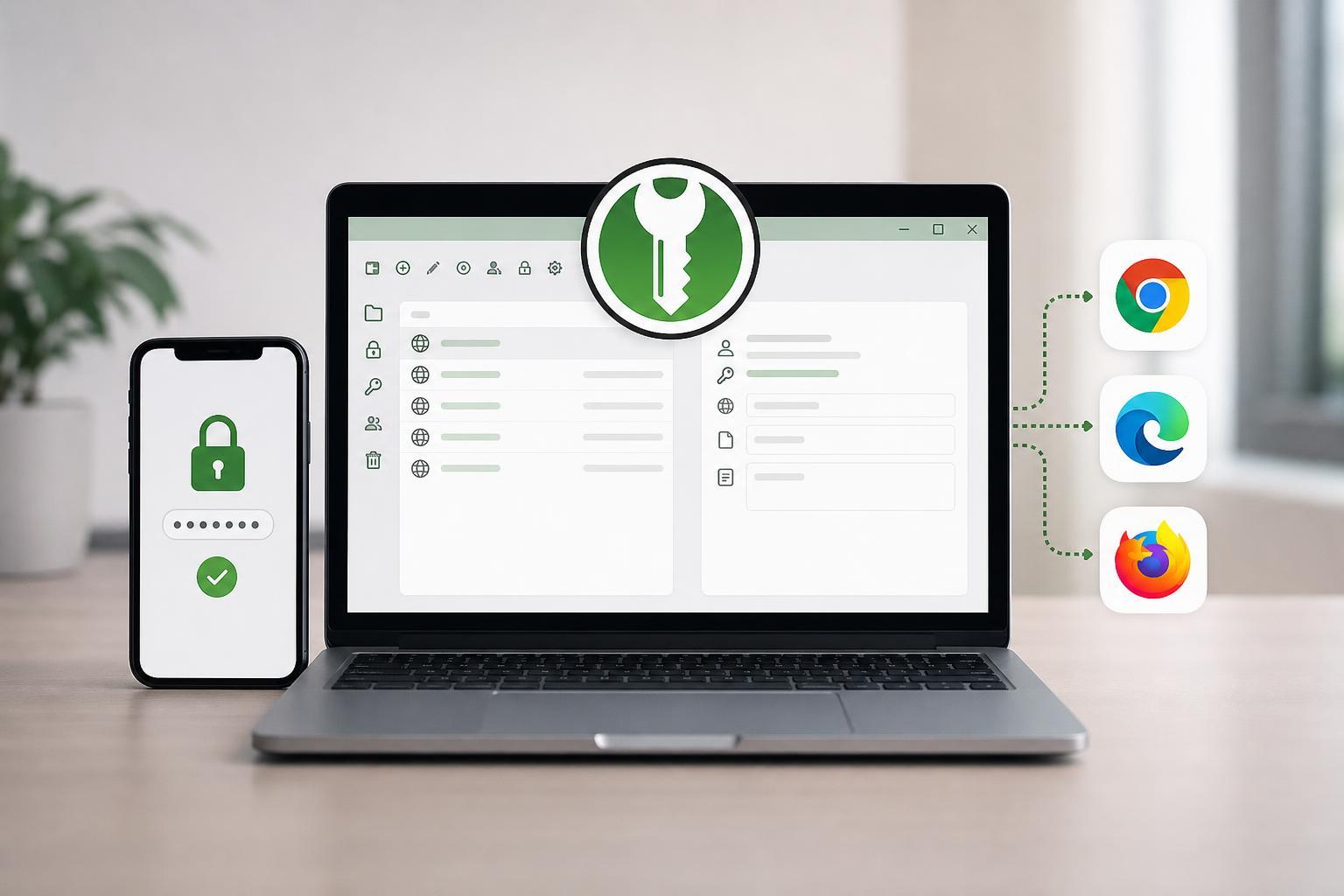
KeePassXC can work alongside Chrome, Microsoft Edge, and Firefox to make logging in much faster without giving up control of your passwords. The setup uses the KeePassXC-Browser extension and a browser connection inside KeePassXC, which lets you autofill supported websites and save new credentials with less manual copying.
This guide walks through the full setup for all three browsers, plus the common issues that stop the extension from connecting properly.
What You Need Before You Start
- KeePassXC installed on your computer
- A password database already created and unlocked in KeePassXC
- One of the supported browsers: Chrome, Edge, or Firefox
- The KeePassXC-Browser extension installed in each browser you want to use
Install the KeePassXC-Browser Extension
The browser extension is what allows your browser to request logins from KeePassXC. Install it from the official extension store for each browser you use.
- Open your browser’s extension store.
- Search for KeePassXC-Browser.
- Install the official extension published for KeePassXC.
- If you use more than one browser, repeat the installation in each one.
Enable Browser Integration in KeePassXC
KeePassXC must be allowed to accept browser connections before the extension can pair with it. Once this is enabled, the extension can securely talk to the desktop app on your computer.
- Open KeePassXC.
- Go to Tools, then Settings.
- Open the Browser Integration section.
- Enable browser integration.
- Make sure the option for your browser family is allowed if KeePassXC shows browser-specific settings.
- Leave KeePassXC running while you connect the extension.
Connect Chrome, Edge, or Firefox to KeePassXC
After the extension is installed and browser integration is enabled, pair the browser with KeePassXC. This is the step that creates the trusted connection between the two apps.
- Open KeePassXC and unlock your password database.
- Open your browser and click the KeePassXC-Browser extension icon.
- Choose the option to connect or pair with KeePassXC.
- When KeePassXC prompts you, approve the connection.
- Give the browser connection a recognizable name if prompted, such as Chrome, Edge, or Firefox.
- Test the connection by opening a login page for a site stored in your database.
Using Autofill in Chrome, Edge, and Firefox
Once paired, the extension can suggest matching entries on login pages and fill credentials into supported fields. The exact behavior depends on the website and how its login form is built.
- Open a login page for a site saved in KeePassXC.
- Click the KeePassXC-Browser icon or use the autofill prompt if it appears.
- Pick the matching entry if more than one credential is available.
- Allow the extension to fill the username and password fields.
- Submit the form manually if the site does not log in automatically.
Saving New Logins to KeePassXC
When you create a new account or update a password, the extension can help you store the details in KeePassXC instead of saving them only in the browser.
- Sign in or create the account in your browser.
- When prompted by the extension, choose to save the new login to KeePassXC.
- Pick the correct database and entry group if asked.
- Confirm the username, password, and website address before saving.
- Open KeePassXC later to check that the entry was created correctly.
If the Browser Will Not Connect
If pairing fails, the problem is usually caused by a disabled extension, KeePassXC not running, or security software blocking the local connection.
- Make sure KeePassXC is open and your database is unlocked.
- Confirm that the KeePassXC-Browser extension is installed and enabled.
- Check that browser integration is turned on inside KeePassXC.
- Close and reopen the browser after changing settings.
- Look for firewall, privacy, or antivirus tools that may block local app connections.
- If needed, remove the pairing and connect again from scratch.
Tips for Using KeePassXC Across Multiple Browsers
You can pair the same KeePassXC database with more than one browser. That is useful if you use Chrome at work, Firefox at home, and Edge for a secondary profile.
- Pair each browser separately rather than reusing one setup file.
- Keep browser extensions updated so compatibility stays current.
- Use consistent entry titles and URLs in KeePassXC so matches are easy to find.
- If you use browser profiles, connect the extension in each profile you want to use.
- Lock KeePassXC when you are done if you leave your computer unattended.
When to Use Browser Integration and When Not To
Browser integration is best when you want quick logins on trusted desktop browsers. If you are using a shared computer or prefer to keep your password manager completely separate from the browser, you may want to use KeePassXC without autofill and copy credentials manually instead.





