The Clipboard in Microsoft Office lets you copy and paste text, images, and other content more efficiently. In Office desktop apps, you can also store multiple copied items in the Office Clipboard and reuse them across documents and programs.
If you only use standard copy and paste, you may be missing features that can save time when moving content between Word, Excel, PowerPoint, and Outlook.
What the Office Clipboard Does
The Office Clipboard is different from the basic Windows clipboard. Windows normally keeps the most recent item you copied, while the Office Clipboard can hold multiple copied items at once and let you paste them later.
This is especially helpful when you are gathering content from different places, building reports, assembling slides, or moving repeated elements between Office apps.
How to Open the Clipboard Pane in Microsoft Office
- Open a Microsoft Office desktop app such as Word, Excel, or PowerPoint.
- Go to the Home tab on the ribbon.
- Look for the Clipboard group.
- Click the small dialog box launcher arrow in the bottom-right corner of the Clipboard group.
The Clipboard pane usually appears on the left side of the window. It shows the items you have copied recently, up to the limit supported by Office.
How to Copy Items to the Office Clipboard
Any time you copy content in an Office app, it can be added to the Office Clipboard automatically.
- Select the text, image, table, or object you want to copy.
- Press Ctrl + C, or use the Copy command from the ribbon or right-click menu.
- Repeat the process for other items you want to keep on the Clipboard.
Each copied item appears in the Clipboard pane. You can keep copying content from Word, Excel, PowerPoint, Outlook, or even some other programs, depending on the type of item.
How to Paste from the Clipboard
- Place the cursor where you want the content to appear.
- Open the Clipboard pane if it is not already visible.
- Click the item you want to paste from the list.
The item is inserted at the cursor location in the current document, worksheet, or presentation. You can paste the same item multiple times if needed.
You can also paste normally with Ctrl + V. That pastes the most recently copied item from the standard clipboard, not necessarily a different older item stored in the Office Clipboard.
Clear, Delete, or Pin Clipboard Items
The Clipboard pane lets you manage stored items instead of keeping everything forever.
- To remove one item, click the arrow next to it in the Clipboard pane and choose Delete.
- To clear everything, use the Clear All option in the pane.
- If your version of Office supports pinning, pin an item you want to keep available longer.
Using the Clipboard Across Word, Excel, PowerPoint, and Outlook
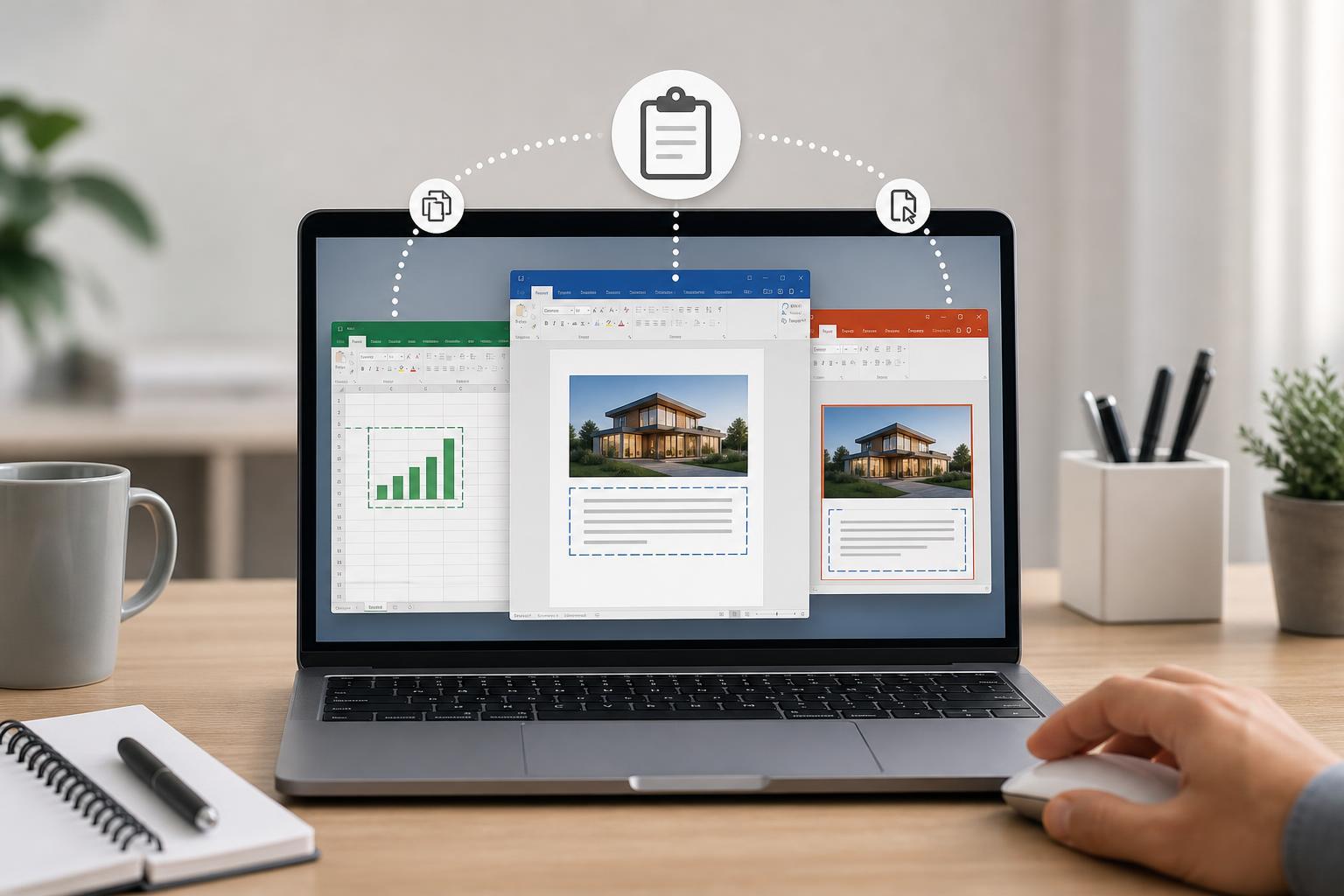
One advantage of the Office Clipboard is that it can help move content between apps. For example, you can copy text from Word, a chart from Excel, and an image from a browser, then paste each item where needed.
- Word: useful for collecting text snippets, headings, and formatting elements
- Excel: helpful for copying cell ranges, charts, and repeated formulas
- PowerPoint: useful for assembling slide content from different sources
- Outlook: helpful for reusing text blocks or formatted content in emails
If the Clipboard Pane Does Not Appear
If you click the Clipboard launcher and nothing opens, or the pane closes unexpectedly, a few settings may be affecting it.
- The Office Clipboard may already be hidden behind the main window or docked in a narrow area
- Your Office app may be running in a simplified mode with limited features
- Another window may be in the way
- The Office installation may need updates if the feature behaves unusually
If the pane appears but does not seem to keep items, make sure you are using a desktop Office app and not a version that only supports basic copy and paste.
When to Use the Office Clipboard Instead of Normal Copy and Paste
Use the Office Clipboard when you need to collect multiple items before placing them into a document. If you only need one quick copy-and-paste action, the normal clipboard is usually enough.
Quick Workflow Example
- Open the Clipboard pane in Word.
- Copy a heading from one document, a paragraph from another, and an image from a third source.
- Switch back to the target document.
- Click each item in the Clipboard pane in the order you want it pasted.
- Format the inserted content as needed.