
If Microsoft Authenticator is showing a location that does not match where you are, it can be confusing and a little alarming. In many cases, the sign-in request is still legitimate, but the location shown is based on network data, VPN routing, mobile carrier information, or your Microsoft account activity rather than your exact physical address.
This guide explains why the location can be wrong, how to check whether the prompt is safe, and what you can do to make location-based sign-ins more accurate.
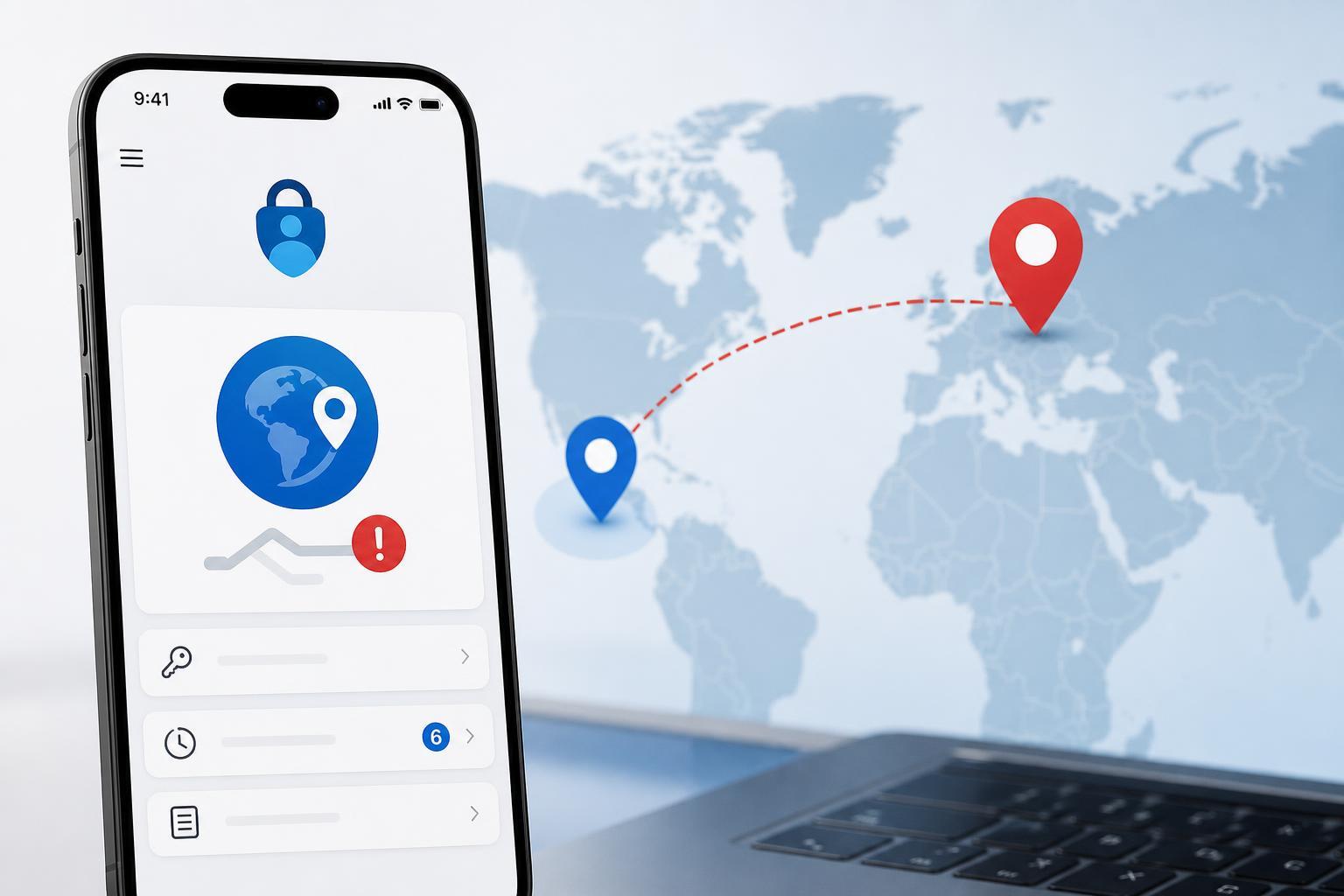
Why Microsoft Authenticator May Show the Wrong Location
Microsoft Authenticator does not usually determine your exact GPS position for every sign-in request. Instead, it may rely on the public IP address, network location, or other signals tied to the device or account session. That means the location can be off by a few miles, a city, or even much farther if you are using a VPN, mobile hotspot, carrier network, or corporate network.
- You are connected through a VPN or proxy server.
- Your mobile carrier routes traffic through a different city or region.
- Your home or office internet provider assigns an IP address that maps to another location.
- You are on a corporate or school network with centralized internet routing.
- Microsoft is using the sign-in location associated with the session, not your phone's physical location.
First Check Whether the Prompt Is Legitimate
Before changing settings, confirm that the request really belongs to you. A wrong location does not automatically mean the notification is fake, and a correct-looking location does not guarantee safety.
- Check whether you recently tried to sign in to a Microsoft account, work account, or app that uses Microsoft authentication.
- Compare the app name and sign-in details in the prompt with what you were doing.
- If you receive a prompt unexpectedly, do not approve it just because the location seems close.
- If the request was not yours, deny it and change your password immediately.
Turn Off VPNs and Proxies Temporarily
One of the most common reasons for a wrong location is a VPN. Microsoft may see the VPN server's location instead of your real one. If you only use the VPN for privacy or streaming, disconnect it and try the sign-in again.
- Disconnect from any VPN app or browser-based proxy.
- If you use a work VPN, note that you may need to stay disconnected only briefly for testing.
- Try the Microsoft sign-in again and compare the new location.
- If the location becomes accurate, the VPN was the cause.
Check Your Network Type
Different networks can produce very different location results. Mobile data often maps poorly, and Wi-Fi networks can also point to a nearby city rather than your exact address.
- Try switching from Wi-Fi to mobile data, or from mobile data to Wi-Fi.
- Test from a different internet connection if available.
- If you are on a work or school network, ask whether the network uses a shared gateway or security appliance that could affect geolocation.
Make Sure Location Services Are Enabled on Your Phone
Some Microsoft sign-in prompts can use your phone's location-related signals to help verify where you are. If location services are disabled, restricted, or inaccurate, the app may have fewer signals to work with.
- Open your phone's Settings app.
- Check that Location Services are turned on.
- Make sure Microsoft Authenticator has the required permissions.
- If your phone offers High Accuracy or Precise Location, enable it when available.
- Try the sign-in again after changing the permission settings.
Check Time, Date, and Account Sync
A wrong location message can sometimes appear alongside other account or authentication issues. If your phone's time, date, or Microsoft account sync is out of step, the app may behave unpredictably or delay prompts.
- Confirm that your phone is using automatic date and time.
- Open Microsoft Authenticator and make sure the account is still signed in properly.
- If you recently changed phones or restored a backup, verify that the account is syncing correctly.
- Sign out and back in only if you are sure you have recovery options available.
Update Microsoft Authenticator and Your Phone
Outdated app versions can cause strange behavior, including delayed notifications or incorrect account handling. Updating both the app and the operating system can clear up bugs that affect sign-in prompts.
- Install the latest Microsoft Authenticator update from the App Store or Google Play.
- Check for phone operating system updates.
- After updating, try another sign-in request.
- If the problem was caused by a bug, the new version may fix it without further action.
Review Microsoft Account Security Info
If Microsoft is showing a strange location repeatedly, it is worth checking your account activity and security settings. This helps you confirm whether the prompt is simply mislocated or whether someone else is trying to sign in.
- Sign in to your Microsoft account from a trusted device.
- Open the security or recent activity page.
- Review recent sign-in attempts and their locations.
- Look for unfamiliar devices, times, or countries.
- If anything looks suspicious, change your password and sign out of other sessions.
When the Wrong Location Keeps Appearing
If the location is always wrong, the cause is usually environmental rather than a broken app. The most common long-term causes are a VPN, carrier routing, office network routing, or inaccurate IP geolocation data tied to your internet connection.
- Use a different network and compare the result.
- Disable any VPN, proxy, or privacy-routing app.
- If possible, test on a different phone to see whether the location changes.
- Contact your internet provider if the public IP location is consistently far off.
- If this is a work account, ask your IT team whether the network is known to affect sign-in location detection.
How to Decide Whether to Ignore It or Investigate Further
A location mismatch alone is not always a problem. If the app is working, the prompt is expected, and the location is only slightly off, you may not need to do anything. But if the request is unexpected, repeated, or paired with unknown sign-in activity, investigate immediately.
- Likely harmless: the sign-in request matches something you just did, and the location is only somewhat off.
- Worth checking: the location is very far away, but you use a VPN or mobile network.
- Potentially serious: you receive prompts you did not start, especially from unfamiliar locations or devices.
What to Do If You Suspect Account Abuse
If the location is wrong and the sign-in is not yours, treat it as a security issue. Attackers often trigger repeated approval prompts hoping someone will accept one by accident.
- Deny the request in Microsoft Authenticator.
- Change your Microsoft account password immediately.
- Review recent activity and sign out of other sessions if available.
- Check your recovery email and phone number for changes.
- Enable stronger security options, such as app-based approval and additional verification methods.
A Practical Way to Test the Cause
If you want to narrow it down quickly, test the same sign-in under different conditions. Sign in once on your regular network, then try again after turning off VPN, then try on a different connection. If the location changes with the network, the problem is almost certainly related to IP geolocation rather than Microsoft Authenticator itself.
When to Contact Microsoft or Your IT Department
Contact Microsoft support or your organization's IT team if the wrong location keeps appearing after you've ruled out VPNs, proxies, and network issues, or if the account shows suspicious activity you cannot explain. For managed work accounts, IT may be able to confirm whether the behavior is expected on your network or whether a security rule is causing the mismatch.
What This Means for You
Microsoft Authenticator showing the wrong location is usually caused by the way sign-in location is inferred, not by a faulty phone. The fastest fixes are to disable VPNs, test a different network, confirm app permissions, and review account security activity. If the prompt is unexpected, focus on security first and treat the location as only one clue, not proof that the request is safe.





