If your Samsung TV keeps talking to you, the feature you need to disable is usually Voice Guide, Voice Assistant, or a related accessibility option. Samsung uses slightly different names depending on the TV model and software version, so the exact menu path can vary.
This guide covers six practical ways to turn it off, from quick remote shortcuts to the settings menus that work on most Samsung TVs.
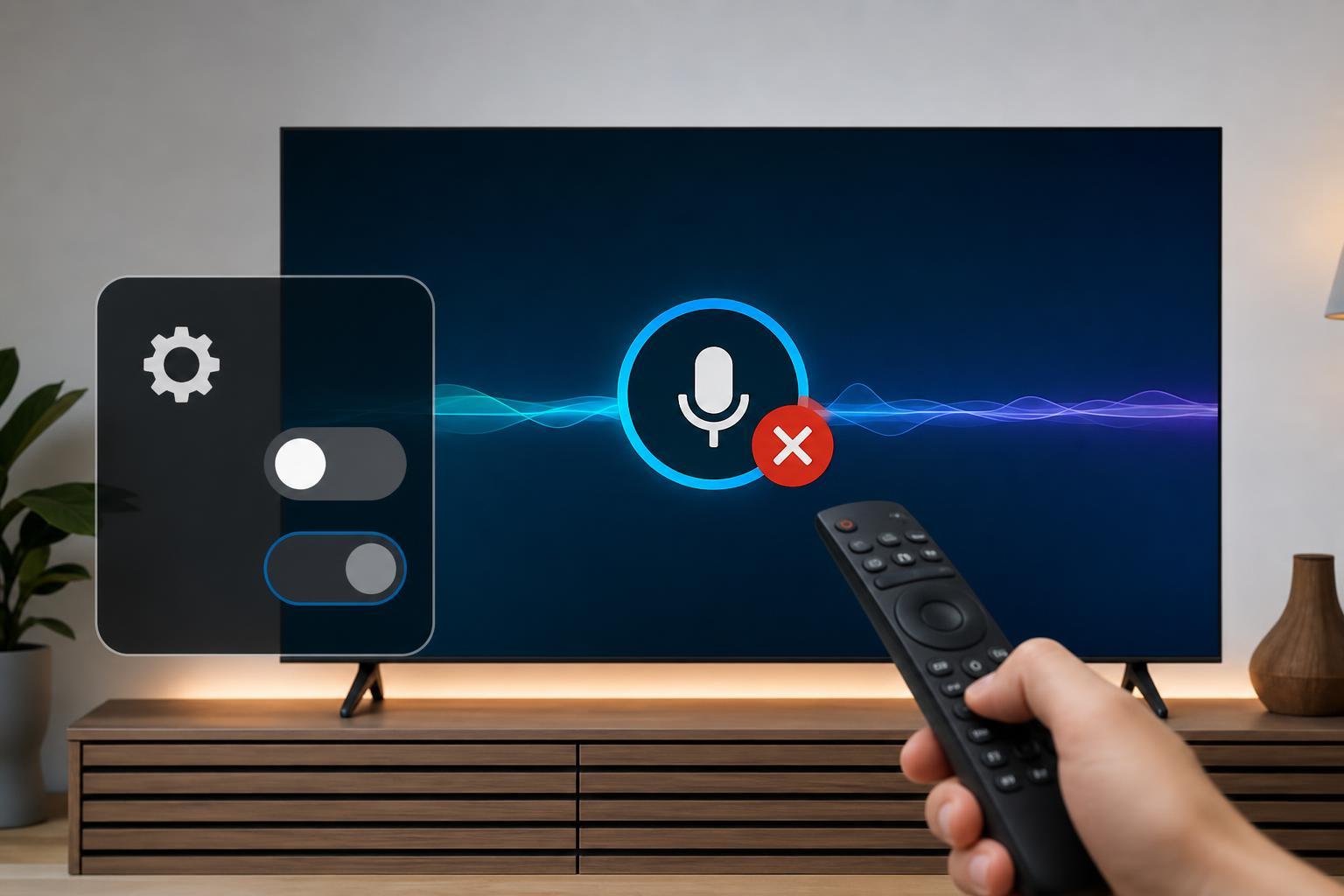
What Samsung’s Voice Assistant and Voice Guide Usually Mean
On many Samsung TVs, the spoken narration you hear is part of the Accessibility features rather than a smart assistant like Bixby alone. The most common feature is Voice Guide, which reads menu items and on-screen text aloud. In some cases, you may also be hearing audio feedback from other accessibility settings.
1. Use the Accessibility Shortcut on the Remote
- Press and hold the Volume button on the Samsung remote for a few seconds.
- Look for an accessibility menu or a Voice Guide prompt on screen.
- Select Voice Guide and turn it Off.
- If your remote has a dedicated Accessibility or Settings shortcut, use that if prompted.
This is often the fastest method because Samsung TVs may expose Voice Guide directly through an accessibility shortcut.
2. Turn It Off in the TV Settings Menu
- Press Home on the Samsung remote.
- Open Settings.
- Go to General & Privacy or General, depending on your model.
- Select Accessibility.
- Open Voice Guide Settings.
- Turn Voice Guide Off.
This is the most reliable method if the shortcut is not available or does not work on your TV.
3. Check the Voice Guide Volume or Speech Options
Some Samsung TVs do not label the feature exactly as Voice Guide in every menu. If the TV still talks after you think you turned it off, look for related speech or audio guidance options under Accessibility.
- Voice Guide
- Audio Description
- Speaking speed or speech output settings
- TalkBack or screen reader-related options on some models
If more than one accessibility feature is enabled, disabling only one of them may not fully stop the spoken narration.
4. Disable Bixby or Other Voice Features
- Open Settings on the TV.
- Go to General & Privacy or the section related to Voice.
- Look for Bixby settings, Voice Wake-Up, or Smart Voice features.
- Turn off any voice activation or voice feedback options you do not want.
This does not always control the menu narration, but it can stop the TV from responding to voice commands or producing related voice prompts.
5. Use the Accessibility Menu from the Quick Panel
- Press and hold the Settings or gear button on the remote, if available.
- Open the Quick Settings or shortcut panel.
- Find Accessibility.
- Select Voice Guide and switch it Off.
Some newer Samsung interfaces make Accessibility available through a quick panel rather than the full settings app, which can save time.
6. Reset Accessibility Settings if the Voice Feature Keeps Returning
- Open Settings.
- Go to Accessibility.
- Look for an option to reset accessibility settings or restore defaults.
- Confirm the reset, then check whether Voice Guide is disabled.
If the setting keeps turning back on, a corrupted configuration or accidental button presses may be re-enabling it. Resetting accessibility settings can clear that behavior without affecting the entire TV setup.
How to Tell Which Feature Is Active
- If the TV reads every menu item aloud, Voice Guide is likely on.
- If only movies or shows have narration, the issue may be Audio Description from the content itself.
- If the TV responds to spoken commands or wakes up from voice input, Bixby or voice control may be enabled.
- If the TV announces button presses or cursor movement, that is usually an accessibility speech setting.
If None of These Methods Work
If the TV still speaks after you have checked the accessibility menus, try these checks:
- Make sure you are signed in with the correct Samsung account if your TV syncs settings across devices.
- Check whether a connected soundbar or external device has its own voice accessibility setting.
- Confirm that the spoken audio is not coming from the streaming app itself.
- Update the TV software if the menu labels or accessibility controls seem broken.
In rare cases, the feature may be controlled by an app or by settings that were synchronized from another Samsung device.
Which Fix Should You Try First?
Start with the Accessibility menu in Settings, because that is the most dependable way to turn off Voice Guide on most Samsung TVs. If that does not work, use the remote shortcut and then check for Bixby or other voice-related settings. If the narration only happens in certain shows or apps, the issue is likely the content’s own audio description track rather than the TV’s system voice.