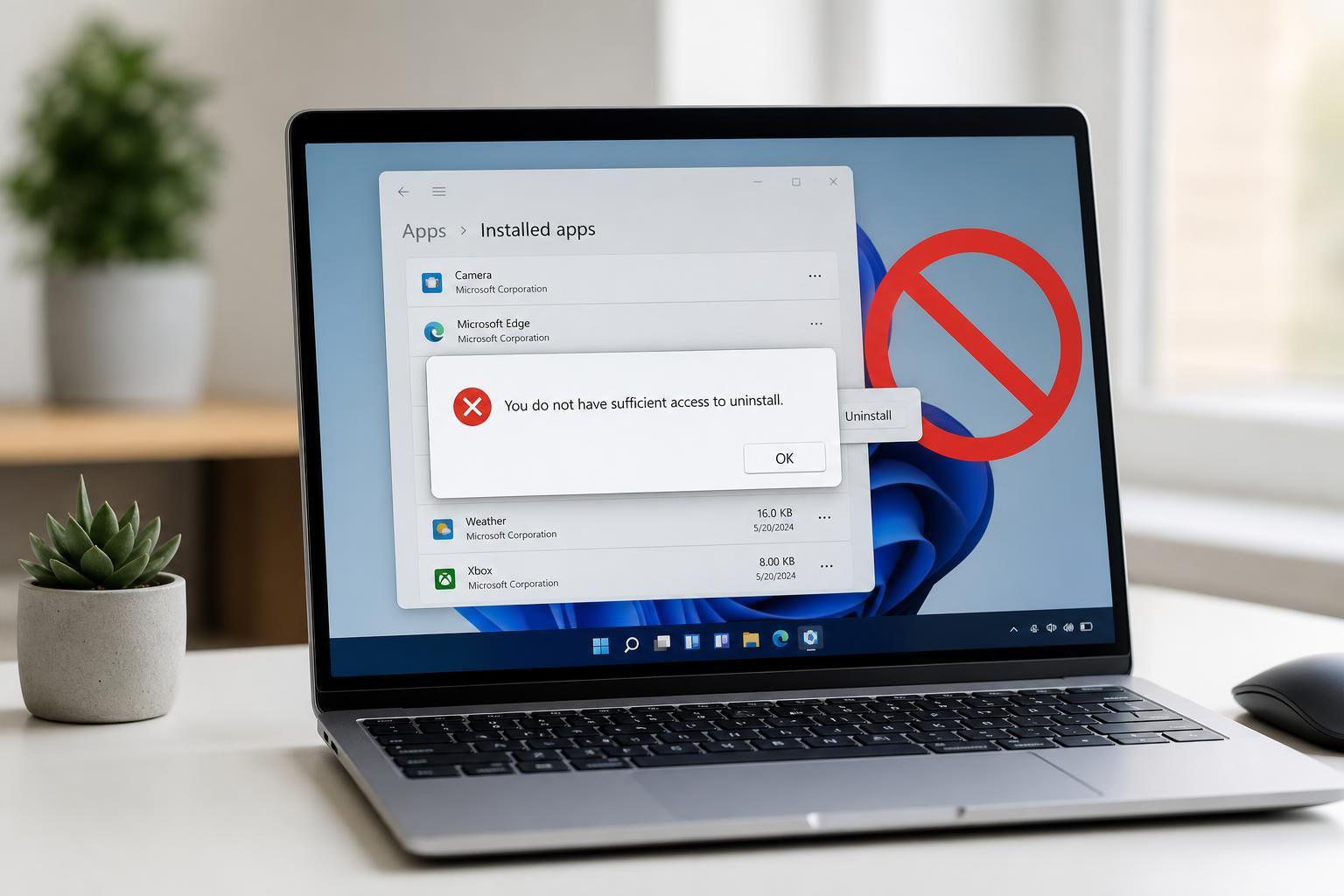
When Windows refuses to remove a program and shows “You do not have sufficient access to uninstall,” the problem is usually caused by permissions, a broken uninstall entry, or software that is still running in the background. The good news is that you can usually remove the program without reinstalling Windows.
This guide walks through six fixes, starting with the simplest checks and moving to more advanced methods if the uninstall process is still blocked.
1. Run the Uninstaller as an Administrator
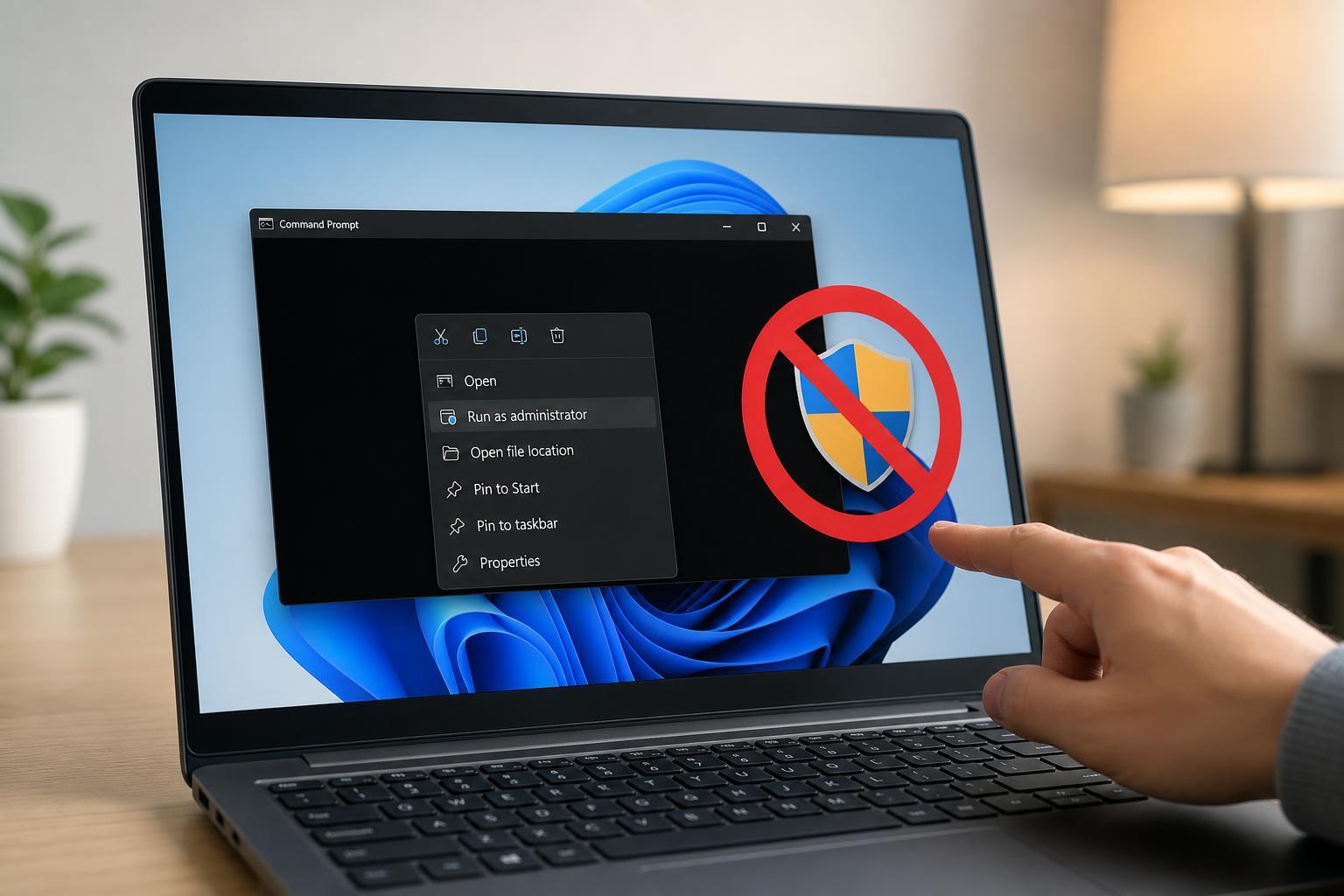
Some uninstallers need elevated permissions to remove program files, registry entries, or services. If you launched the uninstall from a normal user account, Windows may block the action even if you are the only person using the PC.
- Close the uninstall window if it is open.
- Right-click the app’s uninstaller, shortcut, or setup file.
- Select Run as administrator.
- Try the uninstall again and follow the prompts.
2. Use Windows Settings or Control Panel Instead of the App’s Uninstaller
Some programs include a broken or outdated uninstall shortcut, but Windows can still remove them through its own app management screens.
- Open Settings and go to Apps > Installed apps in Windows 11, or Apps & features in Windows 10.
- Find the program in the list.
- Select the three-dot menu or the app entry, then choose Uninstall.
- If that does not work, open Control Panel > Programs and Features and try uninstalling it there.
3. Close the Program and End Related Processes
If the app is still running, Windows may refuse to uninstall it because files are in use. This is common with launchers, updaters, game clients, and background utilities.
- Press Ctrl + Shift + Esc to open Task Manager.
- Look for the app itself and any related helper processes.
- Select each one and choose End task.
- Try uninstalling the program again.
4. Reboot into Safe Mode and Uninstall the Program
Safe Mode starts Windows with only the basic drivers and services it needs. This can help if another process, startup item, or service is blocking the uninstall.
- Open Settings > System > Recovery in Windows 11, or use the advanced startup options in Windows 10.
- Choose Restart now under Advanced startup if needed.
- After the PC restarts, select Troubleshoot > Advanced options > Startup Settings > Restart.
- Press the number for Safe Mode.
- Once Windows starts in Safe Mode, try uninstalling the app again.
5. Use the Program’s Own Cleanup Tool or Reinstaller
Some software leaves behind a repair or cleanup utility in its installation folder, or offers a repair option that restores the missing uninstall components. This is especially common with older desktop software and some games.
- Check the program’s installation folder for a removal tool, cleanup tool, or uninstaller executable.
- If the original installer is available, run it again and see whether it offers Repair or Uninstall.
- If prompted, choose the uninstall or maintenance option instead of a fresh installation.
- After the cleanup finishes, remove any leftover entries from Apps or Programs and Features.
6. Remove the App with Microsoft’s Troubleshooter or a Third-Party Uninstaller
If Windows still refuses to remove the program, the uninstall entry itself may be damaged. Microsoft provides a Program Install and Uninstall troubleshooter that can repair broken install/uninstall records. Third-party uninstallers can also help when the built-in method fails.
- Download and run Microsoft’s Program Install and Uninstall troubleshooter if it is available for your version of Windows.
- Choose the uninstall problem option and select the app from the list.
- Follow the prompts to remove the broken uninstall entry or complete the removal.
- If needed, use a reputable third-party uninstaller to remove leftover files and registry entries after the app is gone.
If the Error Keeps Coming Back
If none of the six fixes work, the issue may be tied to permissions on the program folder, corruption in the Windows installer database, or a damaged user profile. At that point, it helps to identify the exact app and how it was installed.
- Store apps may need to be removed through Microsoft Store or PowerShell-based app commands.
- Enterprise or school-managed PCs may block removal through policy.
- Old software installed under a different user account may need to be removed from that account or by an administrator.
- Some security software must be fully disabled or uninstalled from its vendor’s removal tool before Windows will let you remove it.
If you want, I can also create a shorter step-by-step troubleshooting version, or a version tailored specifically for Windows 11 or Windows 10.