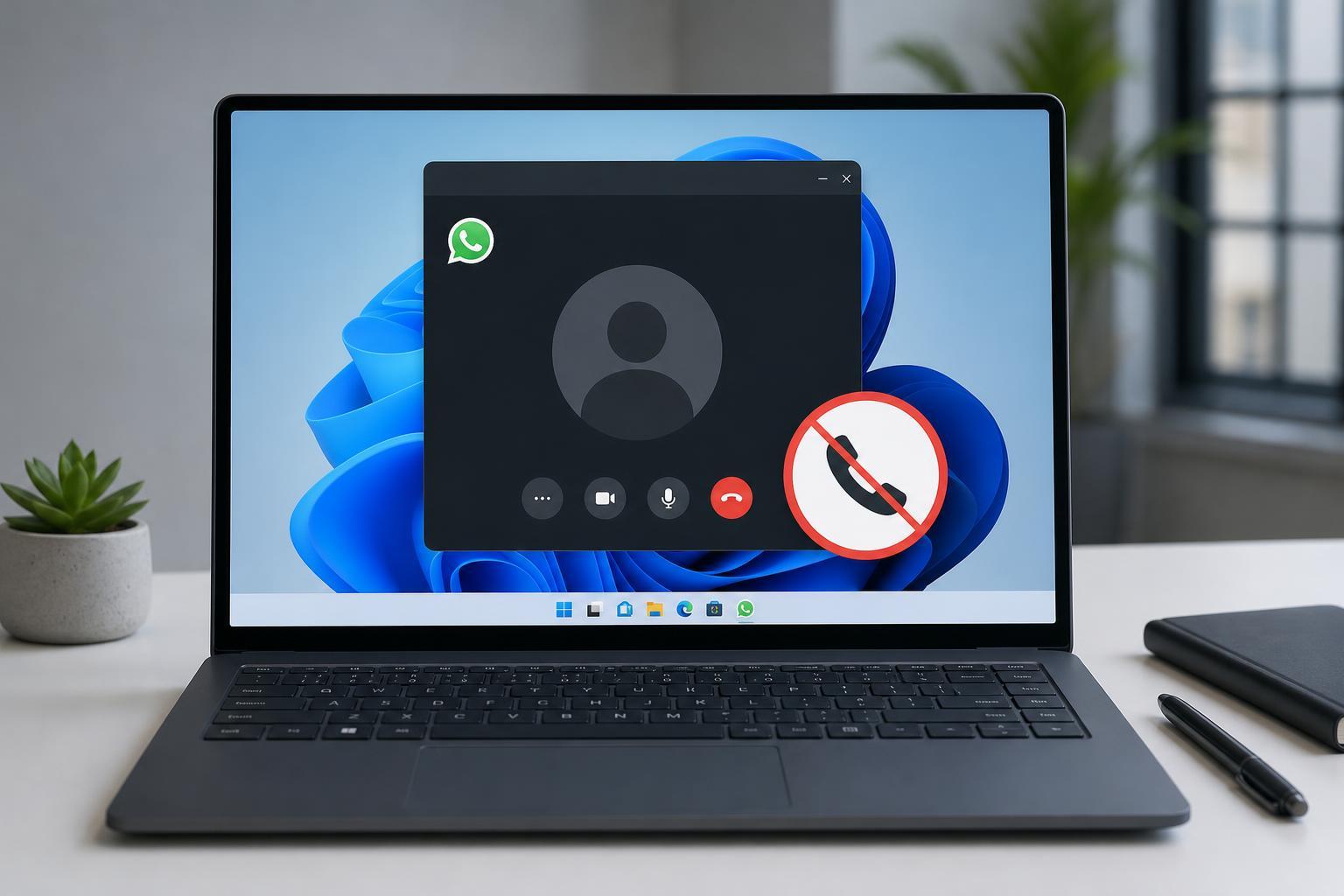
If WhatsApp calls are not working on your Windows 11 PC, the cause is usually one of a few common problems: blocked microphone access, incorrect audio device selection, a weak connection, or a glitch in the WhatsApp desktop app. The good news is that most call issues can be fixed without reinstalling everything.
This guide walks through five reliable fixes, starting with the most common causes and moving toward more advanced checks.
1. Check WhatsApp’s Microphone and Camera Permissions
WhatsApp calls need access to your microphone, and video calls also need camera access. If Windows blocks either permission, the app may connect but you will not be heard or seen.
- Open Windows Settings and go to Privacy & security.
- Select Microphone and make sure microphone access is turned on.
- Scroll down and confirm WhatsApp is allowed to use the microphone.
- Go back and open Camera, then make sure camera access is also enabled if you are using video calls.
- Close and reopen WhatsApp after changing permissions.
2. Make Sure WhatsApp Is Using the Right Audio Devices
Windows 11 can connect to the wrong microphone or speakers, especially if you use a headset, Bluetooth earbuds, or multiple audio devices. WhatsApp may appear to work, but audio can go to the wrong place.
- In WhatsApp, open the call settings or audio options if available.
- Check Windows sound settings by right-clicking the speaker icon on the taskbar and choosing Sound settings.
- Under Input, select the microphone you actually want to use.
- Under Output, choose the correct speakers or headset.
- If you use Bluetooth headphones, disconnect and reconnect them, then test the call again.
3. Check Your Internet Connection and Network Restrictions
WhatsApp calls depend on a stable internet connection. A connection that is slow, unstable, or restricted by a firewall can cause calls to fail, disconnect, or never ring properly.
- Try a different website or app to see whether the connection is stable.
- If you are on Wi-Fi, move closer to the router or switch to a stronger network.
- Disconnect and reconnect to your network if the connection seems weak.
- If you are on a work or school network, it may be blocking some calling traffic.
- Temporarily disable a VPN or proxy to see whether it is interfering with the call.
4. Repair or Reset the WhatsApp App
If permissions and network settings look correct, the WhatsApp desktop app itself may be corrupted or stuck in a bad state. Windows 11 includes repair and reset options that can fix this without fully removing the app.
- Open Settings and go to Apps > Installed apps.
- Find WhatsApp in the list.
- Open the app’s advanced options, if available.
- Click Repair first and test the call again.
- If that does not help, use Reset to clear the app’s local data and settings.
5. Update WhatsApp, Windows 11, and Your Audio Drivers
Outdated software can cause call features to break, especially after a Windows update or an app update changes how audio and camera access work.
- Open the Microsoft Store and check for WhatsApp updates.
- Go to Windows Update and install any pending Windows 11 updates.
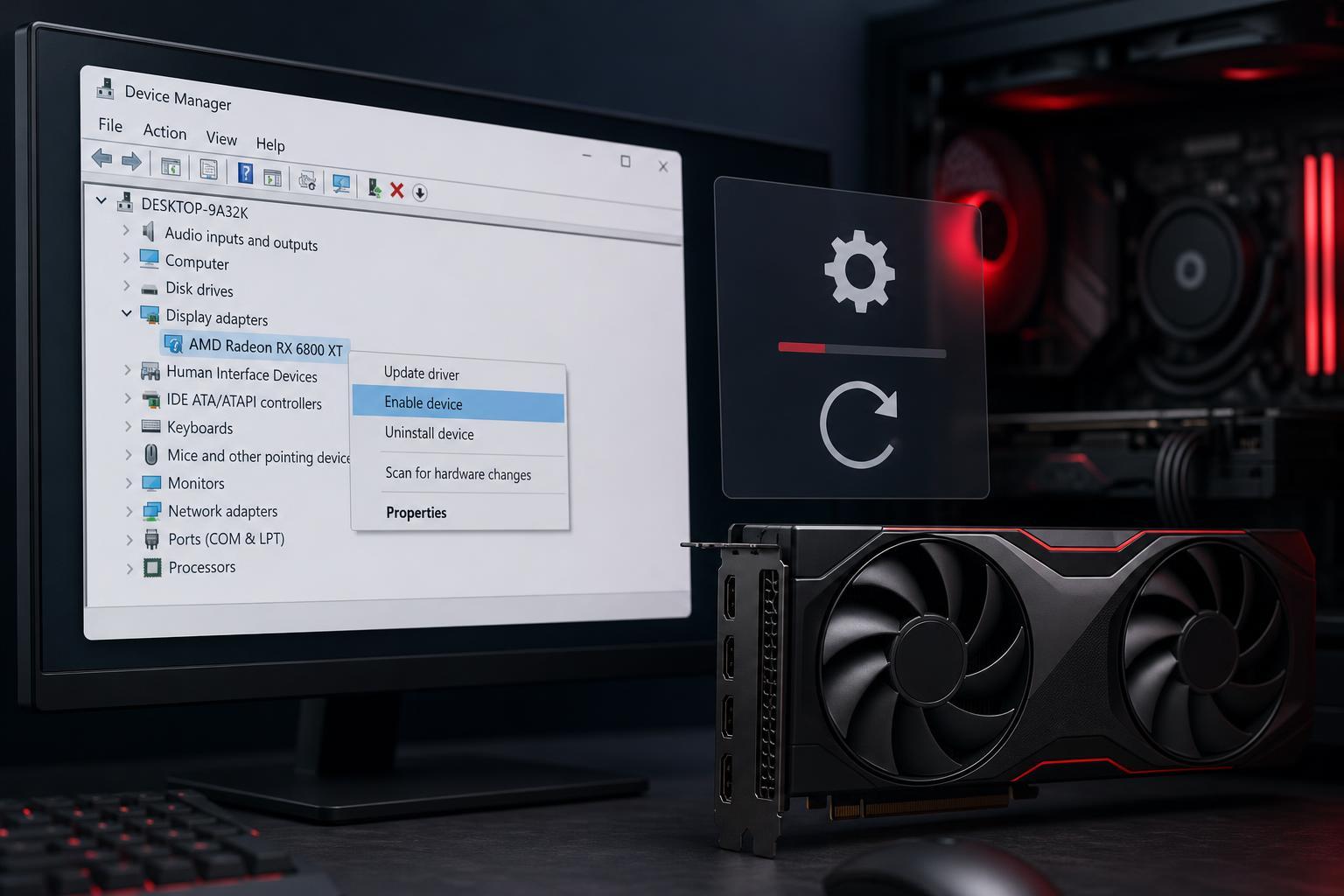
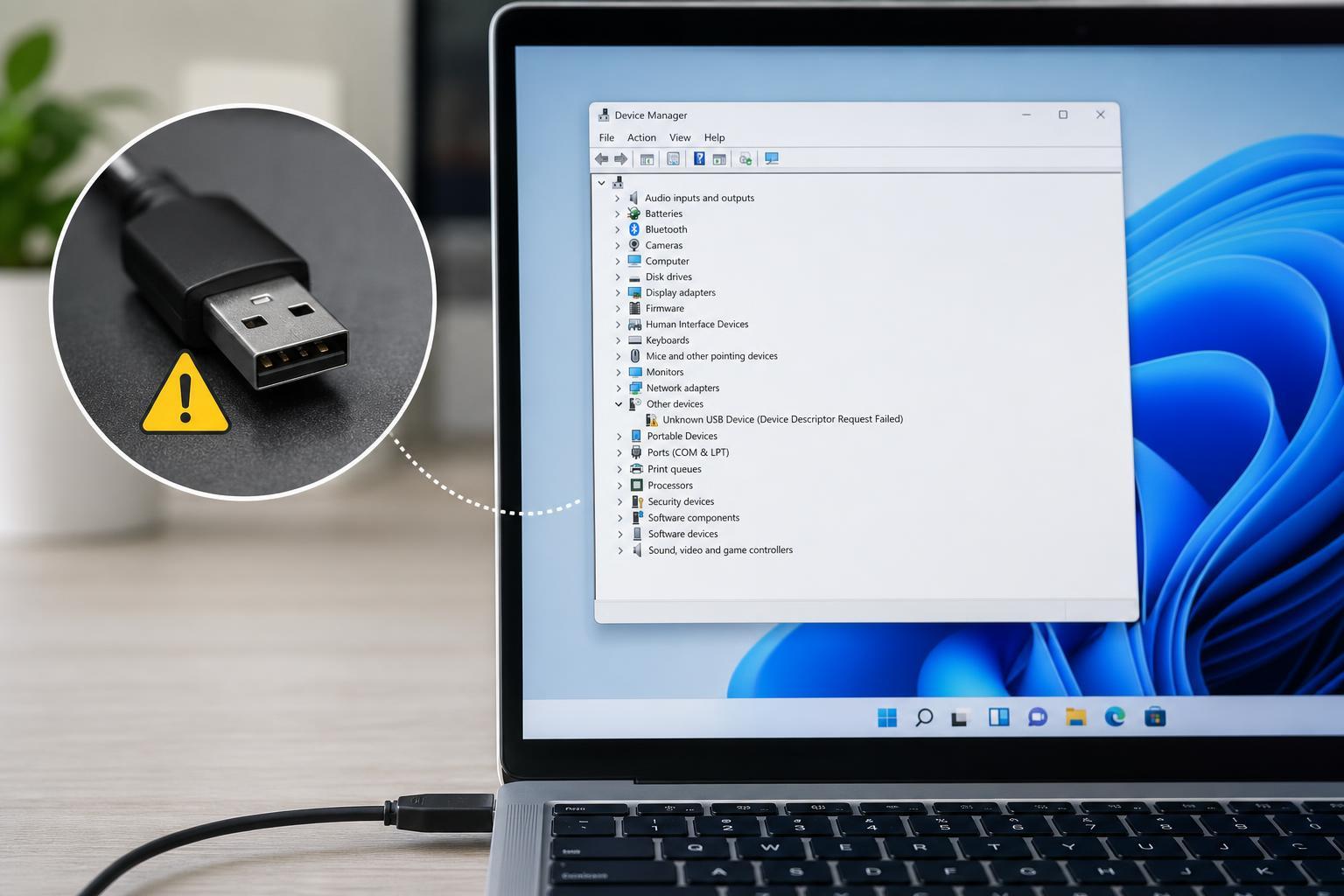
- Open Device Manager and expand Sound, video and game controllers.
- Update your audio driver if an update is available.
- If you use an external webcam or USB headset, check the manufacturer’s software for updates as well.
If WhatsApp Calls Still Do Not Work
If none of the five fixes solve the problem, the issue may be tied to your account, your specific device, or a deeper Windows audio problem. At that point, it helps to narrow down whether the failure is with microphone input, speaker output, or the connection itself.
- Try a different headset or microphone to rule out hardware failure.
- Test a call on another app, such as Microsoft Teams or Zoom.
- Check whether WhatsApp works on your phone using the same account.
- Review Windows Sound settings to confirm the correct default devices are set.
- Reinstall WhatsApp only if repair and reset do not help.