
If your Instagram messages are not sending, the problem can come from the app, your connection, your account, or the person you are trying to message. The good news is that most message-sending issues are temporary and can usually be fixed with a few checks.
This guide covers the most common reasons Instagram DMs fail and the best ways to get messages sending again.
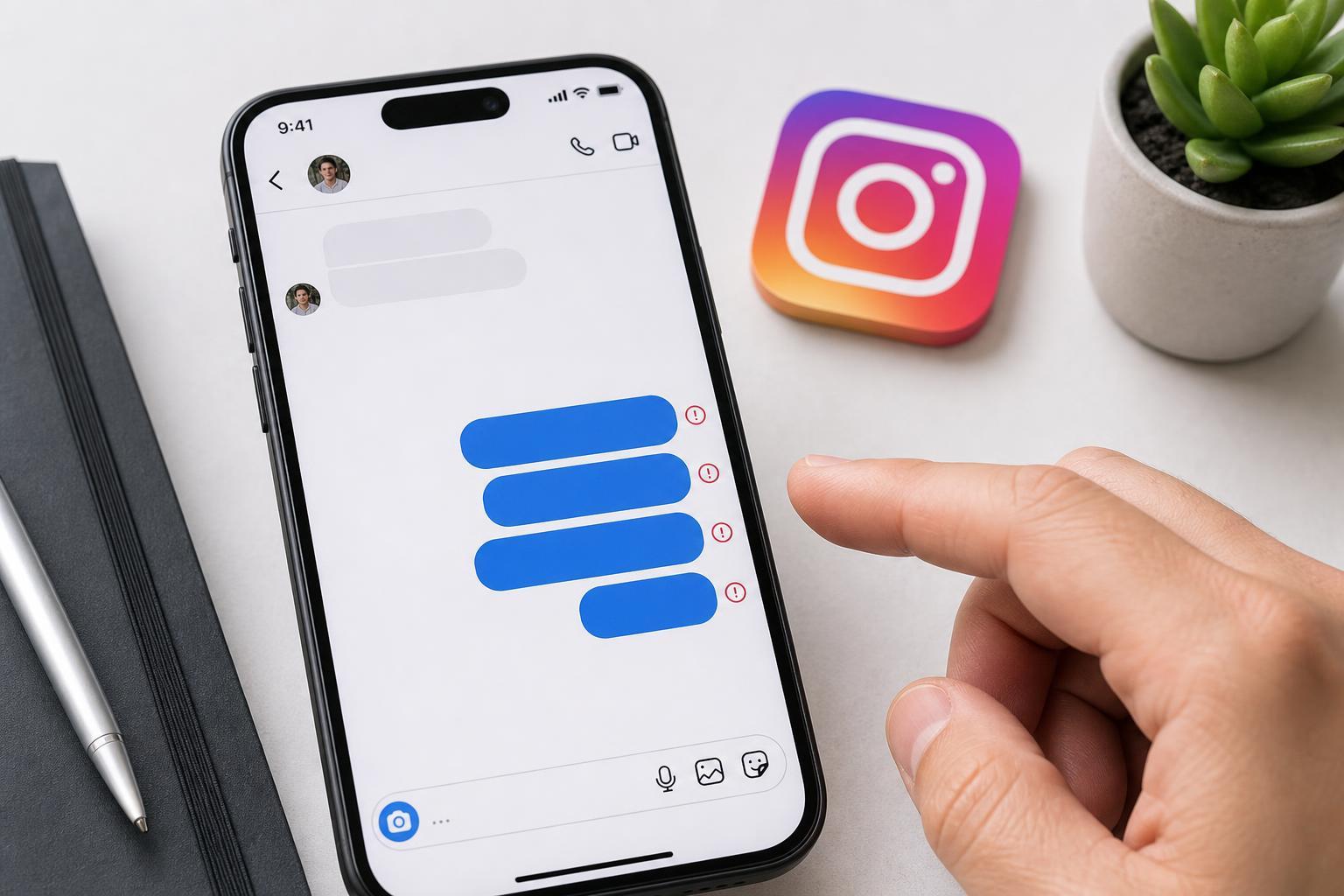
1. Check Whether Instagram Is Having an Outage
Before changing settings on your phone, make sure the problem is not on Instagram’s side. If Instagram’s messaging service is having issues, your messages may stay stuck, fail to deliver, or appear to send without ever reaching the other person.
- Check whether posts, stories, or DMs are also failing to load.
- Ask a friend if their Instagram messages are working.
- Look for widespread reports of Instagram problems in your region.
- Try sending a message again after a few minutes if the app seems unstable.
2. Fix Your Internet Connection
Instagram messages need a stable internet connection. A weak Wi-Fi signal, flaky mobile data, or a connection that keeps dropping can stop messages from sending properly.
- Switch between Wi-Fi and mobile data to see whether one works better.
- Open a website or another app to confirm that your connection is active.
- Move closer to your router if Wi-Fi is weak.
- If you are on mobile data, check that Instagram is allowed to use cellular data in your phone settings.
- Try sending a short text message again after the connection is stable.
3. Force Close Instagram and Open It Again
Sometimes the app gets stuck and fails to complete the send request. Closing Instagram completely and reopening it can clear a temporary app glitch.
- On iPhone, swipe up and pause, then swipe Instagram away from the app switcher.
- On Android, open the recent apps screen and swipe Instagram away, or use the App info screen to force stop it.
- Reopen Instagram and try sending the message again.
- If needed, log back in if the app asks you to do so.
4. Update Instagram to the Latest Version
An outdated version of Instagram may have bugs that affect direct messages. Updating the app can fix sending problems and improve compatibility with your phone’s current operating system.
- Open the App Store on iPhone or the Google Play Store on Android.
- Search for Instagram.
- Install any available update.
- Open the app again and test messaging.
- If updates are frequent on your device, turn on automatic app updates so you do not fall behind.
5. Clear Cache, Reinstall the App, or Check Account Limits
If messages still will not send, the app data may be corrupted, or your account may be temporarily limited. This is especially likely if only Instagram DMs are affected while other apps work normally.
- On Android, clear Instagram’s cache from the app settings if available.
- On iPhone, reinstalling the app is usually the easiest way to refresh app data.
- Delete Instagram and install it again from the App Store or Google Play Store.
- Try sending the message again after signing back in.
- If messages still fail, check whether your account may be restricted from sending DMs temporarily.
- Instagram may limit messaging if it detects unusual activity.
- You may be unable to message accounts that do not follow you, depending on their privacy settings.
- The other person may have blocked you or restricted messages from non-followers.
- Very large message threads or attached media can sometimes fail where plain text works.
How to Narrow Down the Cause
A few quick checks can tell you whether the problem is with your phone, your account, or the recipient:
- If no messages send at all, suspect the app, connection, or an Instagram outage.
- If messages to one person fail but others work, suspect privacy settings, a block, or account restrictions.
- If messages fail only on Wi-Fi or only on mobile data, the problem is your network.
- If reinstalling the app fixes it temporarily, the app itself was likely the issue.
When to Wait It Out
Some Instagram messaging issues resolve on their own after a short delay, especially if they are caused by a service glitch or a temporary account limit. If you have already checked your connection and updated the app, waiting and trying again later can sometimes be the simplest fix.
What This Means for Instagram DMs
Instagram messages that will not send are usually caused by one of five things: an outage, a bad connection, a stuck app, an outdated version, or an account or recipient restriction. Working through those causes in order is the fastest way to find a real fix without wasting time on unrelated settings.





