If Snapchat notifications have stopped showing up on your iPhone, the issue is usually caused by a setting on the phone, a permission inside Snapchat, or an app problem after an update. The good news is that most notification issues can be fixed without resetting your iPhone or reinstalling everything.
This guide covers four reliable ways to troubleshoot Snapchat notifications on iPhone, starting with the most common causes first.
1. Check Snapchat’s Notification Settings
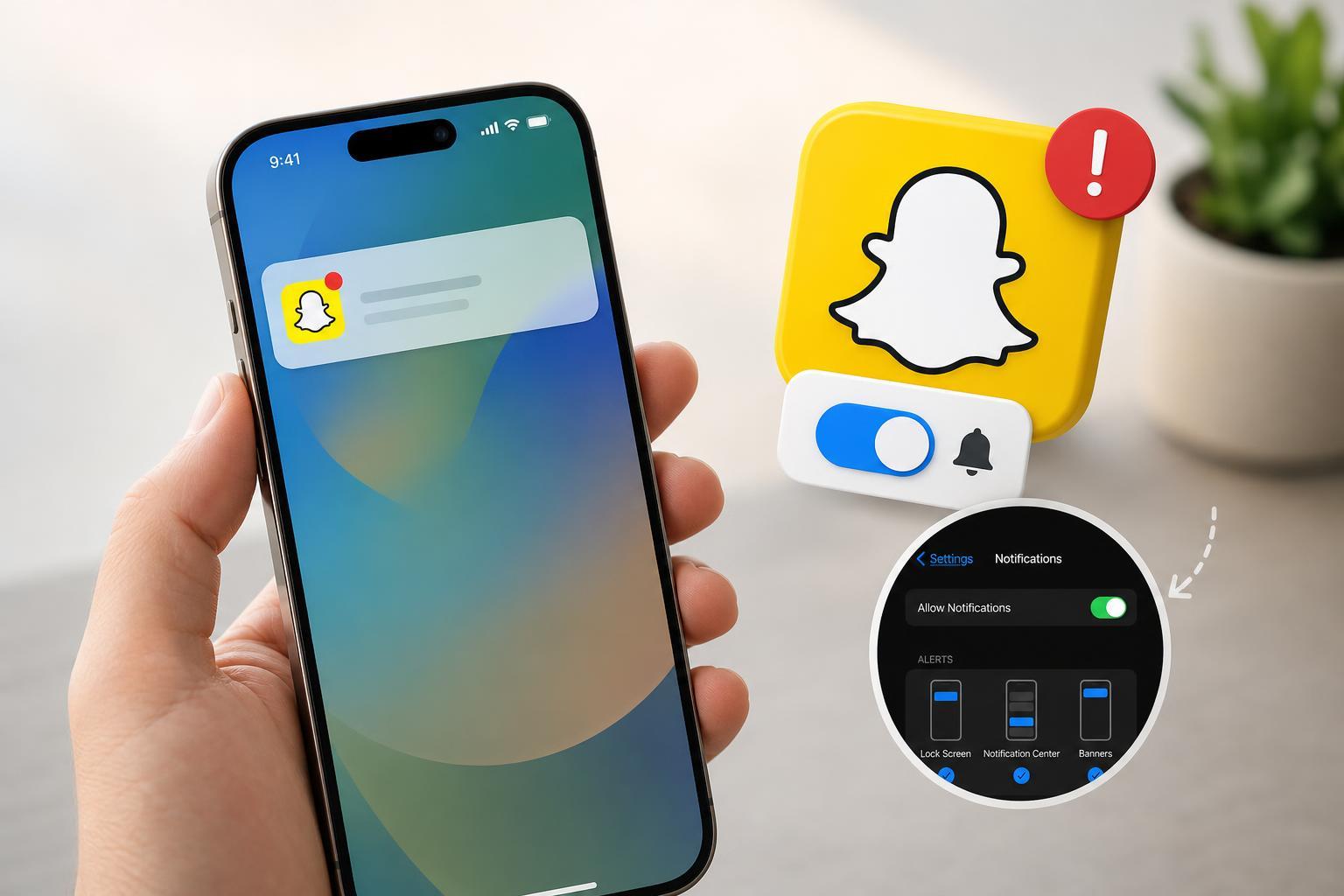
Start by making sure Snapchat is actually allowed to send notifications. If notifications were turned off in the app or in iPhone settings, you may still receive messages and snaps, but you will not get alerts.
- Open Snapchat and tap your profile icon.
- Tap the Settings gear.
- Select Notifications.
- Make sure the notification types you want are enabled, such as Snaps, Chats, Stories, and other alerts.
- Then open your iPhone Settings app, tap Notifications, and select Snapchat.
- Turn on Allow Notifications and make sure alerts are set to display on the Lock Screen, Notification Center, and Banners if you want all of them.
2. Turn Off Focus Mode or Do Not Disturb
Your iPhone may be silently blocking Snapchat alerts with Focus mode, Do Not Disturb, or a custom schedule. In that case, notifications are still being sent, but your phone is suppressing them.
- Swipe down from the top-right corner of the screen to open Control Center.
- Check whether Focus, Do Not Disturb, Sleep, or another Focus mode is active.
- If one is on, tap it to turn it off.
- Go to Settings > Focus to review any scheduled or automated Focus modes.
- If you want Snapchat alerts to come through during a Focus mode, allow Snapchat under Allowed Apps or Notifications, depending on your iPhone version.
3. Update Snapchat and iOS
Outdated app or system software can cause notifications to fail, especially after a Snapchat update or an iPhone iOS update. Updating both often clears glitches that affect push notifications.
- Open the App Store and search for Snapchat.
- Install any available update.
- Next, go to Settings > General > Software Update.
- If an iOS update is available, install it and let your iPhone finish restarting if needed.
- After updating, open Snapchat once so it can refresh its notification connection.
4. Refresh Snapchat’s App and Notification Connection
If the settings look correct but notifications still do not arrive, the app may have a temporary sync issue. Closing and reopening Snapchat, or clearing out a stuck session, can help restore alerts.
- Close Snapchat from the app switcher.
- Open it again and test whether notifications start arriving.
- If that does not help, sign out of Snapchat and sign back in.
- Check that Background App Refresh is enabled for Snapchat under Settings > General > Background App Refresh if your iPhone uses it.
- As a last step, delete Snapchat and reinstall it from the App Store, then sign back in and recheck notification permissions.
If Notifications Still Do Not Work
If you have checked app permissions, Focus mode, software updates, and the app itself, the issue may be tied to a specific account setting or a broader iPhone notification problem.
- Make sure Snapchat is allowed to use cellular data and Wi-Fi if notifications are failing only when you are away from one network.
- Check whether Low Power Mode is enabled, since it can affect background activity on some devices.
- Confirm that notifications work for other apps, which helps show whether the problem is only with Snapchat or with the iPhone more generally.
- Review whether you are logged into Snapchat on another device, since account/session issues can occasionally interfere with alerts.
Which Fix Should You Try First?
Start with Snapchat notification settings and iPhone notification permissions, since those are the most common causes. If those are correct, check Focus mode next, then update Snapchat and iOS, and finally refresh the app by signing out or reinstalling it if needed.
Most Snapchat notification problems on iPhone are caused by a blocked permission or an active Focus mode, so narrowing those down first usually saves time.