
Changing the Snapchat notification sound is a little different from changing sounds in some other apps, because Snapchat often uses your phone’s notification settings rather than its own built-in sound picker. The exact options you can change depend on whether you use iPhone or Android, and in some cases on your phone brand and system version.
If Snapchat notifications are too quiet, too loud, or using a sound you do not like, the fix is usually in your phone’s notification settings, the Snapchat app settings, or both.
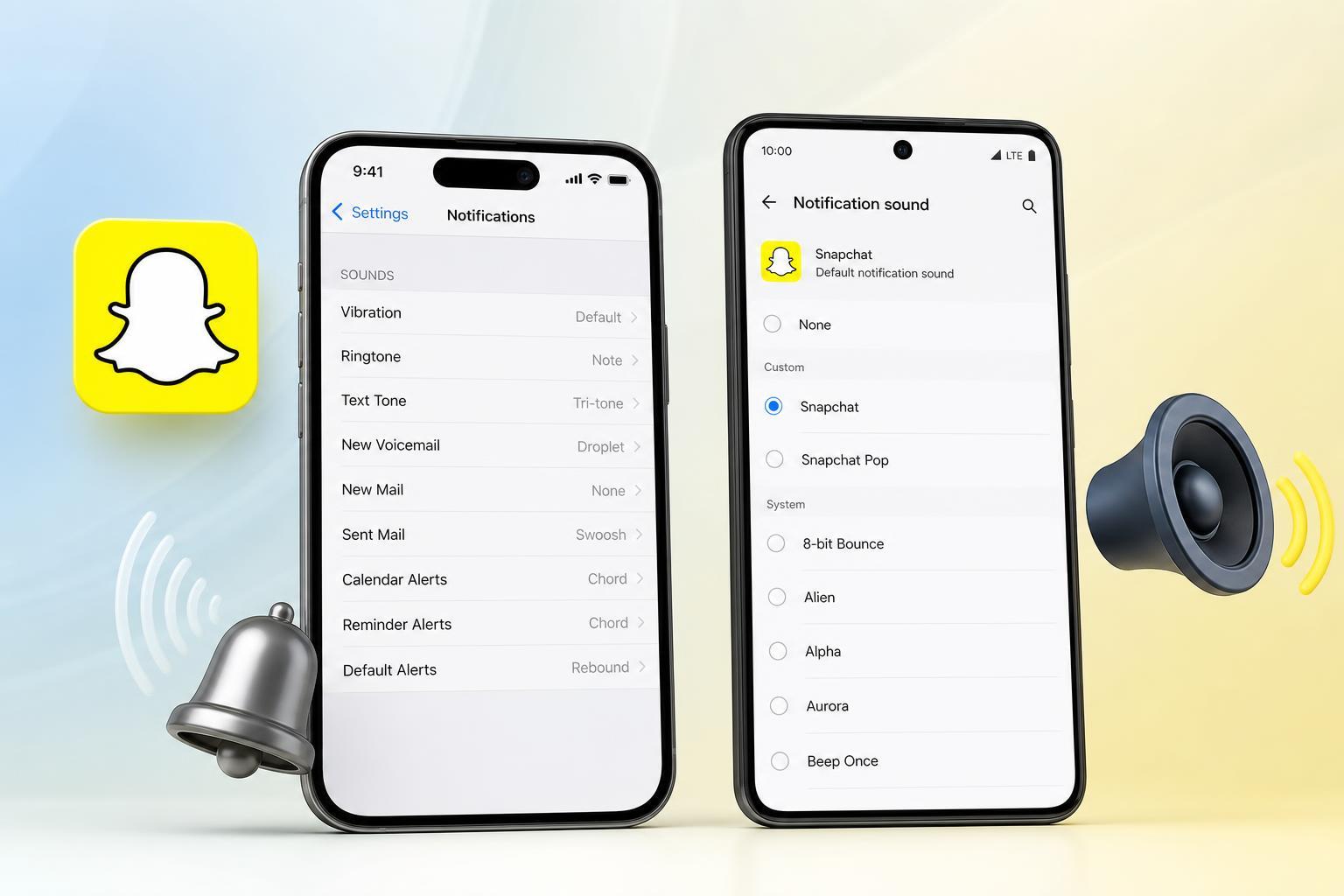
Can Snapchat Use a Custom Notification Sound?
In many cases, Snapchat does not let you choose a custom sound from inside the app the way some messaging apps do. Instead, Snapchat notifications use the sound rules set by your operating system. That means the best place to look is often your phone’s notification settings rather than Snapchat itself.
Change the Snapchat Notification Sound on Android
Android usually gives you the most control over app notification sounds. The exact menus can vary by phone manufacturer, but the steps are similar on most devices.
- Open Settings on your Android phone.
- Tap Apps or Apps & notifications.
- Find and select Snapchat.
- Tap Notifications.
- Look for notification categories or channels such as Snaps, Chats, Friend Requests, or other Snapchat alerts.
- Tap the category you want to change.
- Choose Sound and select the tone you want.
Some Android phones let you change each Snapchat notification channel separately. For example, you might use one sound for chat messages and another for friend requests.
Change Snapchat Notification Sound on iPhone
iPhone usually does not offer as much per-app sound customization for third-party apps. In most cases, you can manage whether Snapchat notifications appear and whether they make a sound, but you may not get a separate sound picker just for Snapchat.
- Open the Settings app on your iPhone.
- Tap Notifications.
- Scroll down and tap Snapchat.
- Make sure Allow Notifications is turned on.
- Under Alerts, choose how you want Snapchat notifications to appear.
- Check whether Sounds is enabled.
- If available, adjust the notification style and alert behavior you want to use.
If Snapchat uses the default notification tone on your iPhone, changing the system sound for alerts may affect other apps too. iPhone users often need to work within Apple’s notification rules rather than selecting a unique Snapchat tone.
Check Snapchat’s In-App Notification Settings
Even if your phone settings are correct, Snapchat itself may have notifications turned off for certain events. It is worth checking the app because some alerts can be disabled inside Snapchat.
- Open Snapchat.
- Tap your profile icon.
- Tap the gear icon to open Settings.
- Tap Notifications.
- Review the available notification types and make sure the alerts you want are enabled.
If you only want certain Snapchat alerts, such as message notifications but not story updates, this is where you can reduce the noise without turning everything off.
If Snapchat Notifications Are Silent
If you changed the sound but still do not hear anything, the issue may not be the sound choice itself. A few common phone settings can block notification audio.
- Silent mode or Do Not Disturb is enabled
- Notification volume is turned down too low
- Snapchat notifications are allowed, but sounds are disabled
- Battery saver or background restrictions are limiting alerts
- The specific notification category is turned off
- Bluetooth headphones or another audio device is connected
On Android, also check whether the Snapchat notification channel is set to silent or low priority. On iPhone, confirm that Focus mode or Silent Mode is not muting alerts.
How to Narrow Down the Problem
If Snapchat still does not behave the way you expect, use this quick check to isolate the cause.
- Send yourself a Snapchat message or ask a friend to message you.
- Watch whether the notification appears on-screen.
- Check whether it makes any sound at all.
- Open your phone’s notification settings for Snapchat and confirm the correct category is enabled.
- If the sound is still wrong, compare Snapchat notifications with another app to see whether the issue is only with Snapchat or with all notifications.
If only Snapchat is affected, the problem is likely app-specific notification settings. If all app alerts are affected, your phone’s overall sound or focus settings are probably the real cause.
Useful Things to Remember
- Android usually offers the most control over Snapchat notification sounds.
- iPhone users may have fewer sound customization options for Snapchat.
- Notification channels on Android can sometimes be changed separately for chats, friend requests, and other alerts.
- Turning notifications on in Snapchat is not enough if the phone itself is muting them.
- The exact menu names can vary by device and operating system version.
When You May Need to Reset Notification Settings
If Snapchat notifications were working before and suddenly stopped, the easiest fix is sometimes to remove Snapchat’s notification permission and turn it back on again in your phone settings. This can clear out a bad notification configuration without changing your account or deleting the app.
If that does not help, reinstalling Snapchat can also refresh its notification behavior, but only do that if you are comfortable signing back in and you know your login details.





