If your Bluetooth keyboard refuses to connect to a Windows 11 PC, the problem is usually caused by a pairing issue, a disabled Bluetooth service, a driver problem, or a keyboard that is still connected to another device. The good news is that most cases can be fixed without replacing the keyboard.
The four fixes below cover the most common causes in the order that makes the most sense to try them.
1. Make Sure the Keyboard Is Ready to Pair
Before changing anything in Windows, confirm that the keyboard itself is actually in pairing mode. Many Bluetooth keyboards will not show up in Windows unless they are actively advertising as a new device.
- Turn the keyboard on and check that it has battery power.
- Put the keyboard into pairing mode using its Bluetooth or connect button.
- Look for a blinking Bluetooth light, which usually means it is discoverable.
- If the keyboard has a device switch, make sure it is set to the correct PC profile or Bluetooth channel.
- Move the keyboard close to the PC while pairing, especially if the signal has been weak or unstable.
2. Check Bluetooth in Windows 11 and Re-add the Keyboard
A simple pairing refresh often fixes a keyboard that used to work but now refuses to connect. Windows may have saved a bad pairing record or an incomplete setup.
- Open Settings and go to Bluetooth & devices.
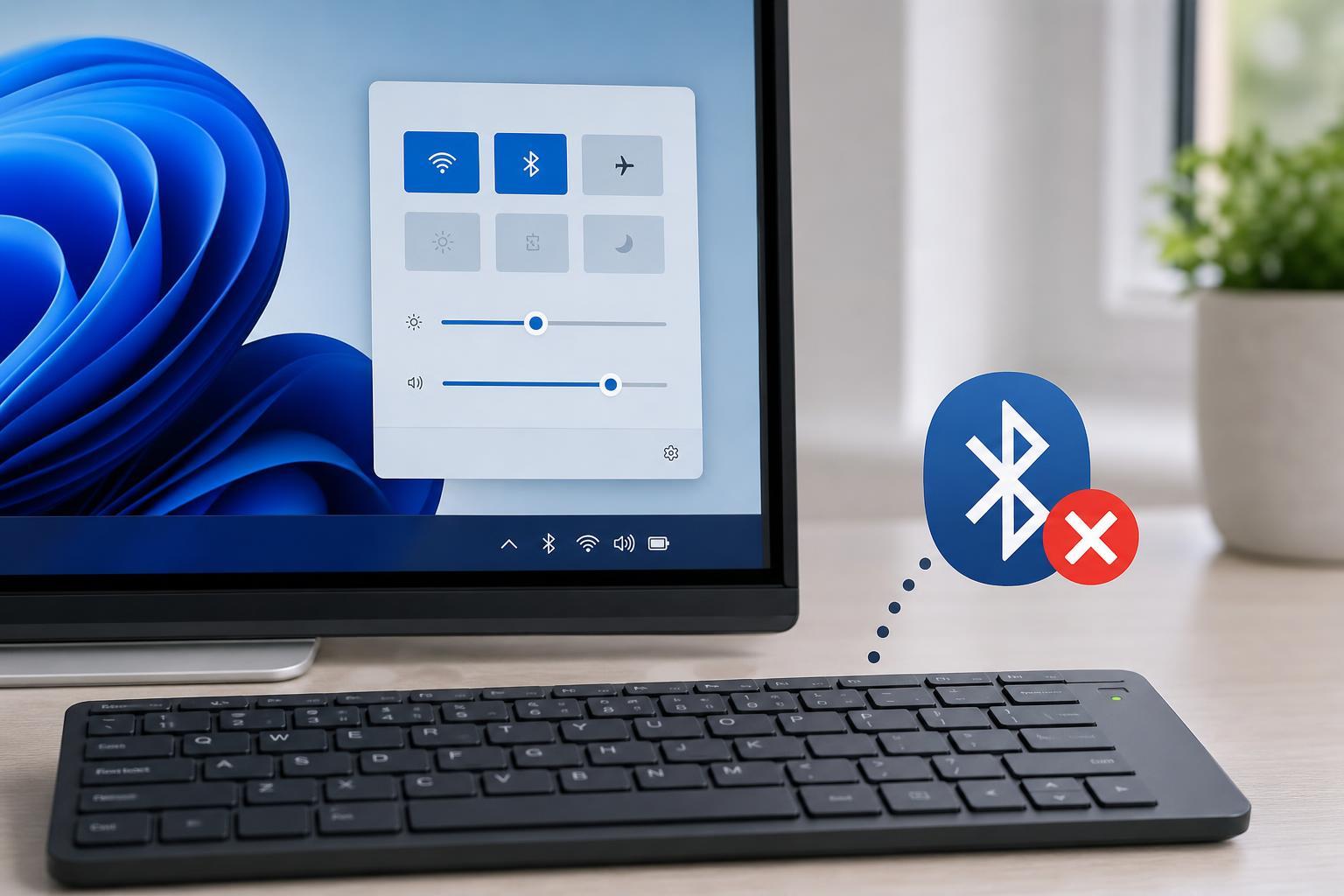
- Make sure Bluetooth is turned on.
- If the keyboard already appears in the list, select it and choose Remove device.
- Put the keyboard back into pairing mode.
- Select Add device, then choose Bluetooth and wait for the keyboard to appear.
- Select the keyboard and complete the pairing prompt.
3. Update or Reinstall the Bluetooth Driver
If Windows can see Bluetooth devices but not your keyboard, the Bluetooth adapter driver may be outdated or stuck in a bad state. Updating or reinstalling the driver can restore normal pairing behavior.
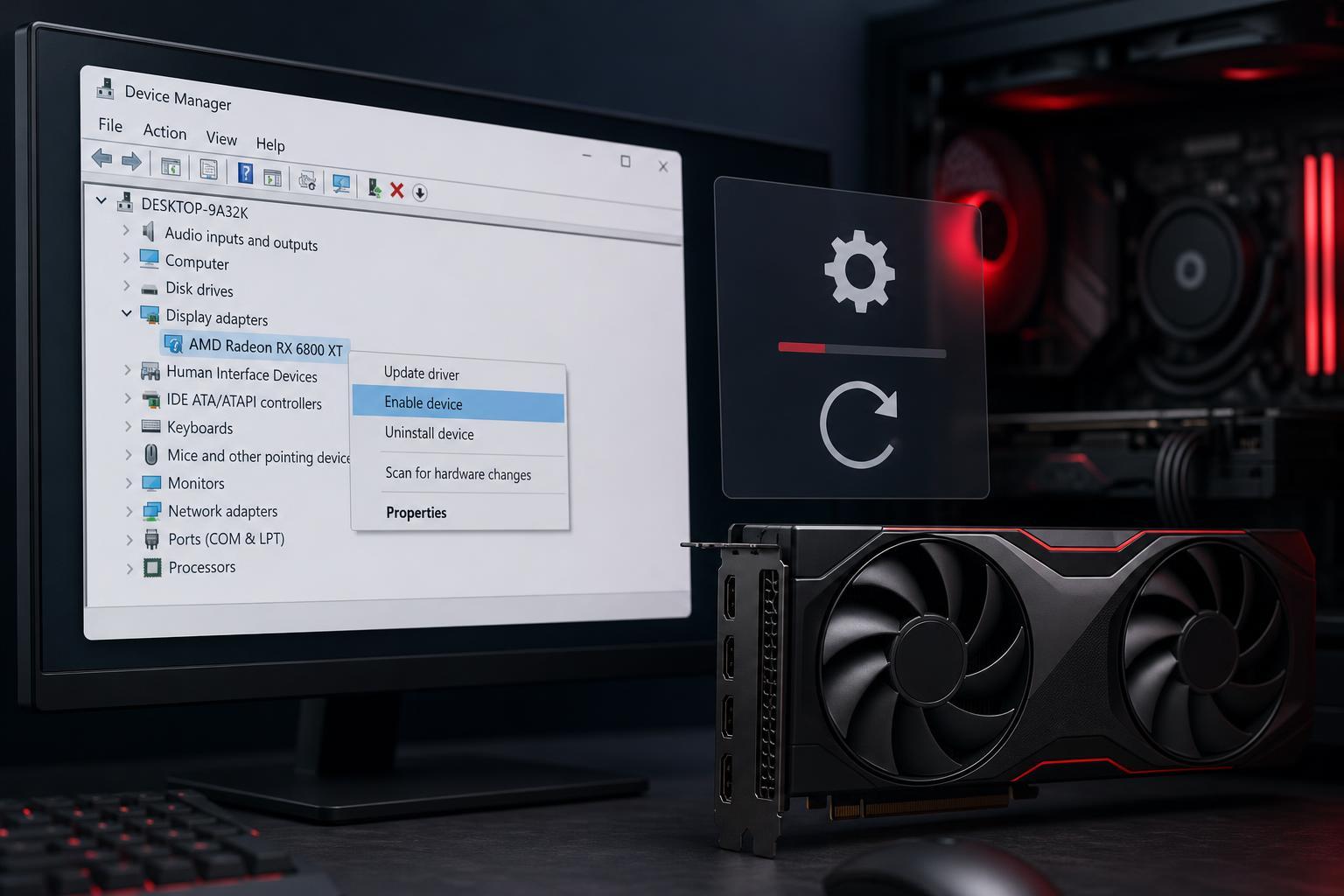
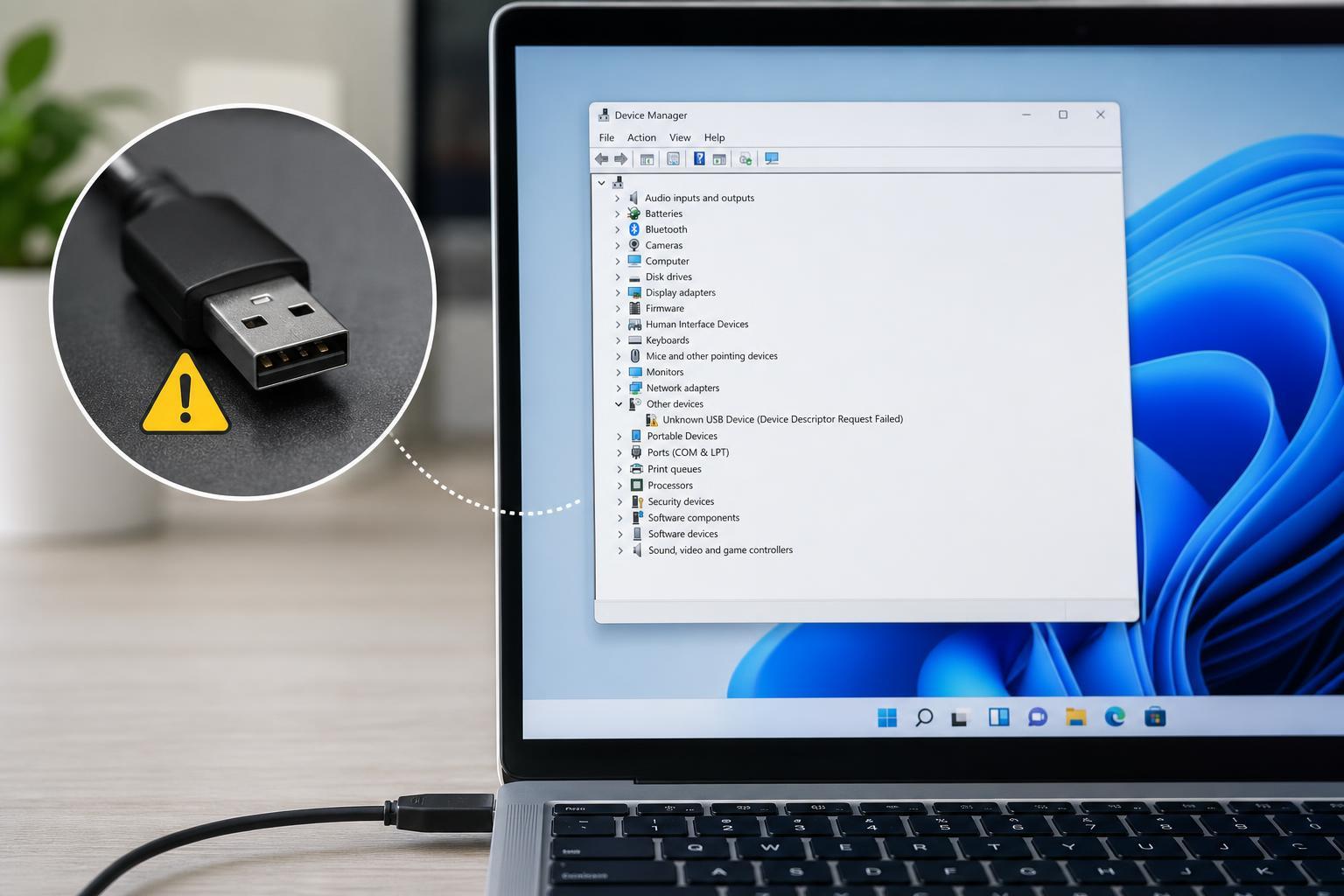
- Right-click the Start button and open Device Manager.
- Expand Bluetooth.
- Right-click your Bluetooth adapter and choose Update driver.
- Select Search automatically for drivers.
- If that does not help, right-click the adapter again and choose Uninstall device.
- Restart the PC so Windows can reinstall the driver automatically.
4. Remove Power-Saving Limits and Restart the Bluetooth Service
Windows 11 can sometimes turn off Bluetooth hardware to save power, especially on laptops. If the adapter is being powered down too aggressively, your keyboard may fail to connect or drop off after pairing.
- Open Device Manager and expand Bluetooth.
- Open the properties for your Bluetooth adapter.
- On the Power Management tab, clear any option that allows the computer to turn off this device to save power.
- Press Windows + R, type services.msc, and press Enter.
- Find Bluetooth Support Service and make sure it is running.
- If needed, restart the service, then try pairing the keyboard again.
How to Narrow Down the Cause
If none of the fixes work, the problem is likely one of three things: the keyboard’s battery is too low, the keyboard is still tied to another device, or the Bluetooth adapter in the PC is having a hardware-level issue.
- Try the keyboard with another device to see whether it can connect at all.
- Try a different Bluetooth device on the same PC to confirm whether the adapter works.
- If your PC has both built-in Bluetooth and a USB Bluetooth dongle, test with the other adapter.
- Look for signs that Windows can detect the keyboard but cannot complete pairing, which usually points to software or driver trouble rather than a dead keyboard.
What to Do If the Keyboard Still Will Not Connect
If you have tried all four fixes and the keyboard still will not pair, the most likely next steps are to test the keyboard on another PC, update the laptop or motherboard chipset drivers, or use a different Bluetooth adapter. A USB Bluetooth dongle can be a practical workaround if the built-in adapter is unreliable.