
Older PC games can still run on Windows 11, but they often need a little help. Games made for Windows XP, Vista, 7, or early 8-era systems may fail to launch, crash on startup, show graphics glitches, or ignore your mouse and keyboard settings. The good news is that many of these problems have straightforward fixes.
This guide walks through the most effective ways to run classic games on Windows 11, from built-in compatibility settings to older runtimes, fan patches, and virtual machines when nothing else works.
Start With the Game’s Official PC Requirements
Before changing system settings, check what the game actually needs. Some older titles run fine on Windows 11 with no changes, while others depend on abandoned copy protection, old DirectX components, or 32-bit software that Windows no longer installs by default.
- Look for official patch notes or community support pages.
- Check whether the game needs DirectX 9, .NET Framework, or Visual C++ runtimes.
- See if the game has a modern re-release, remaster, or community compatibility patch.
- Confirm whether the game was designed for 16-bit installers, because those do not run natively on 64-bit Windows.
Use Windows Compatibility Mode
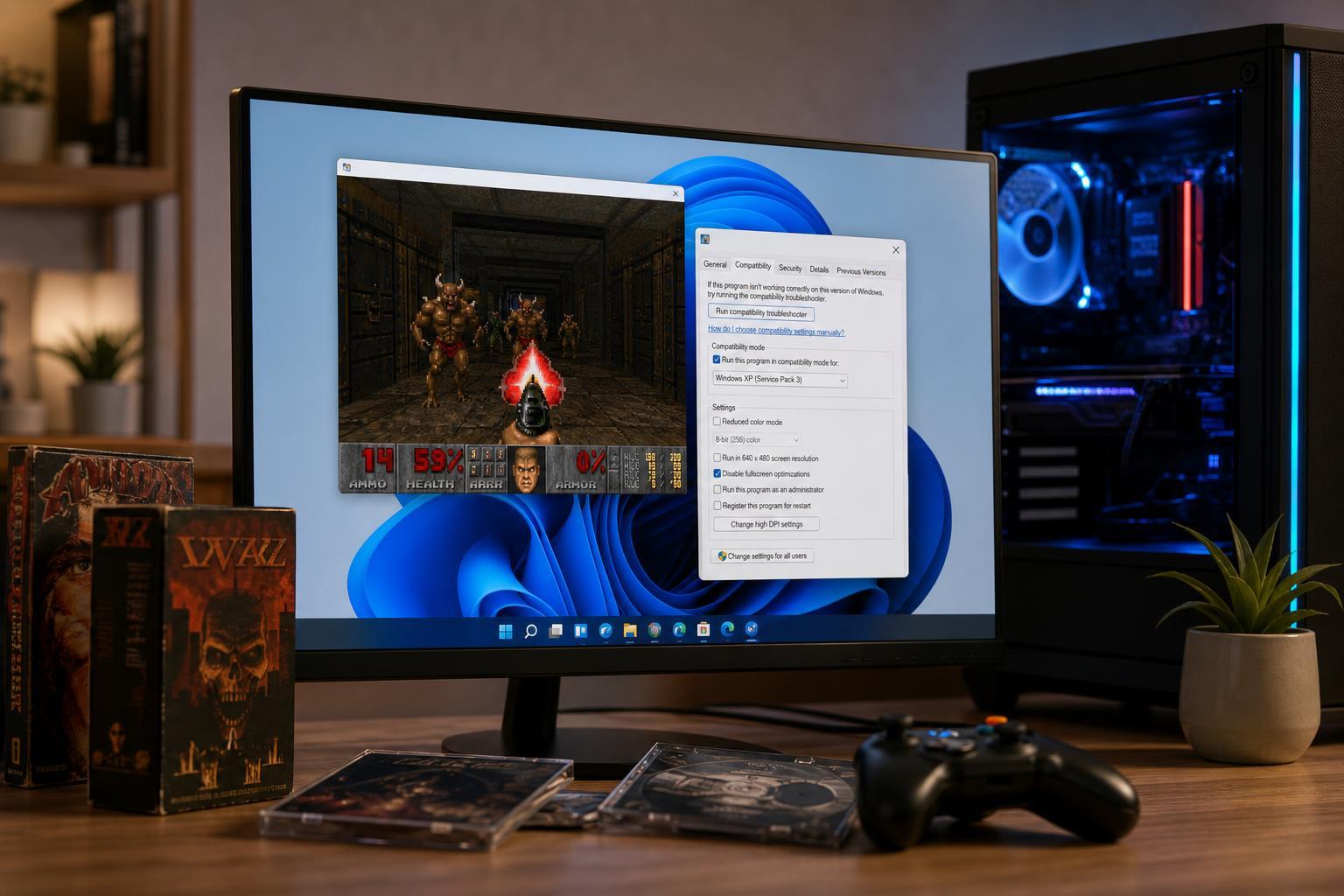
Compatibility mode is the easiest first step for many older games. It tells Windows 11 to mimic parts of an older version of Windows when launching the program.
- Right-click the game’s executable file or shortcut.
- Select Properties.
- Open the Compatibility tab.
- Check Run this program in compatibility mode for.
- Choose an older Windows version such as Windows 7, Windows XP (Service Pack 3), or Windows Vista, depending on the game’s age.
- Click Apply, then try launching the game again.
Try Administrator Mode and Disable Fullscreen Optimizations
Some older games expect unrestricted access to system files, save folders, or display handling that modern Windows restricts more aggressively.
- Open the game’s Properties window again.
- In the Compatibility tab, check Run this program as an administrator.
- If the game has fullscreen issues or poor alt-tab behavior, also check Disable fullscreen optimizations.
- Apply the changes and test the game.
Install the Right Legacy Components
A common reason older games fail on Windows 11 is missing runtime files. Even if the game itself is installed correctly, it may still need older DirectX files or Microsoft libraries that are not included by default.
- DirectX 9.0c runtime for many early 2000s games
- Visual C++ Redistributables for games built with older Microsoft compilers
- .NET Framework for launchers and configuration tools
- Older sound or physics middleware used by some classic titles
If the game’s installer or folder includes a redist, support, or prerequisites folder, run those installers first. If the game is from a digital store, check its community forums or support page for the exact runtime package it needs.
Check for 16-bit Installer Problems
Some very old games use 16-bit installers. These programs will not run on 64-bit versions of Windows 11, even if the game itself could technically work.
- Use a digital release that has been repackaged with a modern installer.
- Look for a community installer or fan patch that replaces the old setup program.
- Install the game from original media inside a virtual machine if no modern installer exists.
Fix Graphics Problems and Display Glitches
Older games often assume low resolutions, old DirectX behavior, or specific GPU handling that modern graphics drivers do not always preserve cleanly. Problems may include stretched menus, invisible textures, flickering, or a window that opens but shows only a black screen.
- Set the game to a lower resolution in its launcher or config file.
- Try windowed mode if fullscreen causes crashes.
- Use community patches such as widescreen fixes or fan-made wrappers when available.
- Look for an in-game option to switch between DirectX and OpenGL if the game offers both.
Use Community Patches and Wrappers Carefully
Many classic PC games survive because fans created fixes for modern systems. These patches can improve resolution support, fix crashes, restore missing features, and make old DRM less troublesome.
- Widescreen patches for games locked to 4:3 resolutions
- dgVoodoo2 or similar wrappers for older DirectX and Glide games
- Unofficial bug-fix patches for known crash issues
- No-CD or DRM-free updates when legally appropriate and from trustworthy sources
Run the Game From Its Original Folder
Older games sometimes break if they are installed inside protected Windows folders or synced locations. If the game is buried in a deep Program Files path, moved by OneDrive, or blocked by permissions, it may fail to save or launch properly.
- Install the game in a simple folder such as C:\Games or on a secondary drive.
- Avoid putting the game inside OneDrive-synced folders unless you need cloud syncing.
- Make sure the user account has write access to the game’s folder.
- If the game saves to Documents, check whether Windows Security or OneDrive is blocking that folder.
Check the Compatibility Settings in Steam, GOG, or Other Launchers
If your older game is installed through a platform such as Steam or GOG, the launcher may provide useful tools or preconfigured fixes.
- On Steam, check the game’s Properties, installed files, and launch options.
- On GOG, look for included offline installers, DOSBox setups, or community support pages.
- For Ubisoft, EA, and other launchers, try bypassing the launcher if the game allows direct execution.
- Search the store page or support site for patches that were released after the game’s original launch.
Use DOSBox for Very Old DOS Games
If the game is from the DOS era, Windows compatibility settings will not be enough. DOSBox is designed specifically to run many old DOS games more reliably than native Windows can.
- Install DOSBox or a similar DOS emulator.
- Mount the game folder inside DOSBox.
- Adjust CPU cycles, sound, and memory settings if the game runs too fast or too slow.
- Use community guides for games that need a custom DOSBox config.
Try a Virtual Machine if the Game Is Extremely Old
Some games are too old, too specialized, or too tied to ancient hardware to run well on Windows 11 directly. A virtual machine can provide an older Windows environment where the game may behave more predictably.
- Install virtualization software such as VirtualBox or VMware.
- Create a virtual machine using an older supported version of Windows.
- Install the required game and any legacy drivers or runtimes.
- Test whether the game runs better in the virtual environment than on the host system.
When the Problem Is Actually a Windows Security Feature
Windows 11 includes protections that can sometimes interfere with old games, especially those that need to modify folders, use unusual executables, or load outdated anti-cheat or DRM components.
- Controlled folder access may block saves or config files.
- SmartScreen may warn about unsigned older installers.
- Memory integrity features can conflict with certain legacy drivers or copy protection.
- Third-party antivirus software may quarantine a game file by mistake.
If a trusted older game suddenly cannot save, open its config utility, or launch after a security change, check Windows Security and your antivirus history for blocks.
How to Narrow Down the Cause
If an older game still will not run, focus on the symptom. The type of failure usually points to the likely cause.
- Game does nothing when launched: missing runtime, blocked executable, or damaged install
- Game crashes immediately: incompatible DRM, bad compatibility settings, or missing DirectX files
- Game opens to a black screen: display mode or fullscreen issue
- Game runs but audio is missing: old sound middleware or driver conflict
- Game saves do not work: permissions, security software, or cloud-sync conflict
What to Try First
For most older games on Windows 11, the best order is simple: try compatibility mode, run as administrator, install the required legacy runtimes, then test a community patch or wrapper if the game still misbehaves. If the game is from the DOS era or uses a 16-bit installer, move straight to DOSBox, a modern repackaged release, or a virtual machine.
A Practical Way to Bring Classics Back
Windows 11 is very capable of running older PC games, but it does not preserve every feature those games expected from Windows XP-era systems. The key is to match the fix to the age of the game: compatibility settings for many Windows titles, DOSBox for DOS games, legacy runtimes for missing dependencies, and emulation or a virtual machine for the hardest cases.
Once you know which category your game falls into, getting it working again is usually much easier than it first appears.





