
If Google Drive won’t let you delete a file, the cause is usually one of three things: you do not have the right permission, the file is only being removed from one place, or Drive’s sync state is out of step with what you see in the browser or app.
The good news is that most deletion problems can be fixed quickly once you know where the file lives and whether you are the owner.
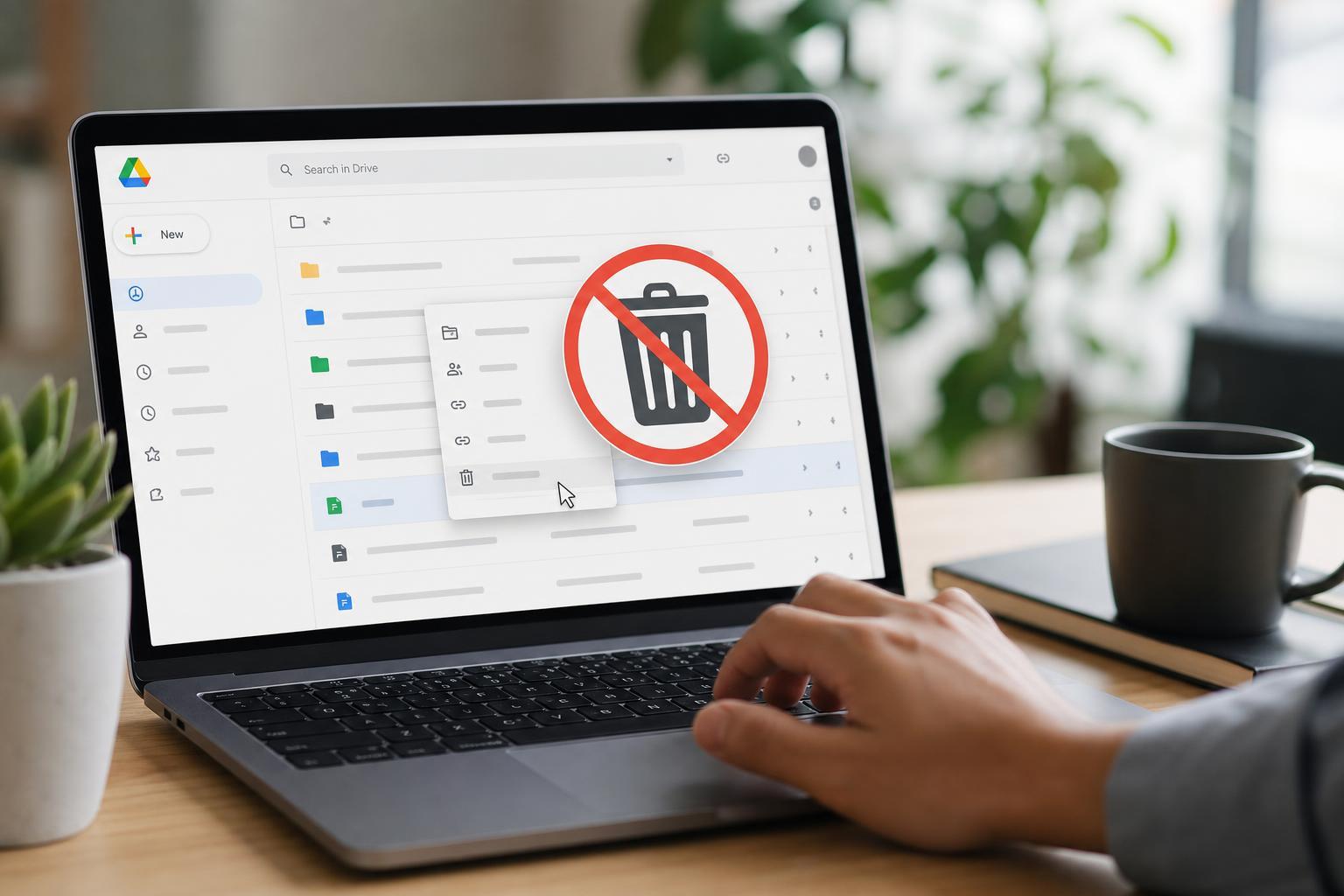
1. Check Whether You Actually Have Permission to Delete the File
In Google Drive, being able to view or edit a file does not always mean you can delete it. If the file belongs to someone else, or if it is stored in a shared drive with limited permissions, the delete option may be missing or may fail.
- Open Google Drive and select the file that will not delete.
- Check the file details or sharing information to see who owns it.
- If the file is in a shared folder or shared drive, confirm whether you have edit or manager access.
- If you only have view or comment access, ask the owner or a drive manager to delete the file or give you the needed permission.
- If you own the file, try deleting it from drive.google.com rather than only from a synced desktop folder.
2. Empty the Trash or Remove the File From the Correct Place
Deleting in Drive often means sending a file to the Trash first. If the file is already in Trash, you will not delete it again the same way. In other cases, the file may exist in more than one location, so removing it from one folder does not fully delete it.
- Open the Trash in Google Drive and see whether the file is already there.
- If it is in Trash, select it and choose delete forever if you want it permanently removed.
- If the file appears in more than one folder or is shared with you, check whether you are removing a shortcut instead of the original file.
- If you only want it gone from your Drive view, right-click the file and choose Remove rather than trying to delete the original.
- If the file is in a synced local folder, make sure you are deleting the version that is actually connected to Drive.
3. Fix Sync Problems in the Desktop or Mobile App
If you are using Google Drive for desktop or the mobile app, the deletion may not complete because the app has not synced properly. This is common when the file still appears in one place after being deleted from another, or when the app shows an old version of the folder.
- Check whether the same file still appears in drive.google.com after deleting it in the app.
- If the file remains, try deleting it from the web version of Drive instead of the desktop app.
- Make sure the desktop app is signed in to the correct Google account.
- Pause and resume syncing if the app has stalled.
- If needed, sign out of the Drive app and sign back in so it refreshes the sync state.
- For stubborn local sync issues, remove the file from the synced folder and confirm it disappears from Drive online as well.
If the file deletes correctly on the web but keeps reappearing in the app, the problem is usually local sync rather than the file itself.
If It Still Will Not Delete
If none of the three fixes works, the file may be protected by an organization policy, locked by another app, or tied to a shared drive rule. In that case, confirm the file owner, check the account you are using, and ask a workspace administrator to review the item.
- Confirm you are signed in to the correct Google account
- Check whether the file is in a shared drive with restricted permissions
- Look for organization rules that block deletion
- Try deleting from the Drive web interface instead of the app
- Ask the owner or administrator to remove the file





