If your Fire TV Stick turns on but never gets past the Amazon logo, the device is usually having trouble with power, startup software, or the HDMI connection. In many cases, you can narrow down the cause and get it working again without replacing anything.
The three fixes below cover the most common reasons a Fire TV Stick gets stuck during boot: unstable power, a temporary software issue, or a bad display connection. Try them in order so you do not miss the simplest fix.
1. Check the Power Source and Cable
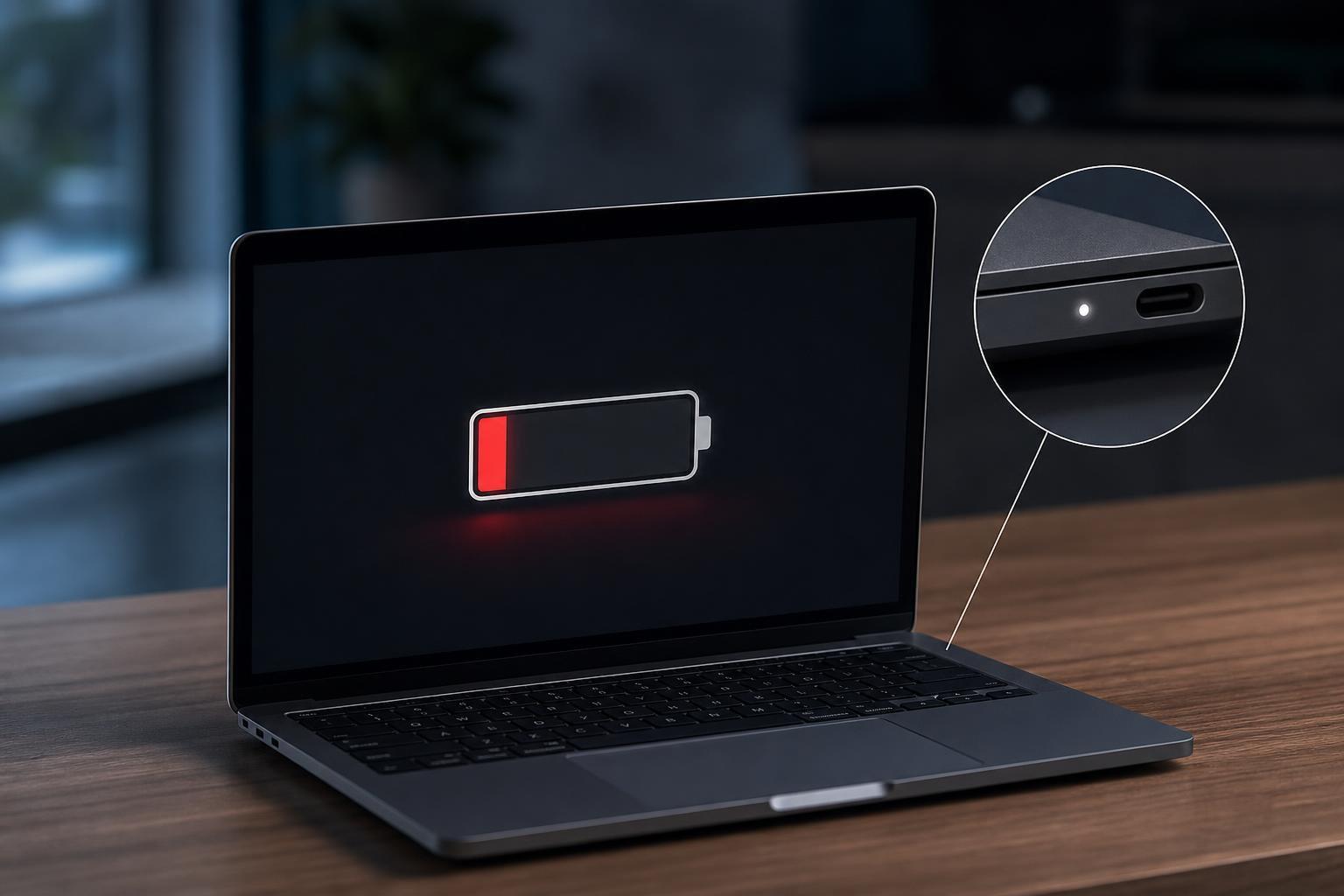
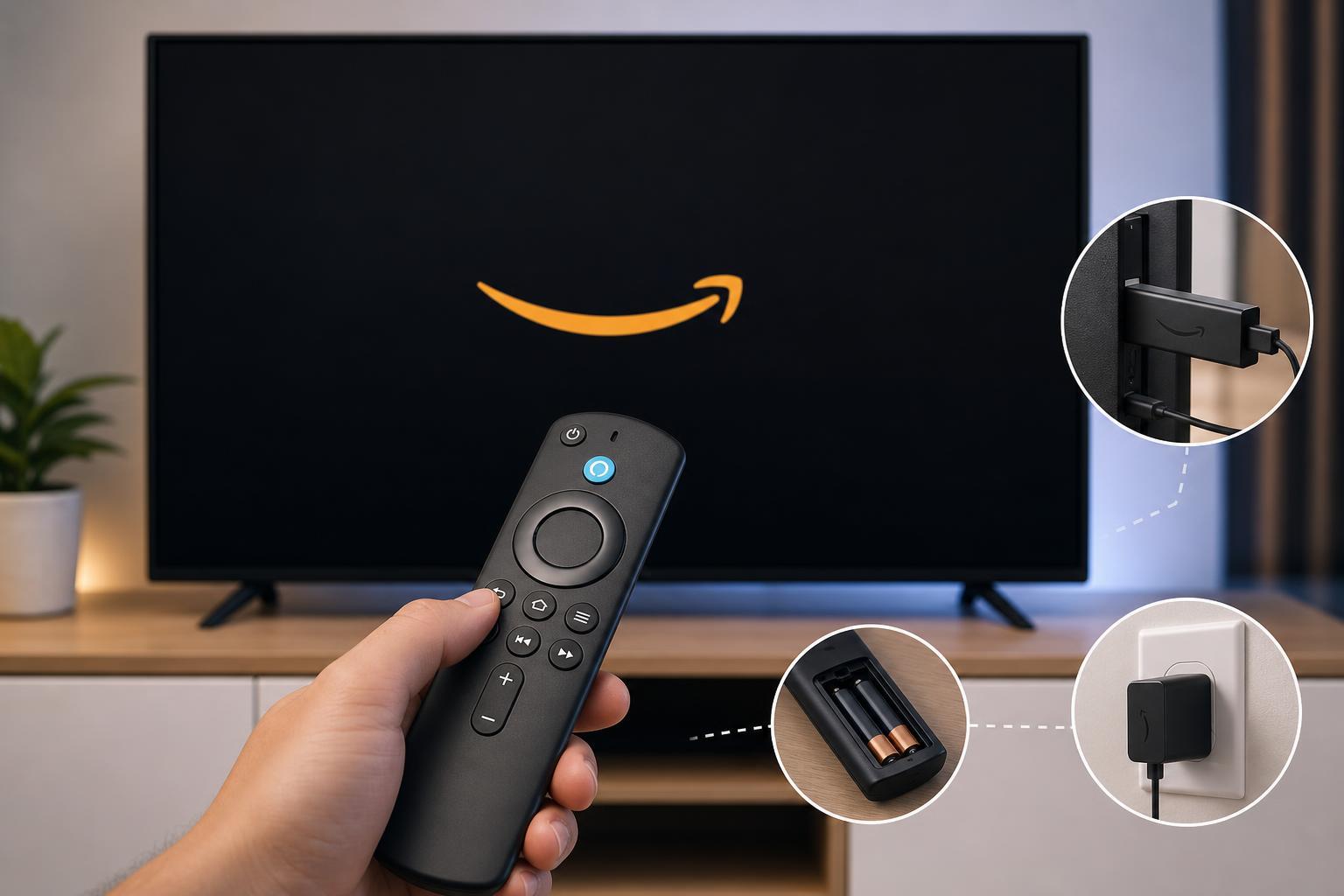
A Fire TV Stick is very sensitive to power problems. If it is plugged into a TV USB port, the port may not provide enough stable power for startup. That can leave the device frozen on the Amazon logo or cause it to loop on startup.
- Unplug the Fire TV Stick from the TV and disconnect its power cable.
- Plug the Stick into the original Amazon power adapter if you have it.
- Use a wall outlet instead of the TV’s USB port.
- Check that the USB cable is firmly connected at both ends.
- Wait 30 seconds, then reconnect power and watch for the startup screen.
2. Reboot the Fire TV Stick and Reset the HDMI Connection
Sometimes the device is working, but the startup handshake between the Fire TV Stick and the TV gets stuck. Reseating the HDMI connection and giving both devices a clean restart can clear that problem.
- Unplug the Fire TV Stick from the HDMI port.
- Remove its power cable from the outlet.
- Wait at least 60 seconds.
- Plug the Fire TV Stick back into the HDMI port securely.
- If possible, try a different HDMI port on the TV.
- Reconnect power and turn the TV to the correct HDMI input.
If your TV has several HDMI ports, one of them may be more reliable than another, especially on older TVs or when using an HDMI extender.
3. Perform a Factory Reset Only If You Can Reach the Remote Shortcut
If the Fire TV Stick still freezes on the logo and you can control it long enough to use the reset shortcut, a factory reset may clear a corrupted startup state. This should be your last major step because it removes your apps, settings, and account sign-in from the device.
- Unplug the Fire TV Stick from power.
- Hold down the Back button and the Right side of the directional ring on the remote together for about 10 seconds.
- While holding the buttons, reconnect power to the Stick if needed.
- If the reset prompt appears, follow the on-screen instructions.
- If the device never responds, move on to checking the remote batteries or using a different remote if available.
If the reset works, the Stick should restart as if it were new. You will need to sign in again and reinstall any apps you use.
How to Tell Whether It Is the Stick, the TV, or the Power Supply
- If the logo appears but never changes, power is the most likely cause.
- If the Stick works on one TV but not another, the HDMI port or TV compatibility may be involved.
- If the device gets warm but never loads, the software may be stuck during startup.
- If nothing appears at all, check the TV input, HDMI connection, and power first.
What to Try Next if None of These Fixes Work
If the Fire TV Stick still remains on the Amazon screen after trying a proper power adapter, a different HDMI port, and a reset, the device may have a hardware fault. At that point, try the Stick on another TV with the same power adapter before assuming the device is dead.
If it fails on multiple TVs and with different cables or adapters, the Fire TV Stick itself may need service or replacement.