Google Keep does not have a full native Windows 11 app, but you can still access your notes easily from a PC. The best method depends on whether you want quick one-click access, a browser-based workflow, or something that feels closer to a desktop app.
In this guide, you’ll learn three straightforward ways to open Google Keep on Windows 11 and choose the one that fits how you work.
1. Open Google Keep in Your Web Browser
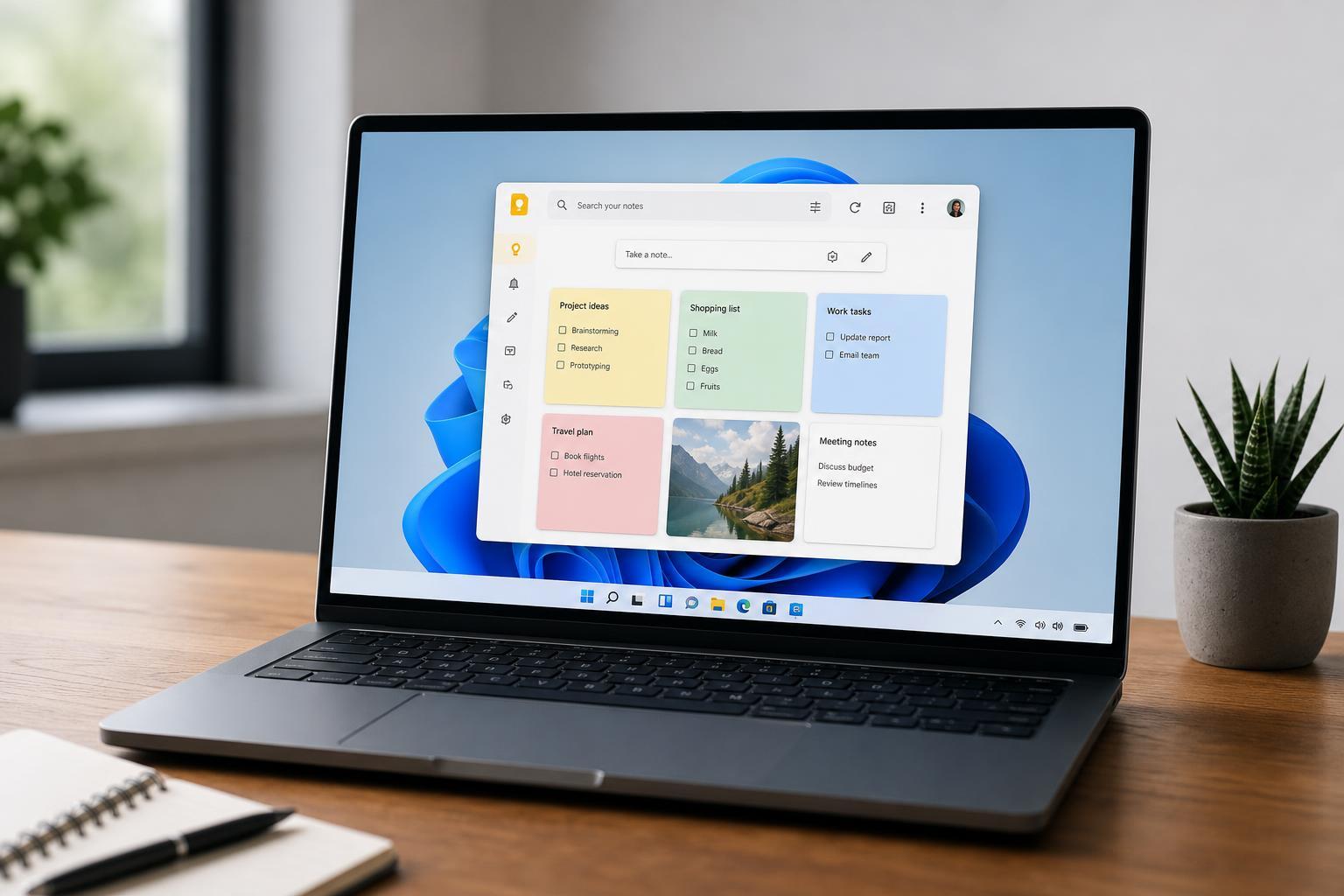
The simplest way to access Google Keep on Windows 11 is through your browser. This works in Chrome, Edge, Firefox, and most other modern browsers.
- Open your web browser.
- Go to keep.google.com.
- Sign in with your Google account if prompted.
- View, create, and edit notes directly in the browser.
2. Create a Google Keep Shortcut on the Windows 11 Desktop or Taskbar
If you use Google Keep often, you can make it feel more like a regular app by creating a shortcut. This gives you one-click access from your desktop, taskbar, or Start menu.
- Open keep.google.com in Google Chrome or Microsoft Edge.
- Sign in to your Google account.
- Open the browser menu.
- Choose the option to install the site as an app or create a shortcut, depending on your browser.
- Name the shortcut Google Keep and confirm.
- Pin it to the taskbar or Start menu if you want quicker access.
3. Use Google Keep in a Browser Profile or Separate Window
Another practical option is to keep Google Keep open in its own browser profile or window. This is helpful if you want your notes separate from your normal browsing tabs.
- Open a separate Chrome or Edge profile, or use a different browser window.
- Go to keep.google.com and sign in.
- Leave the window open for quick access whenever you need your notes.
- If you use multiple Google accounts, choose the profile tied to the account that stores your Keep notes.
Which Method Should You Use?
- Use the web browser if you want the quickest and simplest option.
- Use a shortcut or installed site if you want a more app-like experience.
- Use a separate browser window or profile if you want better organization or multiple-account access.
For most people, the browser method is enough. If you open Keep every day, creating a shortcut is usually the most convenient way to make it feel built into Windows 11.
If Google Keep Is Not Loading Properly
If Keep opens but your notes do not appear, the issue is usually related to sign-in, sync, or the browser itself. Try checking that you are using the correct Google account first, since Keep is tied directly to that account.
- Confirm you are signed in to the right Google account.
- Check your internet connection.
- Try another browser if the page is not loading correctly.
- Clear the browser cache if Keep is acting strangely.
- Make sure browser extensions are not blocking Google services.
A Quick Final Recommendation
If you just want access to your notes, use keep.google.com. If you want something that feels more like a Windows app, create a shortcut or install the site as an app through your browser. Either way, Google Keep works well on Windows 11 once you know the best access method for your setup.