
Windows 11 can show previews for many file types directly in File Explorer, making it easier to identify photos, documents, PDFs, and other files without opening them one by one. If previews are not appearing, the cause is usually a File Explorer setting, a disabled Preview pane, or thumbnail options in Windows.
This guide shows the main ways to enable file previews in folders and explains what to do if previews still do not appear.
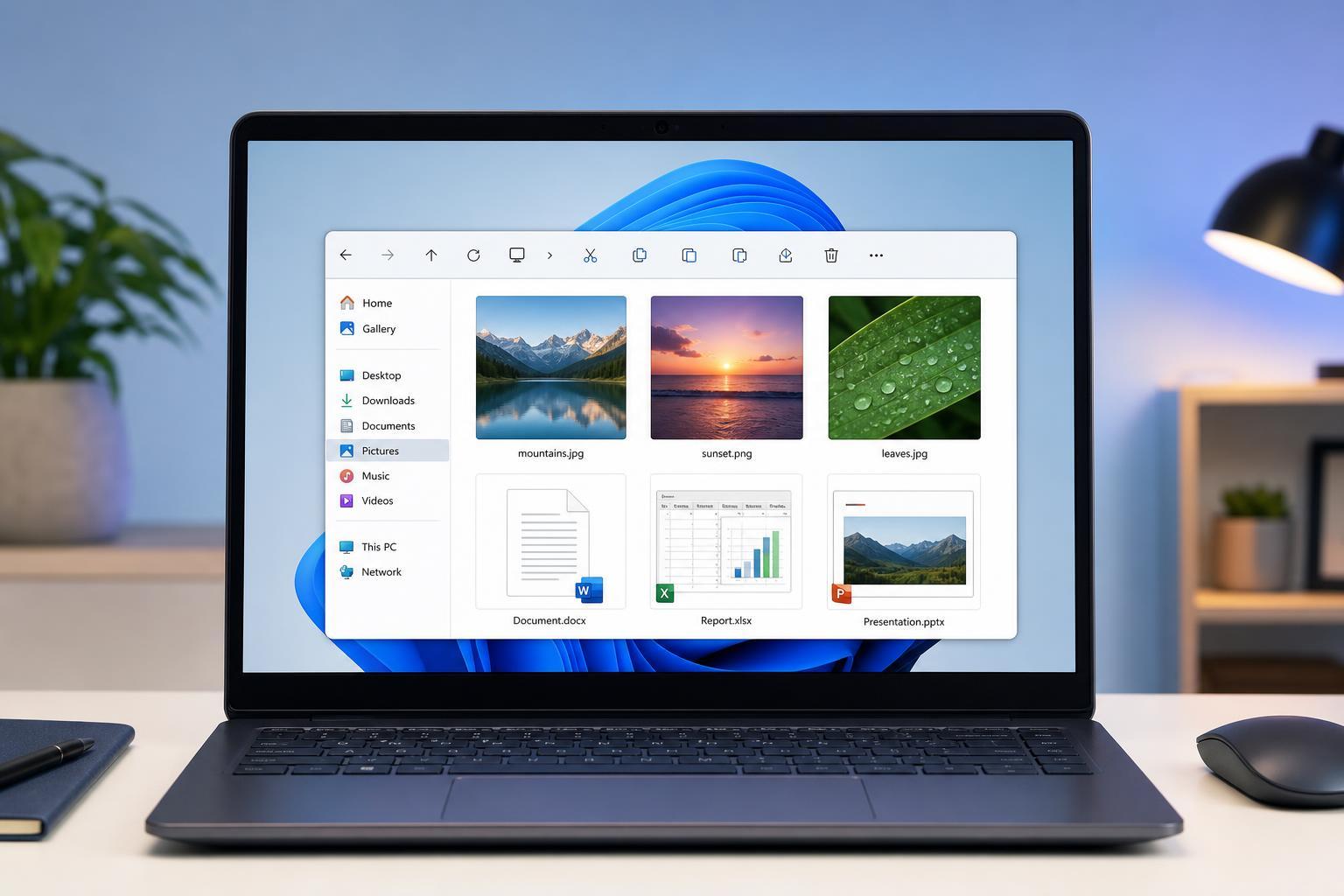
Use the Preview Pane in File Explorer
The quickest way to preview a file in a folder is to use the Preview pane. This is a sidebar in File Explorer that displays the contents of the selected file.
- Open File Explorer and go to the folder you want to browse.
- On the top menu, select View.
- Choose Show, then select Preview pane.
- Click a file in the folder to see its preview on the right side of the window.
Turn On Thumbnails for Folder Items
If you want files to show visual previews directly as icons in the folder view, Windows needs thumbnail display enabled. This is especially useful for images, videos, and some document types.
- Open File Explorer.
- Select the three-dot menu on the toolbar, then choose Options.
- In the Folder Options window, open the View tab.
- Make sure the option Always show icons, never thumbnails is unchecked.
- Click Apply, then OK.
Check Windows Performance Settings
Windows can also hide thumbnails if a performance setting is enabled. This is common on systems configured to favor speed over appearance.
- Open File Explorer Options again.
- Go to the View tab.
- Look for an option related to showing thumbnails instead of icons.
- If thumbnails still do not appear, open System Properties and check performance settings under Advanced system settings.
- Make sure visual effects are not set to prioritize best performance in a way that disables thumbnails.
Make Sure the File Type Supports Previews
Not every file type can be previewed in the same way. Windows handles common image, video, PDF, and Office files well, but some less common formats may only show a generic icon.
- Image files such as JPG, PNG, and GIF usually preview well
- Video files often show thumbnails if the right codec support is available
- PDF files may preview in File Explorer depending on installed apps
- Some archives, developer files, and specialty formats may not preview at all
If Previews Still Do Not Show
If you have enabled the Preview pane and thumbnails but still cannot see previews, the problem is often related to cached thumbnails, a file association issue, or limited support for that file format.
- Close File Explorer and open it again to refresh the folder view.
- Try a different folder with known supported file types, such as JPG or PNG images.
- Check whether the file opens correctly in its associated app.
- If only one file type is affected, the preview handler for that format may be missing or disabled.
- If thumbnails are broken across many folders, clear the thumbnail cache using Disk Cleanup or Storage settings.
When File Preview Is Most Useful
File previews are especially helpful when you work with folders that contain many similar-looking filenames. Instead of opening each file, you can quickly identify the right one by its contents.
- Sorting through photo folders
- Reviewing downloads
- Checking screenshots and images
- Finding the correct PDF or document version
- Scanning media folders for the right video file
Summary of the Main Settings
To show file previews in Windows 11 folders, start with the Preview pane, then make sure thumbnails are enabled in Folder Options. If previews still do not appear, check Windows performance settings and confirm that the file type supports previews.





