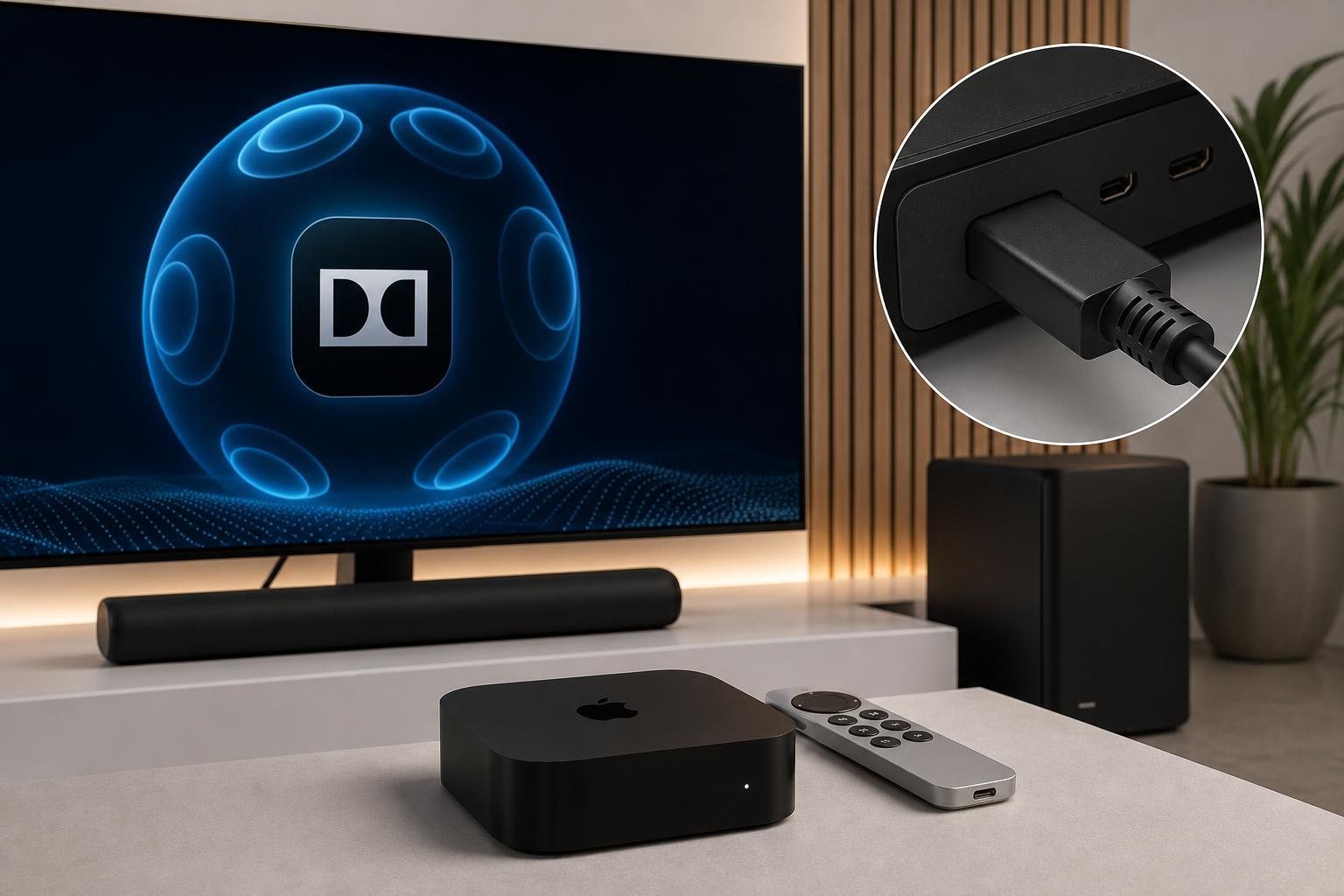
If Dolby Atmos has stopped working on your Apple TV 4K, the problem is usually caused by a settings mismatch, an HDMI connection issue, or a device in the audio chain that is not passing Atmos correctly. The good news is that you can often fix it without replacing any hardware.
This guide covers three fixes that solve the most common causes of Dolby Atmos not working on Apple TV 4K, starting with the simplest checks and moving toward the ones more likely to affect home theater setups.
1. Confirm That Every Device in the Audio Chain Supports Dolby Atmos
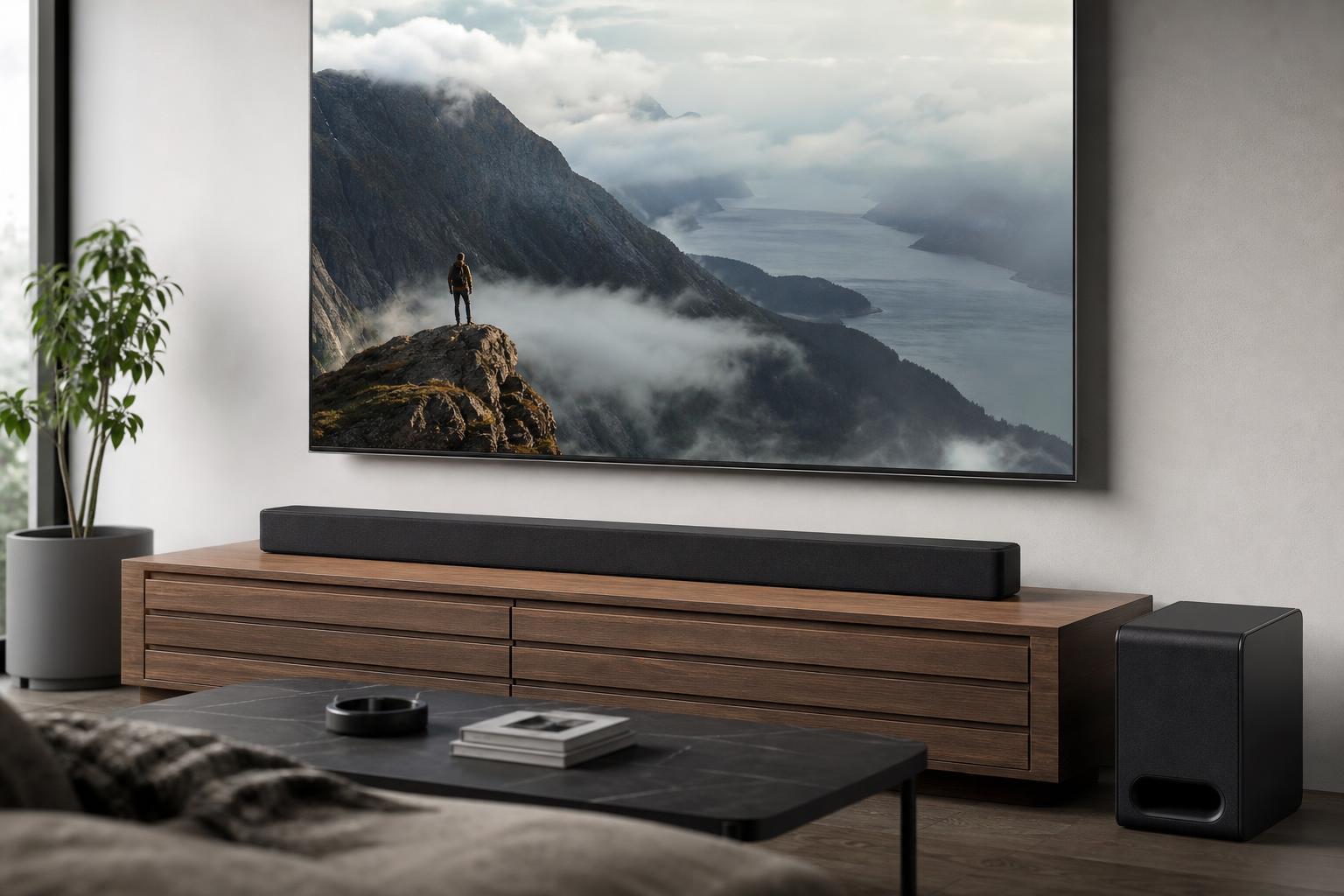
Dolby Atmos has to be supported all the way from the Apple TV 4K to your sound system. If even one device in the chain cannot handle Atmos, you may only get regular surround sound or stereo instead.
- Your TV must support Atmos passthrough over HDMI eARC or ARC if you are sending audio through the TV first.
- Your soundbar, AV receiver, or home theater system must support Dolby Atmos decoding.
- Use the correct HDMI port on the TV, especially if only one port supports eARC.
- If you are using an older AV receiver, it may support surround sound but not Atmos.
2. Check the Apple TV 4K Audio Settings
A common reason Atmos stops working is that the Apple TV is outputting audio in a format that prevents it from using Dolby Atmos properly. The main setting to check is usually not the volume or the app itself, but the audio format configuration.
- Open Settings on Apple TV 4K.
- Go to Video and Audio.
- Open Audio Format.
- Make sure Change Format is turned off.
- If you see Dolby Atmos as an option or status, confirm it is enabled or available for your setup.
When Change Format is enabled, Apple TV may convert audio to another format such as Dolby Digital 5.1. That can disable Atmos playback even if the movie or show supports it.
3. Fix the HDMI Connection and eARC Setup
If your settings are correct but Atmos still does not show up, the HDMI connection is the next thing to check. Dolby Atmos is more sensitive to the quality and routing of the signal than basic stereo audio.
- Use a high-speed HDMI cable that is known to work with 4K audio/video gear.
- Connect the Apple TV 4K directly to the TV or receiver using the proper HDMI input.
- If you rely on your TV to pass audio to a soundbar or receiver, make sure eARC is enabled on both devices.
- Try a different HDMI port on the TV if the current port does not support eARC or full audio passthrough.
- Reseat both ends of the HDMI cable so they are fully inserted.
If you are using a soundbar, remember that some models only support Atmos through HDMI eARC and not through optical audio. Optical connections cannot carry Dolby Atmos in the way Apple TV 4K needs.
What to Check If Atmos Still Does Not Work
If the three fixes above do not solve the problem, the issue may be with the content itself or with how the streaming app is outputting audio. Not every title includes Atmos, and some apps only enable it under certain conditions.
- Test a different movie or show that is known to include Dolby Atmos.
- Check whether the streaming app has its own audio or playback restrictions.
- Make sure the TV, receiver, or soundbar firmware is up to date.
- Verify that your TV audio output has not been switched to PCM or stereo-only mode.
When the Problem Is Usually the TV, Not Apple TV
If Apple TV 4K shows Atmos is available, but your sound system still does not switch into Atmos mode, the TV is often the weak point. This is especially common when the TV does not pass Atmos correctly from its internal apps or from external HDMI devices.
- Atmos works with the TV’s built-in apps but not with Apple TV 4K.
- Atmos works on one HDMI input but not another.
- The soundbar or receiver displays plain Dolby Digital instead of Atmos.
- Audio works, but height effects or Atmos indicators never appear.
If You Want the Short Version
- Make sure every device in the chain supports Dolby Atmos.
- Turn off Change Format in Apple TV 4K audio settings.
- Check HDMI, eARC, and passthrough connections carefully.
In most cases, one of those three fixes restores Dolby Atmos on Apple TV 4K. If not, the remaining issue is usually specific to the TV, soundbar, receiver, or app you are using.