If Alexa on your Fire TV Stick 4K suddenly stops reacting to voice commands, the problem is usually caused by a microphone issue, a pairing problem with the remote, or a settings/network glitch. The good news is that you can usually narrow it down with a few quick checks before trying anything more advanced.
This guide walks through three fixes that solve the most common causes of Alexa voice command failures on the Fire TV Stick 4K.
1. Check the Voice Remote and Microphone First
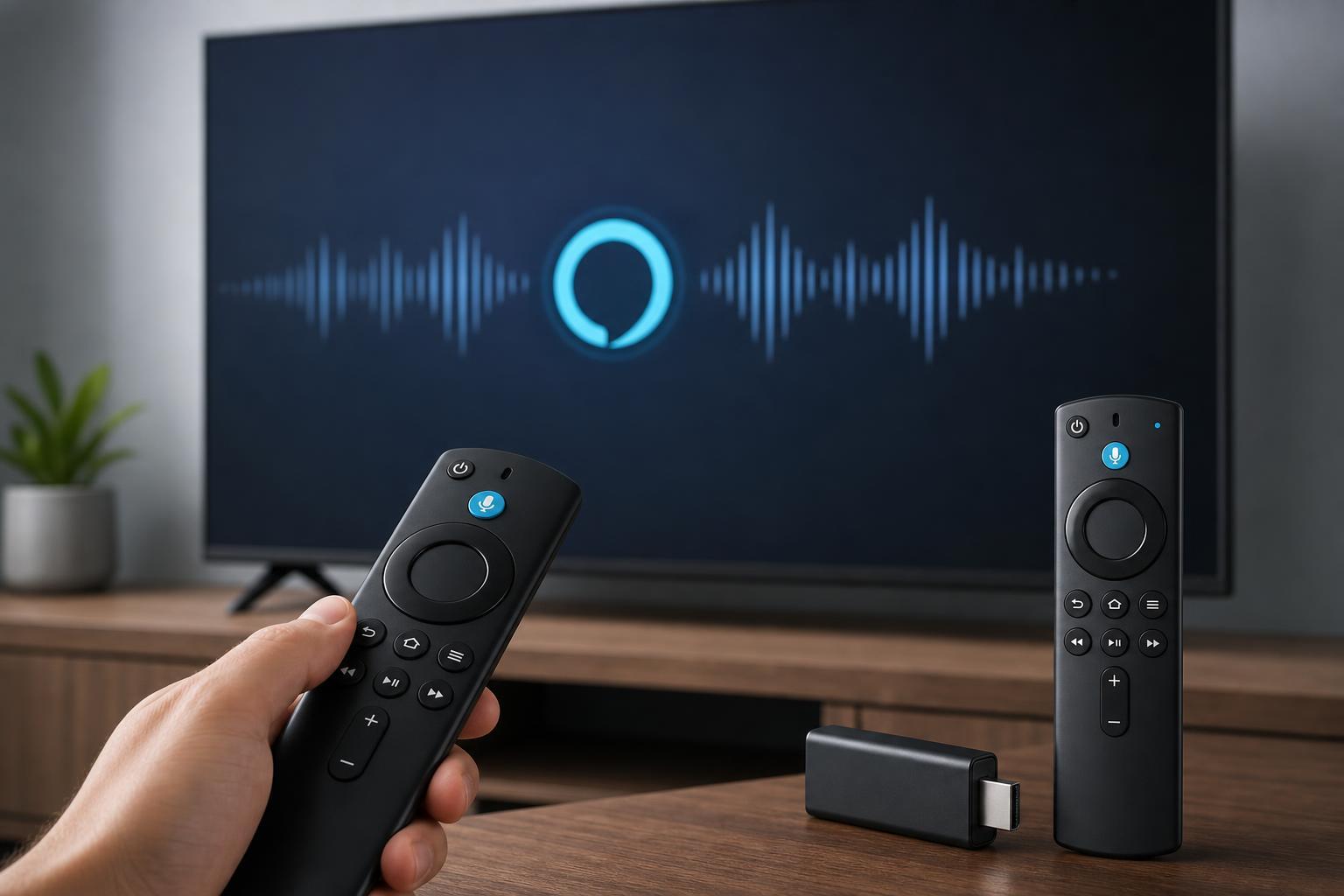
Before changing settings on the Fire TV, make sure the Alexa Voice Remote is actually able to hear you. If the remote is not paired correctly, has weak batteries, or its microphone button is not being used properly, Alexa may seem broken even though the Fire TV itself is fine.
- Hold the Alexa button while speaking. On most Fire TV remotes, Alexa only listens while the button is pressed.
- Replace the batteries in the remote if they are weak or inconsistent. Low power can cause the microphone and Bluetooth connection to behave unreliably.
- Make sure nothing is covering the remote microphone area and that you are speaking close enough for the remote to pick up your voice.
- Check whether the remote still works for normal navigation. If the buttons also lag or stop responding, the remote itself may be the problem.
2. Confirm the Fire TV Stick Has a Stable Internet Connection
Alexa voice commands need an active internet connection to process requests. If the Fire TV Stick is connected to Wi-Fi but the connection is slow, dropping out, or using a weak signal, Alexa may not respond even though the TV interface still opens normally.
- Open Settings on the Fire TV Stick and go to Network.
- Check whether the device is connected to the correct Wi-Fi network.
- Test another app or streaming service to see whether the connection is stable.
- If possible, move the Fire TV Stick closer to the router or reduce interference from other wireless devices.
- If the connection seems weak, reconnect to Wi-Fi or try a different band on your router, such as 5 GHz if your network supports it.
3. Check Alexa and Fire TV Voice Settings
If the remote and internet connection are both fine, the next place to look is the Fire TV’s voice settings. A disabled voice feature, a mismatched account, or a software glitch can stop Alexa from responding properly.
- Open Settings on the Fire TV Stick.
- Go to Alexa, or look for Device & Software / Preferences depending on your Fire TV version.
- Confirm that voice-related features are enabled.
- Make sure you are signed into the Amazon account that is linked to your Alexa setup.
- If available, check for Fire TV software updates and install them.
- Restart the Fire TV Stick only after checking settings, since a restart is more useful once you have ruled out configuration problems.
How to Narrow Down the Problem Quickly
A simple way to isolate the cause is to test one layer at a time. Start with the remote, then check the network, then review Alexa settings. That order matters because remote problems are the most immediate and easiest to verify, while network and account issues are more likely when Alexa seems connected but does not answer or times out.
- No microphone response at all: suspect the remote, batteries, or pairing.
- Alexa says it cannot connect or gives no response: check Wi-Fi and internet stability.
- Voice works sometimes but not others: look for weak signal, account issues, or Fire TV software glitches.
- Buttons work but voice does not: focus on the microphone button, Alexa settings, and remote hardware.
When More Troubleshooting Is Needed
If none of these fixes help, the issue may be deeper than a simple settings problem. At that point, you can test the remote on another Fire TV device if available, remove and re-pair the remote, or check whether the Fire TV Stick itself is running outdated firmware. Those steps are usually only necessary after the three checks above fail.