
Google Docs includes a decent set of fonts by default, but you may want something more specific for a report, flyer, resume, or classroom project. The good news is that adding more font options is quick once you know where to look.
This guide shows two easy ways to get more fonts in Google Docs and explains when each method makes sense.
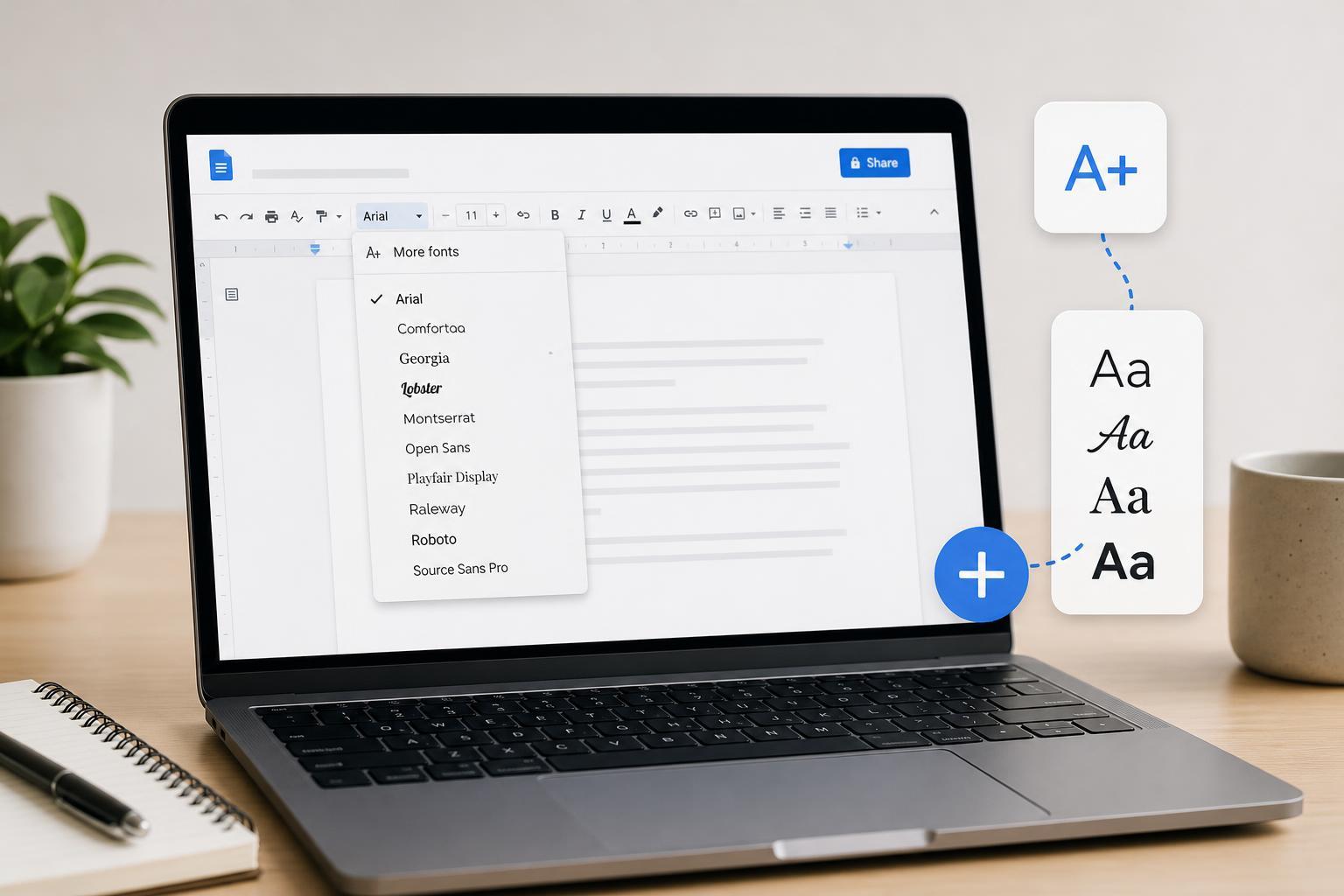
Method 1: Add More Fonts From the Google Docs Font Menu
The fastest way to expand your font choices is to open the font picker in Google Docs and add fonts from the built-in list. These fonts are available directly inside Docs, so you can start using them right away.
- Open your document in Google Docs.
- Click the font drop-down in the toolbar at the top of the page.
- At the top of the font list, choose More fonts.
- Browse the font library, then click the fonts you want to add. A checkmark will appear beside each one.
- Click OK to save your selections. The new fonts will now appear in your font list.
Method 2: Use Google Fonts for a Wider Selection
If you want to explore more font styles before deciding, Google Fonts can help. Fonts in Google Docs are sourced from the broader Google Fonts library, so browsing that catalog can make it easier to compare styles and choose one that fits your document.
- Go to the Google Fonts website in your browser.
- Browse or search for a font you like.
- Use the preview tools to compare different weights and styles.
- Return to Google Docs and open the font menu.
- If the font is available in Docs, add it through More fonts, then apply it to your text.
How to Apply a New Font in Your Document
Once a font has been added, applying it is simple. Highlight the text you want to change, open the font drop-down, and select the new font. You can also change the font before typing if you want all new text to use that style.
- Use a readable font for long paragraphs, especially in reports and essays.
- Save decorative fonts for titles, headings, or short callouts.
- Keep consistency in mind if the document will be shared or printed.
- Check how the font looks at different sizes before settling on it.
When Fonts May Not Appear
If a font you expected is missing, it usually means one of three things: the font is not supported in Google Docs, it has not been added yet through More fonts, or you are looking at a style that is only available in another Google app or design tool.
- Some fonts are available only in the Google Fonts catalog, not directly in Docs.
- A shared document may use a font you have not added to your own account yet.
- Certain font styles are limited to specific weights, such as regular or bold.
- Browser or account sync issues can occasionally delay the font list updating.
Choosing the Best Font for Your Document
The right font depends on what you are making. Clean sans-serif fonts are often best for modern documents and on-screen reading, while serif fonts can work well for formal writing and printed pages. Decorative fonts should be used sparingly because they can reduce readability.
- Professional documents: simple, easy-to-read fonts
- Creative projects: more stylized fonts for headings or accents
- Printed handouts: fonts that stay clear at smaller sizes
- Long documents: fonts that are comfortable to read for extended periods
If your goal is to make a document look polished rather than flashy, focus on readability first and style second.





