MS Paint is a simple app, but when it stops opening, crashes, freezes, or refuses to save files in Windows 10, the cause is usually a damaged app install, a Windows update issue, or a problem with your user profile or system files. The fixes below move from the easiest checks to the more advanced repair steps so you can get Paint working again without wasting time.
1. Close Paint and open it again
If Paint is frozen or responding badly, close it completely and reopen it. This sounds basic, but it can clear a temporary app hang or a one-off memory issue.
- Press Ctrl + Shift + Esc to open Task Manager.
- Find Paint in the list of running apps or background processes.
- Select it and choose End task.
- Open Paint again from the Start menu.
2. Restart Windows 10 if Paint still will not load
A full restart can clear stuck processes, memory problems, and temporary glitches that prevent Paint from launching correctly. It is worth trying if Paint opens to a blank window, crashes immediately, or does nothing when you click it.
3. Check whether the problem is only with one file
Sometimes Paint is working normally, but a specific image file is the real problem. A damaged, very large, or unsupported file can make Paint appear broken when the issue is actually the image itself.
- Try opening a different image file.
- Create a new blank canvas and see whether you can draw on it.
- If one file fails, test another image of a different type such as JPG or PNG.
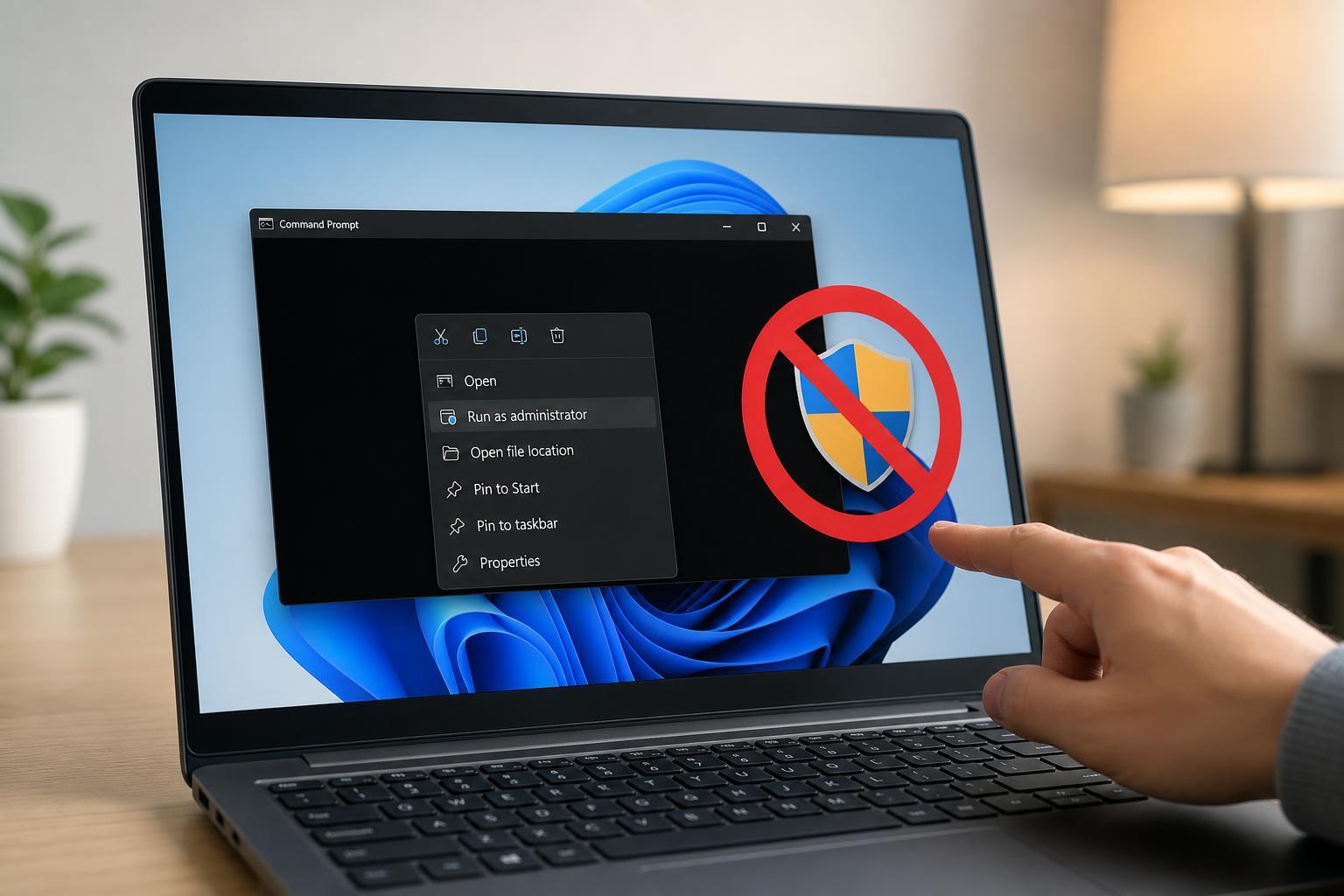
4. Run Paint as an administrator
If Paint has trouble saving files or accessing certain folders, running it with administrator rights may help. This is especially useful if you are trying to save to a protected location.
- Open the Start menu and search for Paint.
- Right-click Paint and choose Run as administrator.
- Try opening, editing, and saving a file again.
5. Repair or reset the Paint app
Windows 10 includes built-in repair and reset options for many apps. Repair tries to fix the app without deleting its data, while Reset restores the app to a clean state.
- Open Settings.
- Go to Apps, then Apps & features.
- Find Paint in the list.
- Click Advanced options if available.
- Select Repair first.
- If that does not help, select Reset.
6. Check for Windows Update problems
Paint can fail after a bad update, or it may be fixed by an update you have not installed yet. Windows updates also refresh system components that Paint depends on.
- Open Settings and go to Update & Security.
- Select Windows Update.
- Click Check for updates.
- Install any available updates and restart if prompted.
7. Run the Windows Store Apps troubleshooter
If Paint is behaving like a Microsoft Store-style app on your system, the built-in troubleshooter may detect licensing, cache, or app registration problems.
- Open Settings.
- Go to Update & Security.
- Select Troubleshoot.
- Choose Additional troubleshooters.
- Run the Windows Store Apps troubleshooter if it is available.
8. Re-register built-in Windows apps
If Paint was removed from its app registration or the Windows app database is damaged, re-registering built-in apps can restore normal behavior.
- Right-click the Start button and choose Windows PowerShell (Admin) or Windows Terminal (Admin).
- Enter the command used to re-register built-in apps for the current user.
- Restart the computer after the process finishes.
9. Check system files for corruption
Paint may fail because Windows system files it depends on are damaged. Running a system file check can repair missing or corrupted components.
- Open Command Prompt as administrator.
- Type sfc /scannow and press Enter.
- Wait for the scan to complete.
- If Windows reports problems it could not fix, run DISM repair commands afterward.
10. Test Paint with a new Windows user account
If Paint works in another account, the problem may be tied to your user profile rather than the app itself. A damaged profile can affect app settings, permissions, and cached data.
- Create a new local Windows user account.
- Sign out of your current account.
- Sign in to the new account and launch Paint.
- If Paint works there, your original profile is likely the source of the issue.
11. Make sure your storage drive has enough free space
Paint needs space to create temporary files and save edited images. If your system drive is nearly full, saving can fail or the app may become unstable.
- Delete unnecessary files from the drive you save to.
- Empty the Recycle Bin.
- Leave some free space on the Windows system drive as well as the target drive.
12. Scan for malware or unwanted software
Malware or aggressive cleanup tools can interfere with normal app behavior, including classic Windows apps and file-saving functions. If Paint started acting strangely after you installed something new, a scan is worth doing.
- Open Windows Security.
- Run a Quick scan first.
- If needed, run a Full scan or Microsoft Defender Offline scan.
- Remove anything suspicious and test Paint again.
13. Reinstall Paint or restore it from Windows features
If Paint was removed, damaged beyond repair, or missing from your system, reinstalling it may be the fastest fix. In Windows 10, the exact steps can vary depending on your version and whether Paint is listed as an optional feature or needs to be restored through app settings.
- Open Settings and check Apps & features for Paint.
- If it is listed as an optional feature, install or restore it from Windows features.
- If it is present but broken, remove and add it again where Windows allows it.
- Restart and test Paint after reinstalling.
When the issue is really with your image file
If Paint opens normally but fails only when you open one image, the file itself is often the real problem. Try opening the image in another viewer or editor to confirm whether it is damaged. If another app can open it, save a fresh copy in a simpler format such as PNG or JPG and try again in Paint.
Which fix should you try first?
Start with the quickest checks: close Paint, restart Windows, and test a different file. If that does not help, move to Repair, Reset, Windows Update, and system file checks. If Paint still fails after that, the issue is more likely tied to your user profile, app registration, or a deeper Windows problem.