
Credential Manager is Windows’ built-in place for storing saved sign-in information such as website passwords, network logins, and app credentials. If you need to find a saved login, remove a broken entry, or understand why Windows keeps asking for a password, Credential Manager is often the first place to check.
This guide shows you how to open Credential Manager in Windows 10 and Windows 11, what each section does, and how to manage saved credentials safely.
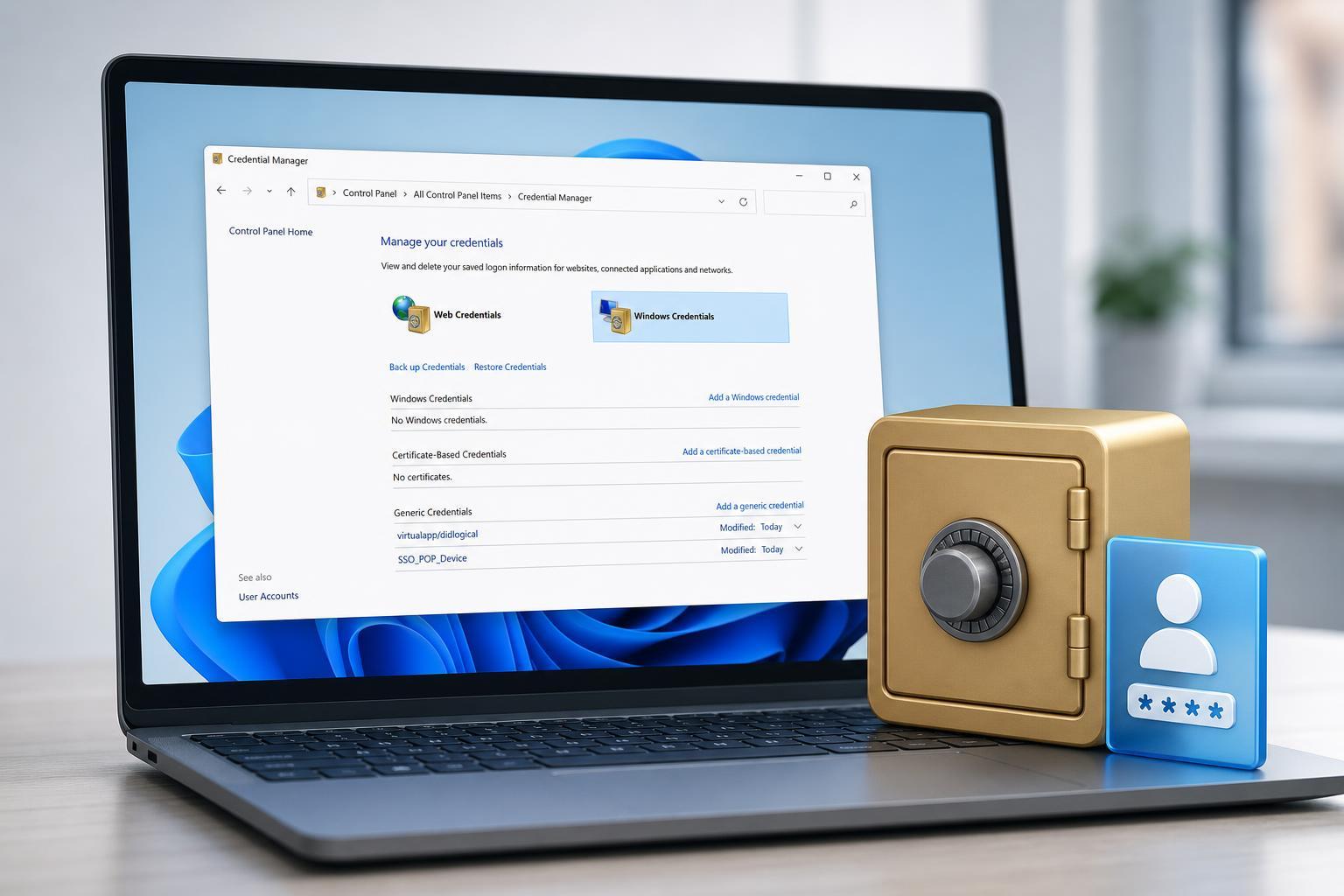
What Credential Manager Stores
Credential Manager can store two main types of credentials. Knowing the difference makes it easier to find the right entry and avoid deleting something important.
- Windows Credentials: sign-in details used by Windows, shared folders, mapped network drives, remote desktop connections, and some apps
- Web Credentials: login details saved by Microsoft apps and browsers that use Windows credential storage
How to Open Credential Manager in Windows 10 and 11
- Open the Start menu and type Credential Manager.
- Select Credential Manager from the search results.
- If prompted, allow Windows to open Control Panel.
- You will see two sections: Windows Credentials and Web Credentials.
How to View Saved Credentials
- Open Credential Manager.
- Choose Windows Credentials or Web Credentials.
- Select the credential entry you want to inspect.
- Click the arrow or the entry name to expand it.
- If available, click Show to reveal the password and confirm your Windows account password or PIN.
Not every entry will show a password. Some credentials only expose the username, target name, or account type, depending on how the app or service saved them.
How to Add a New Credential
You can manually add a credential when Windows needs a saved username and password for a network resource, remote connection, or similar sign-in.
- Open Credential Manager.
- Select Windows Credentials.
- Click Add a Windows credential.
- Enter the network address or target name.
- Type the username and password.
- Click OK to save it.
If you are connecting to a shared folder or server, using the correct target name matters. A mismatched name can cause Windows to keep asking for credentials even though the password is correct.
How to Edit or Remove a Saved Credential
- Open Credential Manager.
- Go to the relevant credential category.
- Select the entry you want to change or delete.
- Choose Edit to update the username or password, or choose Remove to delete the saved credential.
- Confirm the change if Windows asks for approval.
Common Uses for Credential Manager
- Fixing repeated password prompts for shared folders or network drives
- Removing outdated logins after a password change
- Checking which account Windows is using for a work or school connection
- Cleaning up saved sign-ins that no longer belong on the PC
- Storing credentials for some remote desktop and server connections
If You Cannot Find the Password
If the password is hidden or there is no Show button, Windows may not have stored it in a readable form. That is normal for some entries. In that case, you may need to reset the password in the original service, browser, or app instead of relying on Credential Manager.
- Check whether the login was saved by a browser instead of Windows
- Look in the app’s own password settings if it has one
- Remove the outdated credential and sign in again to save the current one
- Use the original service’s password reset process if you no longer know the password
When Credential Manager Does Not Open or Work Correctly
If Credential Manager will not open, search results do not appear, or saved entries seem to be missing, the issue is usually with the Windows user profile, search indexing, or a permissions problem rather than the tool itself.
- Try opening it through Control Panel search instead of Start menu search
- Make sure you are signed in with the same Windows account that saved the credentials
- Check whether you are using a work or school device with policy restrictions
- If the system was recently changed or repaired, some stored credentials may have been cleared
Quick Ways to Get the Most from Credential Manager
- Use it to clean up old logins after changing passwords
- Remove duplicate entries if Windows keeps prompting for credentials
- Check both Windows Credentials and Web Credentials when troubleshooting
- Avoid deleting entries unless you know what they are used for
- Remember that some passwords are stored elsewhere, not in Credential Manager
Credential Manager is a simple but useful Windows tool once you know where to find it. It can save time during troubleshooting, help you manage saved logins, and make it easier to fix password problems without guessing at what Windows is using behind the scenes.





