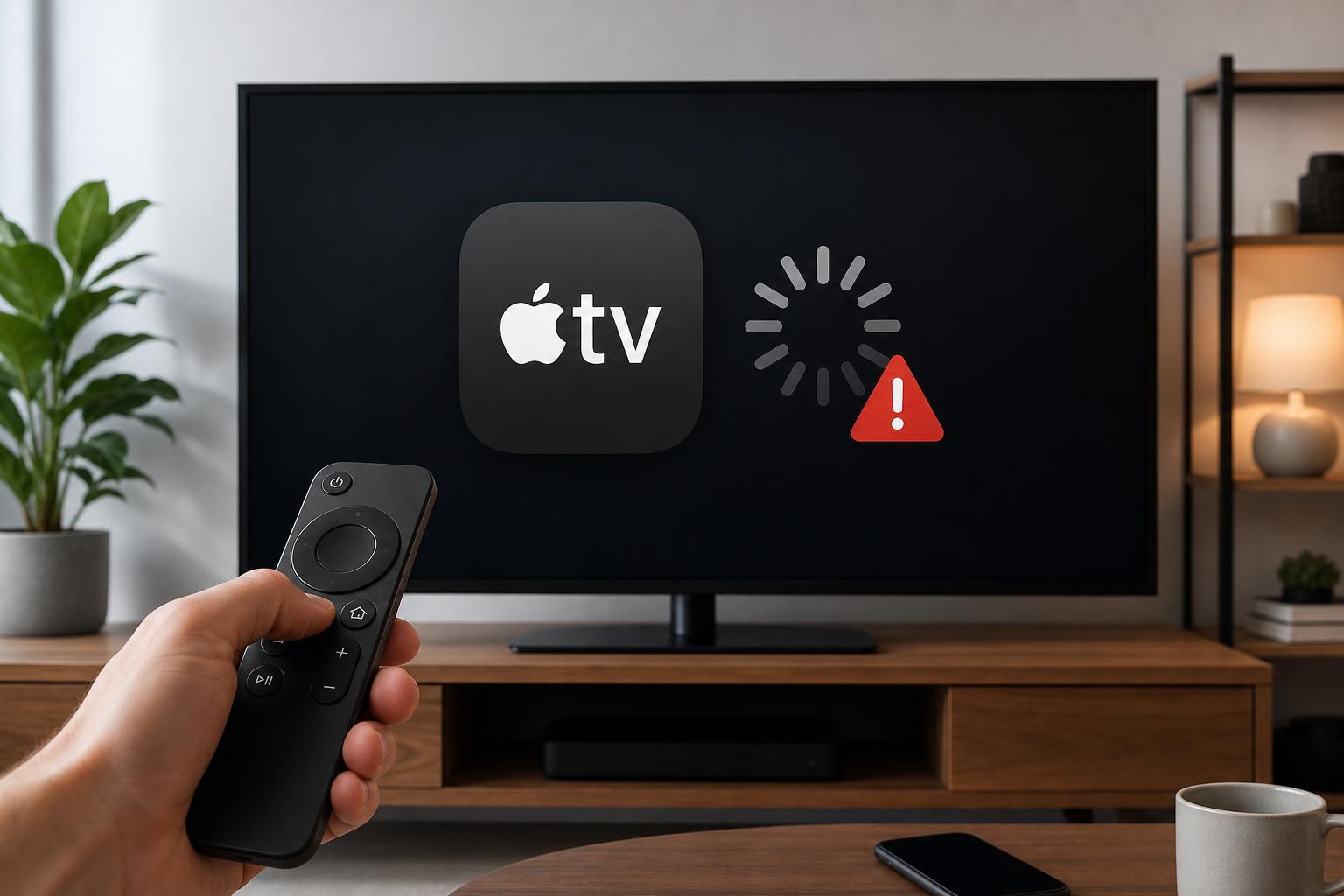
If the Apple TV app is opening slowly, freezing, crashing, or refusing to play shows on your Samsung TV, the cause is usually one of a few common problems: a network issue, an outdated app, a Samsung software problem, or an Apple account sign-in issue. The good news is that most cases can be fixed without replacing the TV or the app.
The best approach is to start with the simplest checks and move toward deeper fixes only if the app still fails. That saves time and helps narrow down whether the problem is with the app itself, the TV software, or your internet connection.
1. Check whether the problem is with the app or the Apple TV service
Before changing settings on the TV, make sure the issue is not temporary service trouble. Try opening another streaming app on the same TV and see whether it works normally. If other apps also fail to load content, the issue may be your connection rather than the Apple TV app.
- Try a different streaming app on the Samsung TV.
- Check whether Apple TV works on another device using the same Apple ID.
- Look for obvious signs of a home internet problem, such as other devices loading slowly.
- If possible, test the TV on a mobile hotspot briefly to separate a TV problem from an internet problem.
2. Confirm your internet connection is stable
The Apple TV app needs a reliable connection for sign-in, browsing, and playback. A weak Wi-Fi signal can let the app open but still prevent video from starting or cause constant buffering.
- Open another app or website on a device connected to the same network and see whether it loads normally.
- On the Samsung TV, check the network status in the Settings menu.
- If the TV is on Wi-Fi, move it closer to the router if possible or reduce interference from other devices.
- If you can, switch temporarily to Ethernet to see whether the app works better on a wired connection.
3. Force close the Apple TV app and reopen it
A frozen app session can cause loading screens, blank pages, or playback errors. Closing the app fully clears the current session and often fixes temporary glitches.
- Open the Samsung TV app switcher or recent apps view.
- Highlight the Apple TV app.
- Close or remove it from the running apps list.
- Open the app again and test playback.
4. Restart the Samsung TV the right way
A proper restart clears temporary memory issues that can affect apps. This is more useful than simply turning the screen off and back on with the remote.
- Turn the TV off.
- Unplug it from power for at least 30 seconds.
- Plug it back in and turn it on again.
- Launch the Apple TV app and test it.
5. Update the Apple TV app
An outdated app may stop working correctly if Samsung or Apple has changed how the app connects to services. Updating the app can fix crashes, sign-in problems, and playback errors.
- Open the Samsung TV app store.
- Search for Apple TV.
- Install any available update.
- If the app is already current, note the version and continue troubleshooting.
6. Update the Samsung TV software
Samsung firmware updates often include bug fixes for streaming apps, HDMI behavior, network features, and system stability. If the TV software is outdated, the Apple TV app may not run correctly even if the app itself is up to date.
- Open Settings on the Samsung TV.
- Go to Support or Software Update.
- Check for updates and install any available update.
- After the update finishes, open the Apple TV app again.
7. Sign out of the Apple TV app and sign back in
If the app opens but your library, purchases, or subscriptions do not load properly, the issue may be tied to your Apple account session. Signing out and back in refreshes that connection.
- Open the Apple TV app settings or account menu.
- Sign out of your Apple ID.
- Close the app completely.
- Reopen it and sign in again with the correct Apple ID.
8. Check the date and time settings on the TV
Incorrect time settings can interfere with account authentication and secure streaming services. If the TV date or time is wrong, the Apple TV app may fail to verify your session properly.
- Open the TV settings.
- Find Date and Time or General time settings.
- Set the TV to use automatic time if available.
- If automatic time is already enabled, turn it off and back on again or set the correct time manually.
9. Clear the app cache or app data if your model allows it
Corrupted cache files can cause endless loading, missing thumbnails, or repeated app crashes. Some Samsung TVs let you clear cached data for individual apps, while others may require reinstalling the app instead.
- Open the Samsung TV settings.
- Go to Apps.
- Select Apple TV.
- Look for an option to clear cache or clear data if available.
- Reopen the app and sign in again if needed.
10. Reinstall the Apple TV app
If updating and cache clearing do not help, reinstalling the app can replace damaged app files. This is one of the most effective fixes for persistent launch or playback problems.
- Delete the Apple TV app from the Samsung TV.
- Restart the TV after removing it.
- Install the Apple TV app again from the Samsung app store.
- Sign back in and test the app.
11. Free up storage space on the TV
Samsung TVs have limited internal storage for apps and system files. If the storage is nearly full, apps may load slowly, fail to update, or crash unexpectedly.
- Remove apps you no longer use.
- Delete unused downloads or files if your TV model stores them.
- Clear cache from other apps that take up space.
- Check the TV storage screen to see whether space is nearly full.
12. Reset the Samsung TV network settings or reconnect to Wi-Fi
If the app keeps buffering, won’t sign in, or loads an error message even though other apps seem fine, the TV may have a bad network configuration. Forgetting and reconnecting the network can fix DNS or authentication issues.
- Open the TV network settings.
- Disconnect from the current Wi-Fi network.
- Reconnect by entering the password again.
- If needed, restart the router after reconnecting the TV.
13. Reset Smart Hub or the TV only as a last resort
If nothing else works, a Smart Hub reset or factory reset may be necessary. This can fix deep software problems, but it also removes installed apps and custom settings.
- Back up any important settings or account information you may need again.
- Open the Samsung TV settings and look for Smart Hub reset or Factory reset.
- Follow the on-screen prompts carefully.
- Set the TV up again, reinstall the Apple TV app, and test it.
How to tell which fix is most likely to help
The symptom usually gives you a clue. If the app will not open at all, start with the app restart, reinstall, and TV software update. If the app opens but videos do not play, focus on the internet connection, account sign-in, date and time, and network settings. If the problem started after a recent TV update, app reinstall and software updates are especially worth trying.
- App crashes on launch: app update, reinstall, TV restart.
- Blank screen or endless loading: cache, app reinstall, TV software update.
- Playback errors or buffering: internet connection, DNS, network reset.
- Sign-in problems: account sign-out/sign-in, date and time, app update.
When to contact Samsung or Apple support
If the Apple TV app still will not work after you have updated the TV, reinstalled the app, and checked the network, the problem may be specific to your TV model or your Apple account. At that point, support can help confirm whether there is a known compatibility issue, service outage, or account restriction.
If you can, note the exact error message, when the problem started, and which steps you already tried. That information makes support much more useful and helps avoid repeating the same troubleshooting steps.