A messy tangle of cables makes any desk, TV stand, or gaming setup feel unfinished. Good cable management is not just about looks — it also makes cleaning easier, reduces strain on connectors, and helps you trace problems faster when something stops working.
Below are 11 practical cable management solutions, from simple low-cost fixes to more polished options for workstations, gaming rigs, and home entertainment setups.
1. Cable Ties
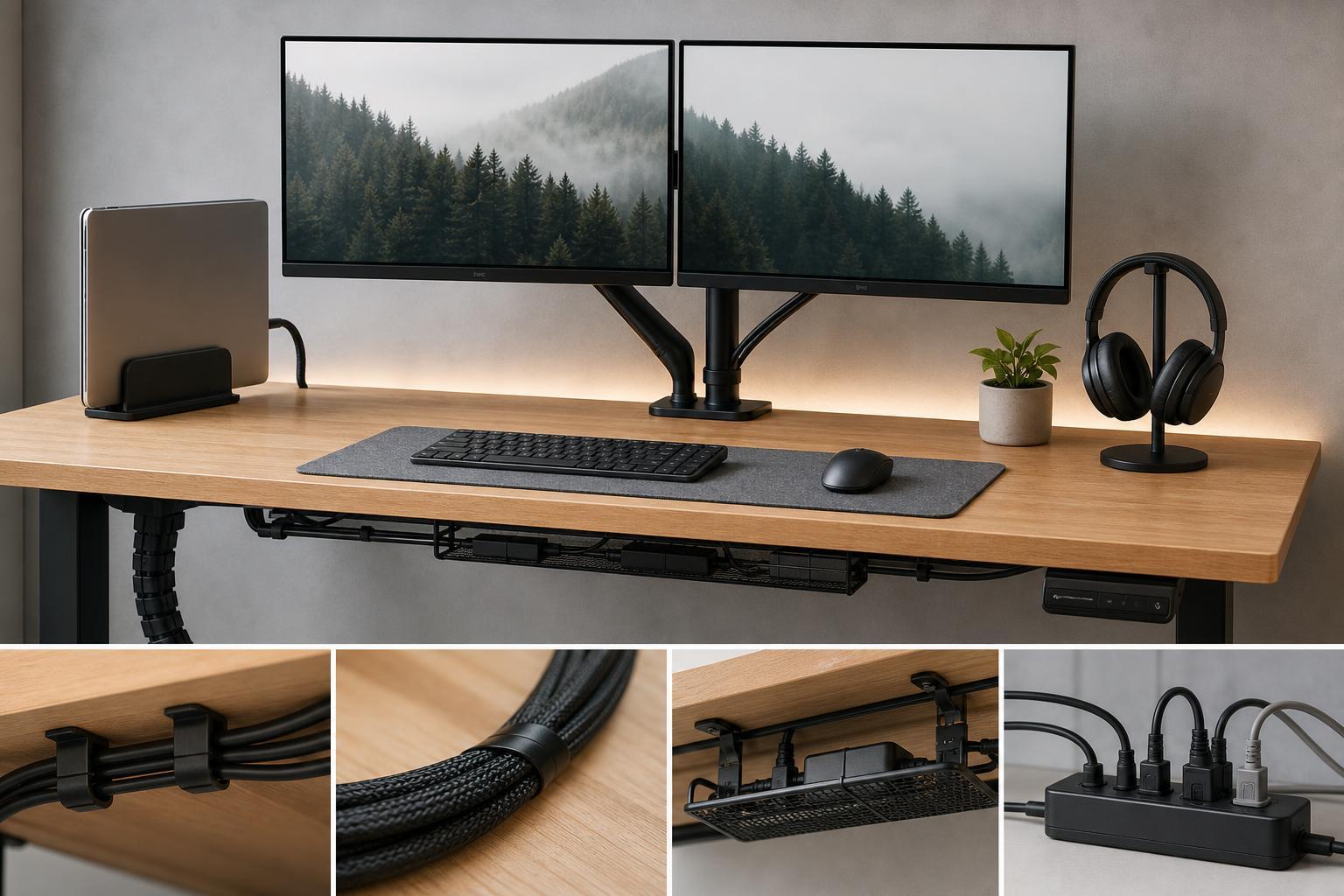
Cable ties are one of the simplest ways to group related cords together. They work well for keeping monitor cables, USB leads, and power cords bundled into cleaner runs behind a desk or entertainment center.
Reusable Velcro-style ties are usually the most flexible choice because you can open and adjust them later. Traditional zip ties hold more firmly, but they are less forgiving if you need to add or remove a cable later.
2. Cable Sleeves
Cable sleeves collect multiple cables into one neat tube or wrap. They are useful when several cords travel in the same direction, such as monitor, keyboard, mouse, and charging cables along the back of a desk.
Sleeves create a cleaner visual line than loose bundled cables and can also protect cables from dust and light abrasion.
3. Cable Clips and Cable Holders
Cable clips stick to a desk, wall, or cabinet and guide individual cables along a fixed path. They are especially helpful for keeping charging cables from falling behind furniture or disappearing off the side of a desk.
They also work well for separating cables that should not move much, such as a mouse cable route or a charger that lives in one spot.
4. Cable Raceway or Cord Cover
A cable raceway hides cables inside a plastic channel that mounts to a wall, baseboard, or desk edge. This is one of the best options when you want a cleaner permanent look, especially for visible wall runs.
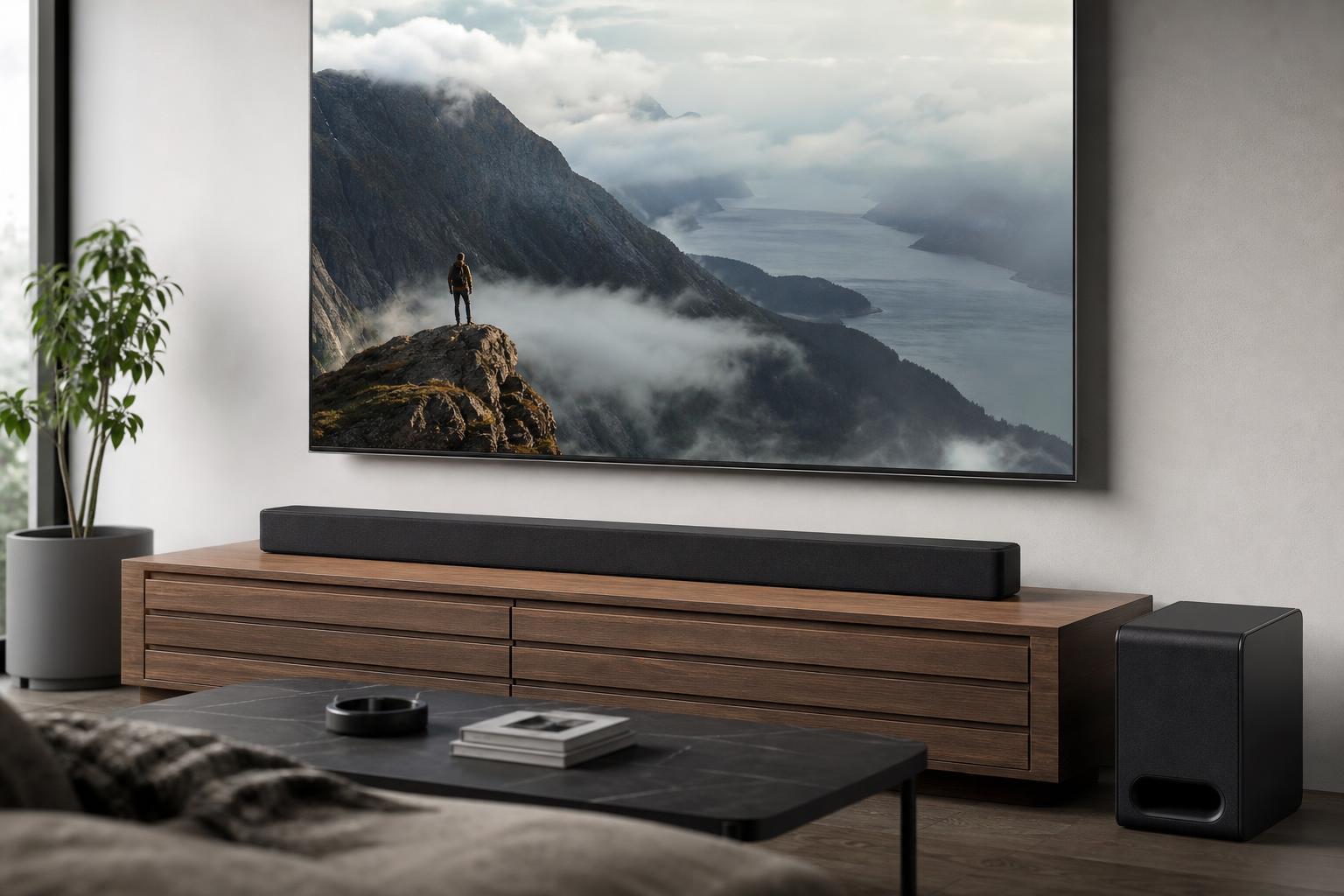
Raceways are especially useful for TV setups, wall-mounted monitors, and spaces where loose cables would be distracting or unsafe.
5. Under-Desk Cable Trays
An under-desk cable tray mounts beneath the desk and gives you a place to store power strips, adapters, and excess cable length. Instead of hanging loose, cords can be routed into the tray and kept off the floor.
This is one of the biggest upgrades you can make for a desktop workstation because it clears visual clutter without making cables harder to reach.
6. Adhesive Cable Mounts
Adhesive mounts are small anchor points that help guide cables around desk legs, shelves, and device edges. They are a simple way to create order in places where a full tray or raceway would be overkill.
They work well for routing one or two cables neatly along a path, especially if you want a minimal setup with fewer visible accessories.
7. Cable Management Boxes
A cable management box hides a power strip and extra adapter length inside a closed container. It is a simple way to reduce visual clutter near the floor, behind a TV stand, or under a desk.
These boxes are especially useful when you have a charger, modem, router power supply, or several bulky plugs that would otherwise create a tangled pile.
8. Desk Grommets and Pass-Throughs
A desk grommet or pass-through gives cables a clean exit point through the desktop. Instead of trailing over the edge, cords can drop through a built-in opening and stay better organized.
This is a particularly neat solution for desks used with monitors, charging pads, and docking stations, because it creates a dedicated cable path from the surface to the underside.
9. Monitor Mounts with Cable Routing
Many monitor arms and mounts include channels or clips for routing display and power cables along the arm. This keeps cables close to the screen instead of dangling behind the desk.
If you use a dual-monitor or ultrawide setup, built-in cable routing can make a big difference in how tidy the entire workstation feels.
10. Desk Cable Management Channels
Desk-mounted cable channels are slim organizers that run along the underside or back edge of a desk. They help keep loose cords in a controlled path and are a good middle ground between clips and a full tray.
They are useful when you want something more structured than adhesive mounts but do not need a large storage space for adapters or power strips.
11. Labeling Your Cables
Labeling is not a physical organizer, but it is one of the most helpful cable management habits you can adopt. When cables are labeled, you can identify chargers, display cables, network cables, and peripherals quickly without unplugging the wrong thing.
This becomes especially valuable in gaming setups, media centers, and home offices where several similar-looking black cables run together.
How to Choose the Right Cable Management Solution
The best option depends on how permanent your setup is, how many cables you have, and how visible the area is.
- Use cable ties or clips for quick, low-cost organization.
- Choose sleeves or channels when several cables travel together.
- Pick a tray or box if you need to hide a power strip or adapter pile.
- Use raceways or grommets for a cleaner, more finished look.
- Add labels if your setup has many similar cables and devices.
In many real-world setups, the best result comes from combining several solutions rather than relying on one product alone.
A Simple Setup Formula That Works
If you are starting from scratch, a practical combination is: under-desk tray for power, cable ties for bundling, clips for routing, and labels for identification. That mix handles most desks without making the setup overcomplicated.
What This Means for a Cleaner Setup
Cable management works best when you match the solution to the job. Light clips are great for small cords, sleeves help bundle groups of cables, and trays or boxes hide the messy parts that do not need to be seen.
If you combine a few of these tools thoughtfully, you can turn a cluttered desk or media area into a setup that looks better, cleans easier, and is much simpler to maintain.