
If Netflix keeps signing you out, the cause is usually something simple: a device or browser issue, a Netflix account session problem, or a security setting that is forcing you back to the login screen. In some cases, the sign-out loop happens on only one device. In others, every device connected to your account is affected.
The good news is that this is often fixable without contacting support. The three methods below cover the most common reasons Netflix repeatedly logs you out and how to stop it.
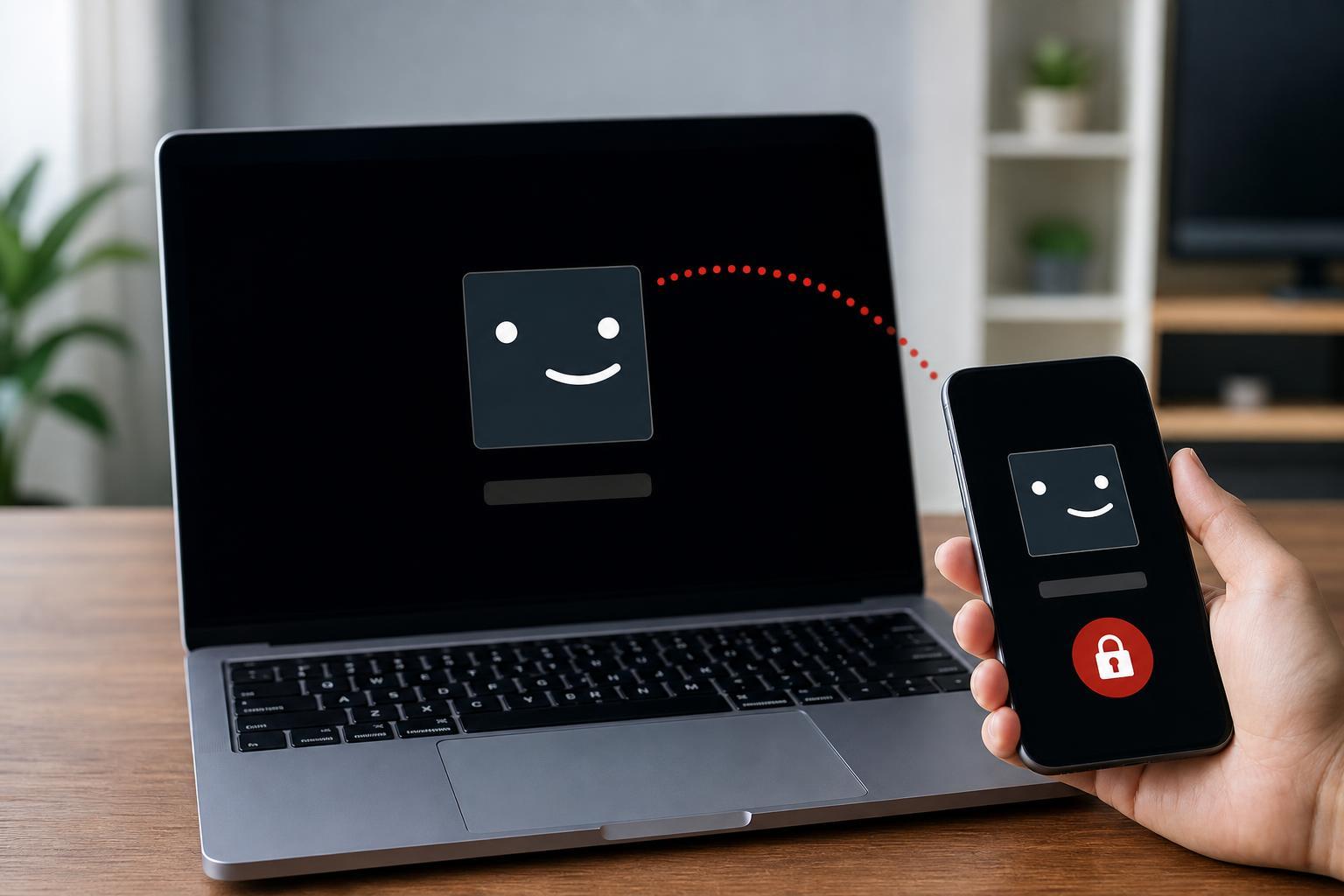
Why Netflix Keeps Logging You Out
Netflix may sign you out for a few different reasons. If the problem happens at random, it is often related to an app or browser session that is corrupted, an unstable network connection, or stored login data that no longer matches what Netflix expects.
- Corrupted app or browser cookies
- A Netflix app update that did not install cleanly
- Password changes or account security checks
- Logging in from many devices in a short time
- Device storage or system settings removing saved sign-in data
- VPNs, ad blockers, or privacy tools interfering with session cookies
1. Sign Out Everywhere and Sign Back In
If Netflix is stuck in a login loop or keeps dropping your session, forcing a fresh sign-in is often the best first step. This clears old session data that may have become out of sync with your account.
- Open Netflix in a browser and go to your account page, or use the Netflix app if that is the only device available.
- Sign out of Netflix on the problem device.
- If needed, use the option to sign out of all devices from your Netflix account settings.
- Sign back in using your email and password.
- Test Netflix for a while to see whether the sign-out problem returns.
This is especially useful after a password reset, when you have added or removed devices, or when Netflix has marked a session as no longer valid.
2. Clear the App or Browser Data
If Netflix keeps logging you out only in a browser or only in one app, the saved data for that app may be the problem. Clearing cookies, cache, or app storage can remove damaged login files and force Netflix to create a clean session.
- On a web browser, clear cookies and cached data for Netflix, then close and reopen the browser.
- On a phone or tablet, open the app settings and clear the Netflix app cache and data if your device allows it.
- If you use a smart TV or streaming device, uninstall and reinstall the Netflix app if possible.
- Sign in again and check whether the session stays active.
If you are using a browser, avoid clearing every site’s cookies unless you are comfortable signing back into other websites too. It is usually better to remove only Netflix-related data first.
3. Check for Security or Network Settings That Interrupt Sign-In
Some security and network tools can interrupt Netflix’s login session even if the app itself looks fine. VPNs, privacy extensions, antivirus web protection, and aggressive cookie settings can all cause repeated sign-outs.
- Turn off any VPN or proxy service and try Netflix again.
- Disable browser extensions that block ads, trackers, or cookies.
- Make sure your device date and time are set automatically and are correct.
- If you are on a shared or public network, try a different connection to see whether the problem follows the network.
- Update the Netflix app, browser, or device software if an update is available.
How to Narrow Down the Cause Quickly
A few small clues can help you decide which fix is most likely to work first.
- Only one device is affected: focus on app data, updates, or device settings.
- Every device is affected: start with signing out everywhere and changing the password if needed.
- It happens after using a VPN: turn the VPN off and test again.
- It happens in a browser but not the app: clear cookies and disable extensions.
- It happens after a password change: sign out everywhere to remove old sessions.
When to Change Your Password
If Netflix keeps logging you out and you also see unfamiliar activity, unexpected password reset emails, or devices you do not recognize, change your password immediately. After that, sign out of all devices so any old sessions are removed.
If the Problem Still Does Not Stop
If none of the fixes above work, the issue may be tied to a specific device model, a buggy app version, or an account-level problem that Netflix needs to check. At that point, note which device is affected, what troubleshooting you have already tried, and whether the issue happens on other networks. That information makes support much faster.





