
If you can hear and see other people on Zoom but cannot see yourself, the issue is usually with the camera, Zoom’s video settings, or a privacy permission blocking access to the webcam. In some cases, your self-view is simply hidden rather than broken.
This guide walks through the most common reasons you can’t see yourself on Zoom and the practical fixes to try, starting with the simplest checks first.
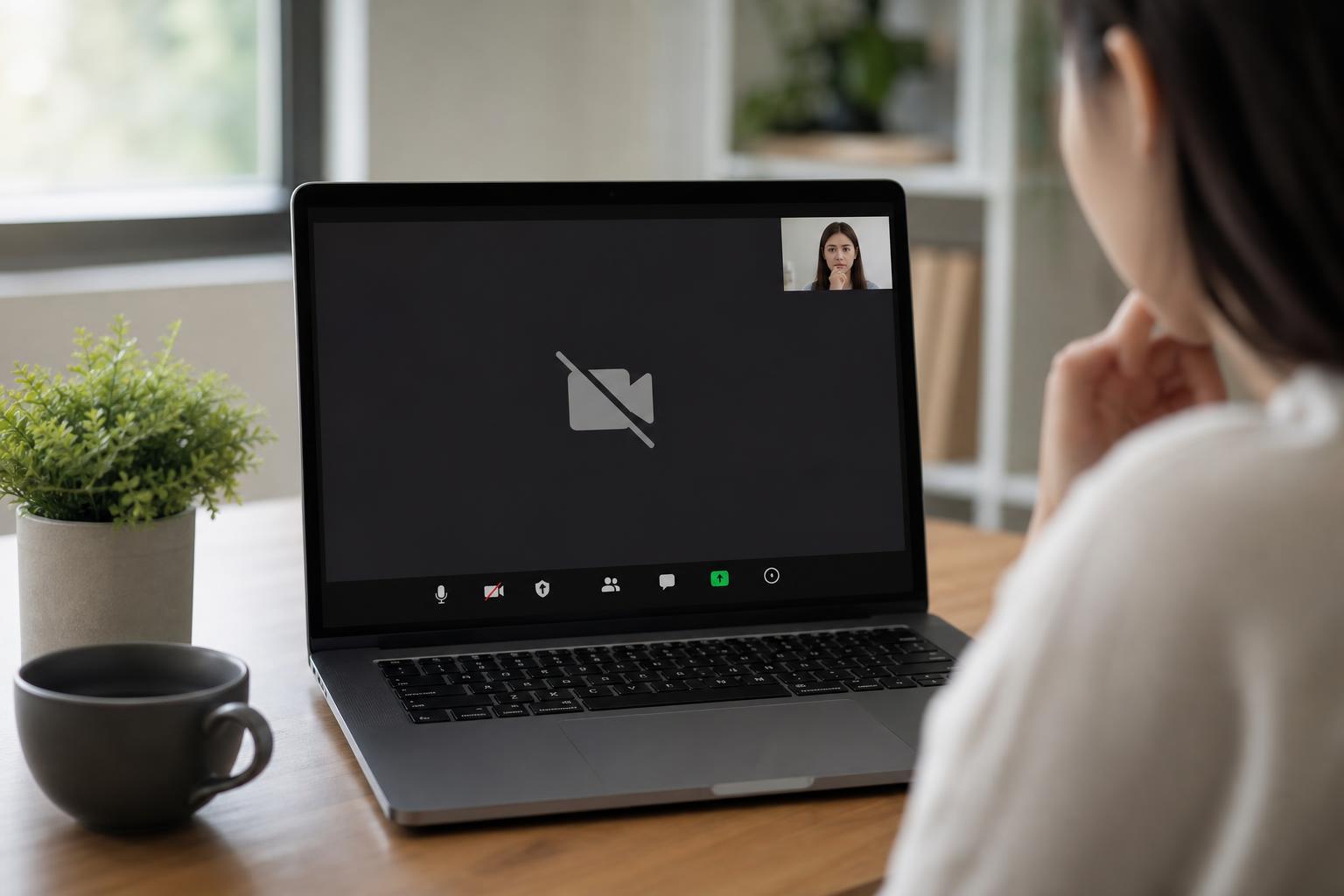
First Check: Is Your Self-View Hidden?
Before changing device settings, make sure Zoom is actually showing your own video preview. In a meeting, your self-view can be hidden, minimized, or turned off even while the camera is working.
- Look for a small preview window in the Zoom meeting window.
- If your video tile is minimized, restore it from the side panel or gallery view.
- Move your mouse over your video tile to see whether a menu appears with an option to show or hide your self-view.
- If you are in gallery view, your own video may appear as one of the tiles rather than in a separate preview window.
Check Whether Zoom Can Use Your Camera
If Zoom cannot access the webcam, you may see a black screen, a blank tile, or no self-view at all. Start by checking Zoom’s video settings and selecting the correct camera.
- Open Zoom and sign in.
- Click the gear icon to open Settings.
- Select Video.
- Check the camera dropdown and choose the correct webcam if more than one is listed.
- If the preview appears, your camera is working and the problem was just the wrong device selection.
Make Sure Another App Is Not Using the Webcam
Only one app can usually use a webcam at a time. If another program has already opened the camera, Zoom may not be able to display your video.
- Close apps such as Teams, Skype, Discord, OBS, browser tabs with camera access, or camera utility software.
- If you recently joined a browser-based meeting or used the camera in another app, fully exit that app.
- On some laptops, camera privacy software from the manufacturer may also block access until it is closed or adjusted.
Check Camera Permissions in Windows or macOS
Modern operating systems can block apps from using the camera, even if Zoom itself is installed correctly. If permissions were turned off, Zoom may open but still show no self-view.
- Open your system privacy settings.
- Find Camera permissions.
- Make sure camera access is enabled for the system and for Zoom.
- If you are using a browser version of Zoom, allow camera access for the browser too.
- Return to Zoom and test the video again.
Restart the Camera Connection, Not Just the Meeting
A temporary camera glitch can leave Zoom unable to refresh your self-view. Reconnecting the camera often helps, especially after waking the laptop from sleep or unplugging an external webcam.
- Leave the Zoom meeting if needed.
- Unplug an external webcam and plug it back in, then wait a few seconds.
- If you use a laptop camera, disable and re-enable video in Zoom.
- Close Zoom completely and reopen it if the camera still does not respond.
- Test the camera in another app, such as the built-in Camera app, to confirm whether the webcam itself is working.
Update or Reinstall the Webcam Driver
On Windows, a bad or outdated camera driver can prevent Zoom from showing your video correctly. This is more likely if the webcam worked before and then suddenly stopped after an update or device change.
- Open Device Manager and expand Cameras or Imaging devices.
- Look for your webcam and check whether it shows an error icon.
- Update the driver if one is available.
- If the problem started recently, try rolling back the driver if that option exists.
- Uninstalling and reinstalling the device can also help Windows detect it again.
Check Zoom Video Settings That Affect What You See
Some Zoom options change how video is displayed or whether your own image is visible on screen. These settings do not always break the camera, but they can make it seem like you have no self-view.
- Make sure HD or advanced video options are not causing compatibility issues with older webcams.
- Check whether virtual background or filters are enabled, since these can affect camera performance on weaker systems.
- If Zoom is running in a browser, try the desktop app to compare behavior.
- Make sure you are not accidentally muting or stopping video from the meeting controls.
If You Are Using an External Webcam
External webcams can fail for simple reasons such as a loose cable, bad USB port, or power issue. If Zoom cannot see you on a USB camera, verify the hardware path first.
- Try a different USB port.
- Disconnect other unnecessary USB devices if the port seems underpowered.
- Check whether the webcam has a privacy shutter or physical switch.
- Try the webcam on another computer if possible.
- Use a different cable if the camera supports one.
What to Do on Mac
On Mac, the most common causes are camera permissions, another app using the webcam, or a temporary system glitch after sleep or app switching.
- Open System Settings and check Privacy & Security.
- Make sure Zoom has permission to use the camera.
- Quit any app that may already be using the webcam.
- Reopen Zoom and test the camera again.
- If needed, try closing and reopening Zoom completely rather than only leaving the meeting.
If the Problem Only Happens in One Meeting
If you can see yourself in Zoom generally but not in one specific meeting, the issue may be meeting controls rather than your device.
- The host may have disabled video for participants.
- You may have joined with video off and need to turn it on manually.
- A waiting room or webinar format may limit what you can see.
- The meeting view may be focused on shared content instead of participant video.
When to Suspect a Hardware Problem
If Zoom, your operating system, and other apps all fail to show camera video, the webcam itself may be faulty or disconnected.
- The camera does not work in any app.
- The webcam is missing from Device Manager or system settings.
- The camera light never turns on.
- Video appears black, flickers, or disconnects on multiple devices or apps.
How to Narrow Down the Problem Quickly
If you want the fastest path to a fix, use this order:
- Confirm your self-view is not hidden in Zoom.
- Select the correct camera in Zoom settings.
- Close other apps that may be using the webcam.
- Check camera permissions in Windows or macOS.
- Test the camera in another app.
- Update or reinstall the webcam driver if you are on Windows.
- Try another USB port or another webcam if you use external hardware.
What This Usually Means
Most Zoom self-view problems are caused by a hidden preview, blocked permissions, a wrong camera selection, or another app already using the webcam. Hardware failure is less common, so it is worth checking the software-side causes first.
If you still cannot see yourself after trying the steps above, the key clue is whether the camera works anywhere else. That will tell you whether to focus on Zoom settings, system permissions, or the webcam itself.





