
Sending a Google Drive link is one of the easiest ways to share files, folders, photos, and documents. But the link itself does not automatically mean other people can open the content. What happens next depends on the sharing settings you choose, the type of link you send, and whether the recipient has the right permissions.
This guide explains exactly what happens when you share a Google Drive link, how access works, what recipients can do, and how to avoid common sharing mistakes.
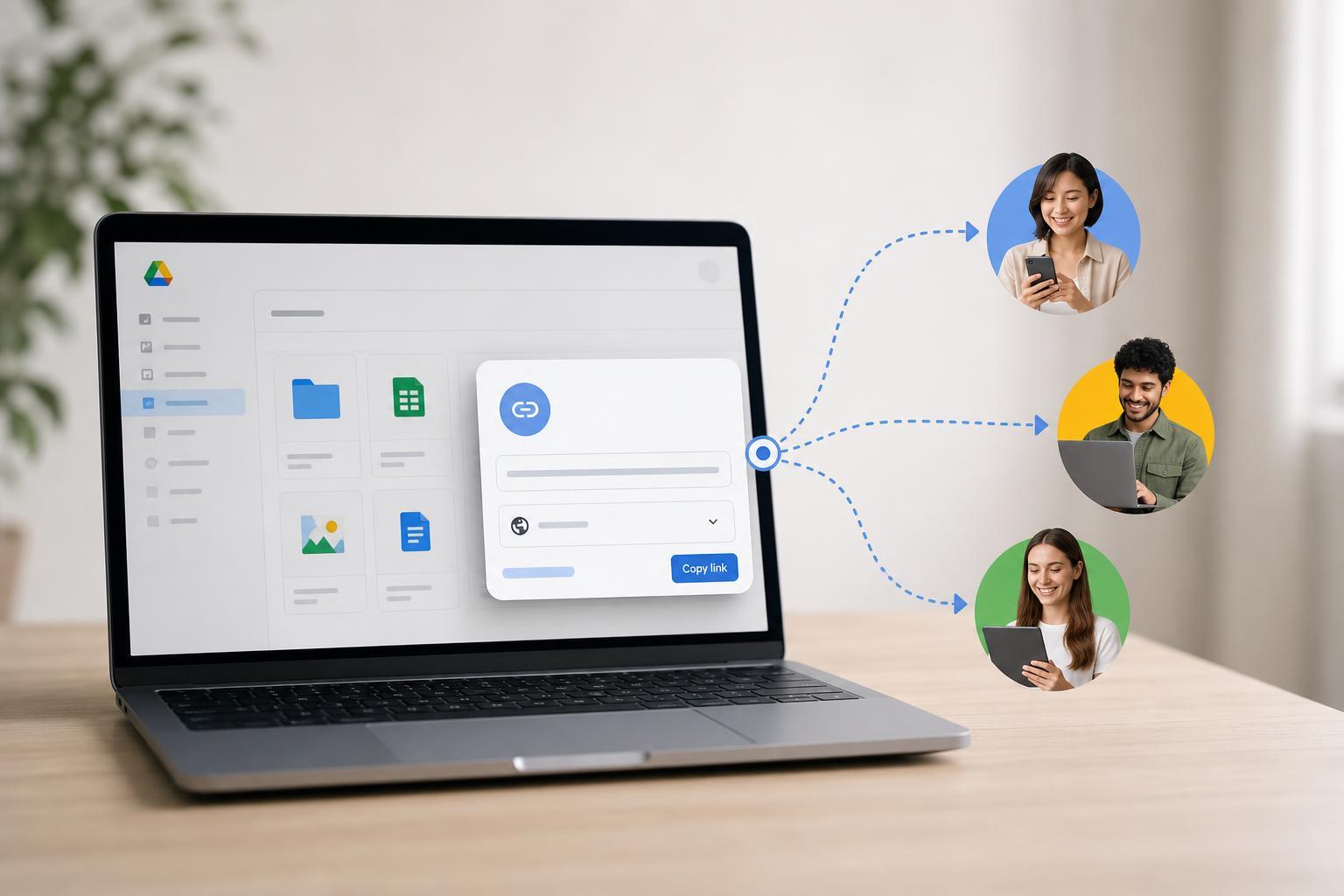
What Actually Happens When You Send a Google Drive Link
When you copy a Google Drive link and send it to someone, you are giving them a path to the file or folder stored in your Google Drive account. The link points to the item, but access is controlled separately by your sharing settings.
If the file is set to restricted access, the recipient will see a message asking for permission. If the file is set to anyone with the link, they can open it according to the permission level you selected, such as viewer, commenter, or editor.
The Main Sharing Modes in Google Drive
- Restricted: Only people you explicitly add can open the file or folder.
- Anyone with the link: Anyone who gets the link can access it, if they have the right role.
- Shared with specific people: Only invited accounts can access it, even if the link is forwarded to someone else.
- Folder sharing: Everyone with access to the folder can usually see the items inside, subject to the folder’s permission settings.
Google Drive uses these modes to control who can see or edit your content. The exact options may vary a little depending on whether you are using a personal Google account or a work or school Google Workspace account.
What the Recipient Sees
- If they have access, the file opens in Google Drive or in the Google app associated with that file type, such as Docs, Sheets, or Slides.
- If they do not have access, they may see a request access screen.
- If the file is in a shared folder, they may see the folder contents if the folder permissions allow it.
- If the link is for a Google Docs, Sheets, or Slides file, they may be able to view it in the browser without downloading anything.
Viewer, Commenter, and Editor Access
The permission level you choose determines what the other person can do after opening the link.
- Viewer: The person can read or watch the file, but cannot make changes.
- Commenter: The person can add comments, but cannot directly edit the file.
- Editor: The person can change the content, move items in some cases, and share the file if you allow it.
What Happens if the Link Is Forwarded
If you choose anyone with the link, then anyone who receives that link may be able to open the file. That means the original recipient can forward it, paste it into a chat, or share it elsewhere.
If the file is shared only with specific people, forwarding the link alone usually will not help unless the new person is also granted access. In many cases they will still be blocked and asked to request permission.
What Happens to Downloads, Copies, and Printing
What recipients can do after opening the file depends on both the file type and your sharing settings. For many files, viewers may be able to download, print, or copy the content unless you disable those options for supported Google file types.
If preventing redistribution matters, keep in mind that no online sharing system can completely stop someone from taking a screenshot or retyping the content. Sharing controls help, but they are not a perfect protection against copying.
What Happens When You Share a Folder Link
Sharing a folder link gives access to the folder and, depending on the permissions, the files inside it. This is useful when you want to share a project, photo collection, or set of documents together.
- People with viewer access can open files inside the folder if the folder permissions allow it.
- Editors may be able to add, remove, or organize files inside the folder.
- Changes to folder permissions can affect every file stored in that folder.
- If a file inside the folder has more restrictive sharing settings, those settings may still apply in some cases.
How Google Drive Link Sharing Works Across Accounts
Whether the recipient needs a Google account depends on the link settings you choose. With restricted access, the person usually needs to sign in with the account you approved. With anyone with the link, they may be able to open it without being explicitly invited, but some organizations block external access.
- Personal accounts: Usually offer straightforward link sharing for friends, family, and casual collaboration.
- Work or school accounts: May have stricter rules set by an administrator.
- External sharing limits: Some organizations block sharing outside the domain.
- Anonymous access: Some links can be opened without signing in, but this depends on the file and organization policies.
Common Reasons a Google Drive Link Does Not Work
A link may fail for several reasons, and the fix is usually in the sharing settings rather than the link itself.
- The recipient is not signed in to the correct Google account.
- The file is still set to restricted access.
- The recipient is outside your organization and external sharing is blocked.
- The file was moved, deleted, or replaced after you sent the link.
- The recipient opened an old link to a file that no longer exists or no longer has the same permissions.
- The link was copied incorrectly or truncated when pasted into another app.
- Open the file in Google Drive.
- Click Share.
- Check whether access is set to Restricted or Anyone with the link.
- Confirm the correct permission level is selected.
- If needed, add the recipient’s email address directly.
- Send the updated link again after saving the changes.
How to Check What Permissions a Link Has
If you are unsure what a link allows, open the sharing settings for the file or folder. Google Drive will show whether access is restricted or available to anyone with the link, and it will show the current role assigned to people who can use the link.
- Open Google Drive and locate the file or folder.
- Right-click it and choose Share.
- Look at the general access section.
- Check whether it says Restricted, Anyone with the link, or a domain-specific option.
- Review the role next to the access setting, such as Viewer, Commenter, or Editor.
Best Practices Before You Send a Link
- Use restricted sharing for private documents.
- Use viewer access unless editing is actually needed.
- Double-check that the right Google account has been invited.
- Review folder contents before sharing the folder link.
- Remove access when the project is finished.
- Use comments instead of editor access when you only want feedback.
When You Should Use Link Sharing and When You Should Not
Link sharing is ideal when convenience matters more than strict control. It works well for documents you want to distribute quickly, files you share with a group, and folders that need easy access.
It is not the best option for highly sensitive content unless you combine it with restricted access, careful recipient selection, and regular permission checks.
What to Remember About Google Drive Links
A Google Drive link is only part of the sharing process. The real control comes from the permissions behind the link, the account signed in by the recipient, and any limits set by your organization.
If you understand those three pieces, it becomes much easier to predict who can open a file, what they can do with it, and why a link may work for one person but not another.





