
The Good Morning screen on iPhone is part of Apple’s Sleep Focus experience. It can give you a calmer start to the day by showing the time, date, weather, and your scheduled alarms when you wake up. If you have seen it appear on your lock screen and wondered how to use it, this guide explains what it does and how to turn it on or off.
Apple has changed Sleep Focus over time, so the exact screens and menu names may vary a little depending on your iPhone model and iOS version. The core idea is the same: when Sleep Focus ends, iPhone can show a simplified morning screen instead of jumping straight into a busy lock screen.
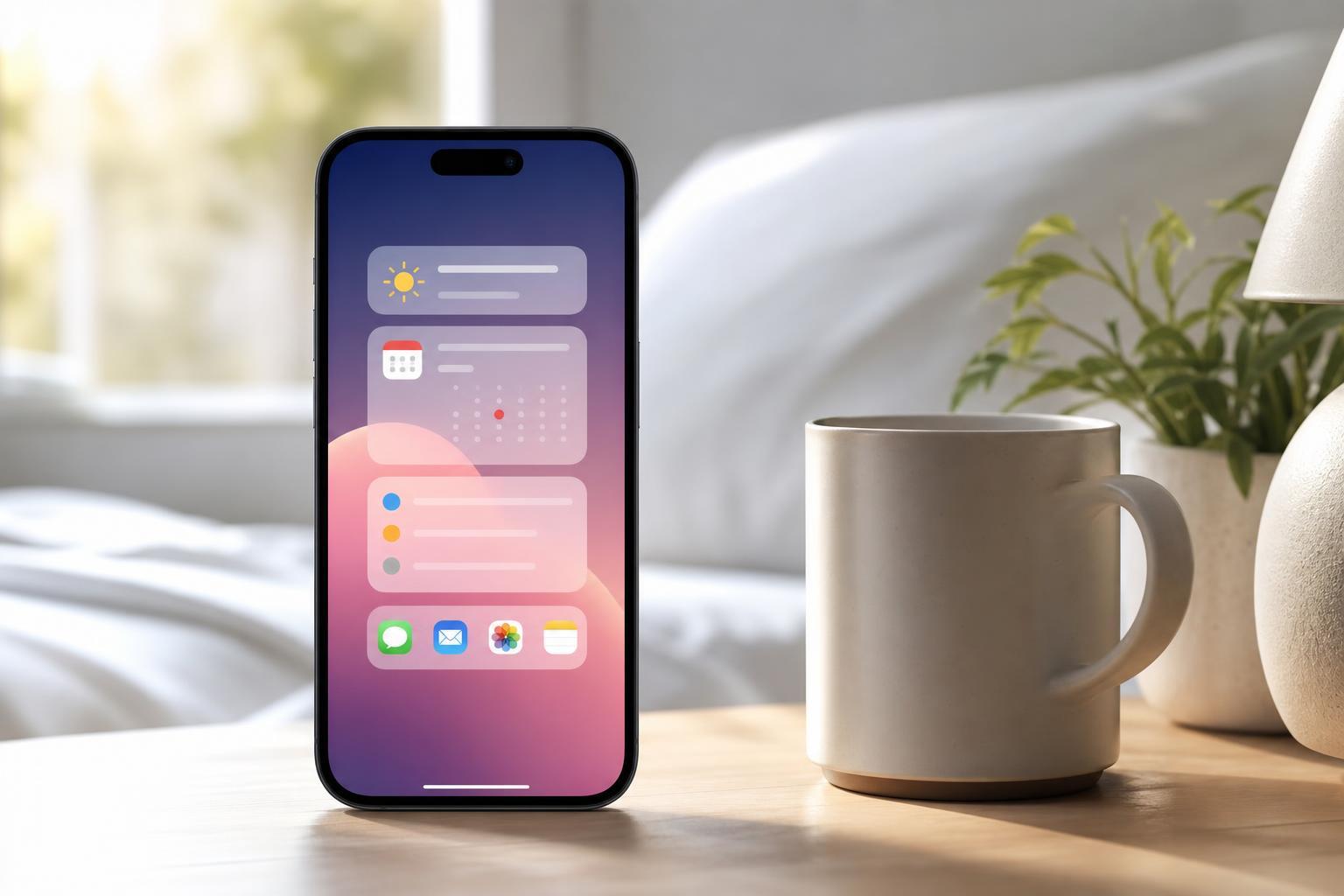
What the Good Morning feature is
The Good Morning screen is not usually a separate app or button. It is a display shown by Sleep Focus when your sleep schedule ends. Instead of immediately showing notifications and alerts, iPhone can present a quiet, easy-to-read screen with useful morning information.
- Current time and date
- Weather summary, if enabled
- Your next alarm or wake-up alarm
- A soft, dimmed screen designed for waking up more gently
How to enable the Good Morning screen
To use it, you generally need to set up a Sleep schedule in the Health app or configure Sleep Focus in Settings. If Sleep Focus is not enabled, the Good Morning screen will not appear.
- Open the Health app on your iPhone.
- Tap Browse, then tap Sleep.
- Set up a sleep schedule if you have not already done so.
- Make sure Sleep Focus is turned on for that schedule.
- Check that your wake-up time and alarms are correct.
If you already have a sleep schedule, the Good Morning screen should appear automatically when your scheduled sleep period ends, as long as Sleep Focus is active.
How to turn on Sleep Focus manually
You do not have to rely only on a schedule. You can also enable Sleep Focus from Control Center when you want the Good Morning screen and sleep-friendly notifications behavior for the night.
- Swipe down from the top-right corner of the screen to open Control Center.
- Tap Focus.
- Select Sleep.
- Leave it on until your scheduled wake-up time or turn it off manually when needed.
What you can customize
You can customize the Sleep Focus experience so the morning screen works the way you want. Most of these options are available in Settings under Focus and Sleep.
- Sleep schedule start and end times
- Wake-up alarm sound and volume
- Whether your lock screen is dimmed during sleep
- Which contacts or apps can break through Sleep Focus
- Whether the morning screen shows weather or other simple information
How to turn it off
If you do not want the Good Morning screen anymore, you can disable Sleep Focus or remove the sleep schedule that triggers it.
- Open the Health app and go to Sleep.
- Edit or delete your sleep schedule.
- Or open Settings, tap Focus, then tap Sleep and adjust the automation.
- If needed, turn off Sleep Focus manually from Control Center.
Common reasons it does not appear
If you expected the Good Morning screen but did not see it, the cause is usually one of a few simple settings issues rather than a fault with the iPhone.
- Sleep Focus is turned off
- No sleep schedule is set
- The wake-up time has not been reached yet
- Another Focus mode is active
- The alarm was dismissed in a way that bypassed the normal wake-up flow
- You are using an iOS version with slightly different Sleep Focus behavior
A simple way to think about it
If Sleep Focus is the system that manages your sleep routine, the Good Morning screen is the friendly message it shows when that routine ends. Once you know where Sleep Focus is configured, the feature is easy to control.
When to check your settings again
It is worth revisiting your sleep and Focus settings if you change your routine, travel across time zones, or update iOS. Small changes in schedule or software can affect when the Good Morning screen appears and what it shows.





