
Wrist Detection is an Apple Watch security feature that checks whether the watch is being worn on your wrist. When it is on, Apple Watch can lock itself when you take it off and unlock automatically when you put it back on, which affects passcode behavior, Apple Pay, and a few health and safety features.
If you want to turn Wrist Detection on or off, the setting is easy to find, but there are a few important limits and side effects to know first.
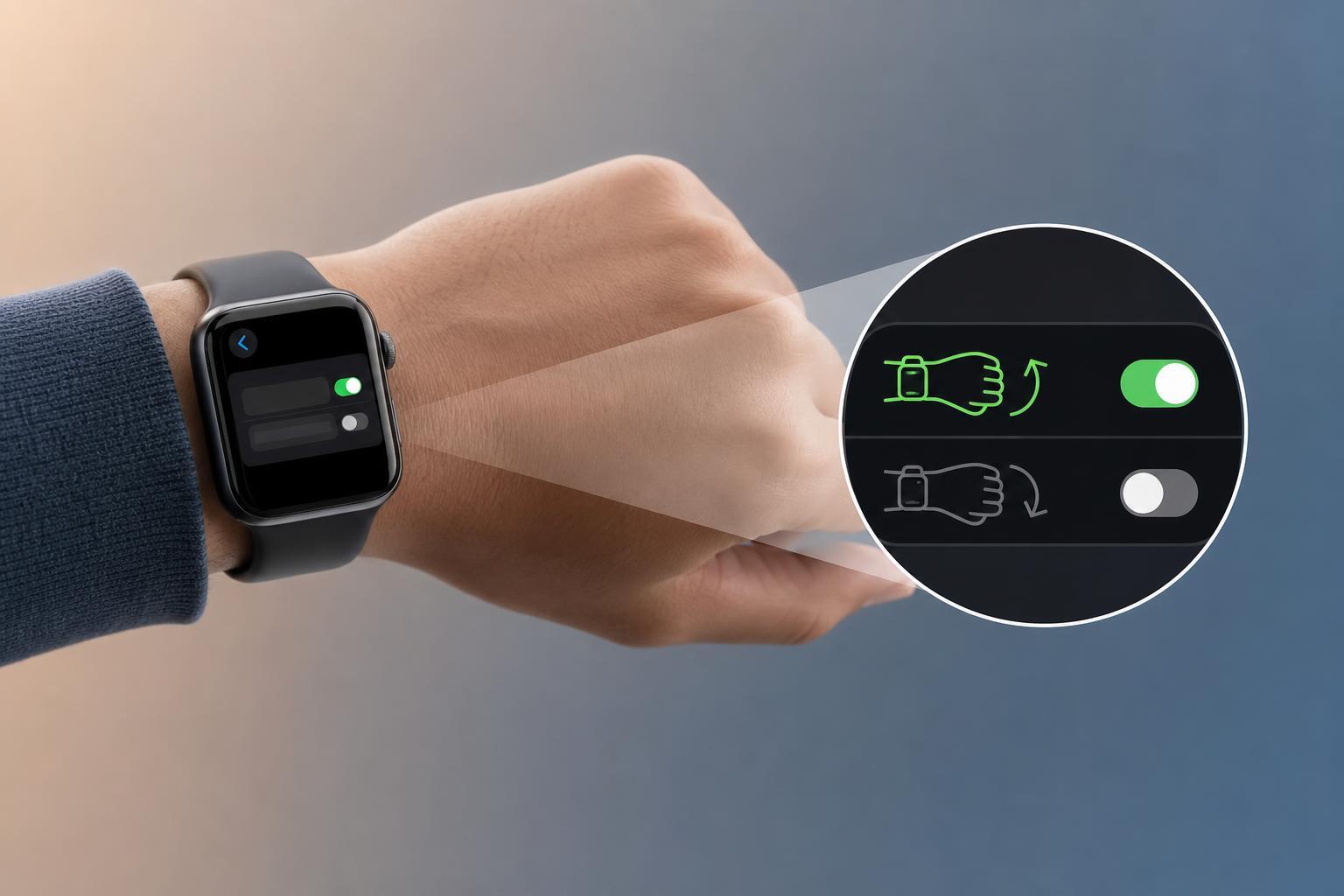
What Wrist Detection Does
When Wrist Detection is enabled, Apple Watch uses sensors to tell whether it is on your wrist. This helps keep the watch secure and allows features like automatic unlocking when you wear it again. If you remove the watch, it can lock more quickly to protect your data.
- Apple Watch may lock less often when you leave it off your wrist
- Automatic unlocking when you put the watch back on may stop working
- Apple Pay on Apple Watch may require the passcode more often
- Some workout, health, and safety features that rely on wrist detection may be limited
How to Turn Wrist Detection On or Off on Apple Watch
- On your Apple Watch, press the Digital Crown to open the Home Screen.
- Open Settings.
- Tap Passcode.
- Enter your passcode if prompted.
- Find Wrist Detection and switch it on or off.
How to Change It from the iPhone
In most cases, the simplest way is directly on the Apple Watch. If you prefer using the paired iPhone, you can usually manage watch security settings through the Watch app, but Wrist Detection is primarily controlled on the watch itself.
Why You Might Want to Disable It
Some people turn Wrist Detection off if they use Apple Watch in situations where the watch is frequently removed and put back on, or if they want fewer security prompts while testing or using the watch in a nonstandard way. For example, someone might temporarily disable it while trying a third-party band setup or checking how a feature behaves.
If the Wrist Detection Option Is Missing
If you cannot find the setting, the most likely reason is that the watch does not have a passcode enabled yet. Wrist Detection is usually controlled as part of the passcode and security settings, so set a passcode first and check again.
- Make sure Apple Watch has a passcode set
- Check the Passcode menu rather than general Settings
- Confirm the watch is updated to a current watchOS version
- Restart the watch only if the menu still does not appear after checking the settings
When You Should Leave It On
Most people should keep Wrist Detection enabled. It improves security, helps Apple Watch behave more naturally when worn, and supports features that many users expect to work automatically. If your watch stays on your wrist most of the time, there is usually little reason to disable it.
- You use Apple Pay on Apple Watch
- You want automatic locking when you take the watch off
- You rely on health or fitness features that depend on wrist contact
- You prefer stronger protection for notifications and personal data
Check the Result After Changing It
- Put the watch on your wrist and confirm it unlocks as expected.
- Remove it and see whether it locks when Wrist Detection is on.
- Try Apple Pay or another protected feature if that is part of your normal setup.
- If something behaves unexpectedly, recheck the passcode and Wrist Detection settings.





