
USB Selective Suspend is a Windows power-saving feature that can turn off individual USB ports when they are not in use. That is useful for saving power, but it can also cause problems with devices that disconnect, stop responding, or wake up unreliably.
If you are dealing with a flaky USB mouse, keyboard, controller, external drive, or dock, disabling USB Selective Suspend is a practical troubleshooting step in Windows 11.
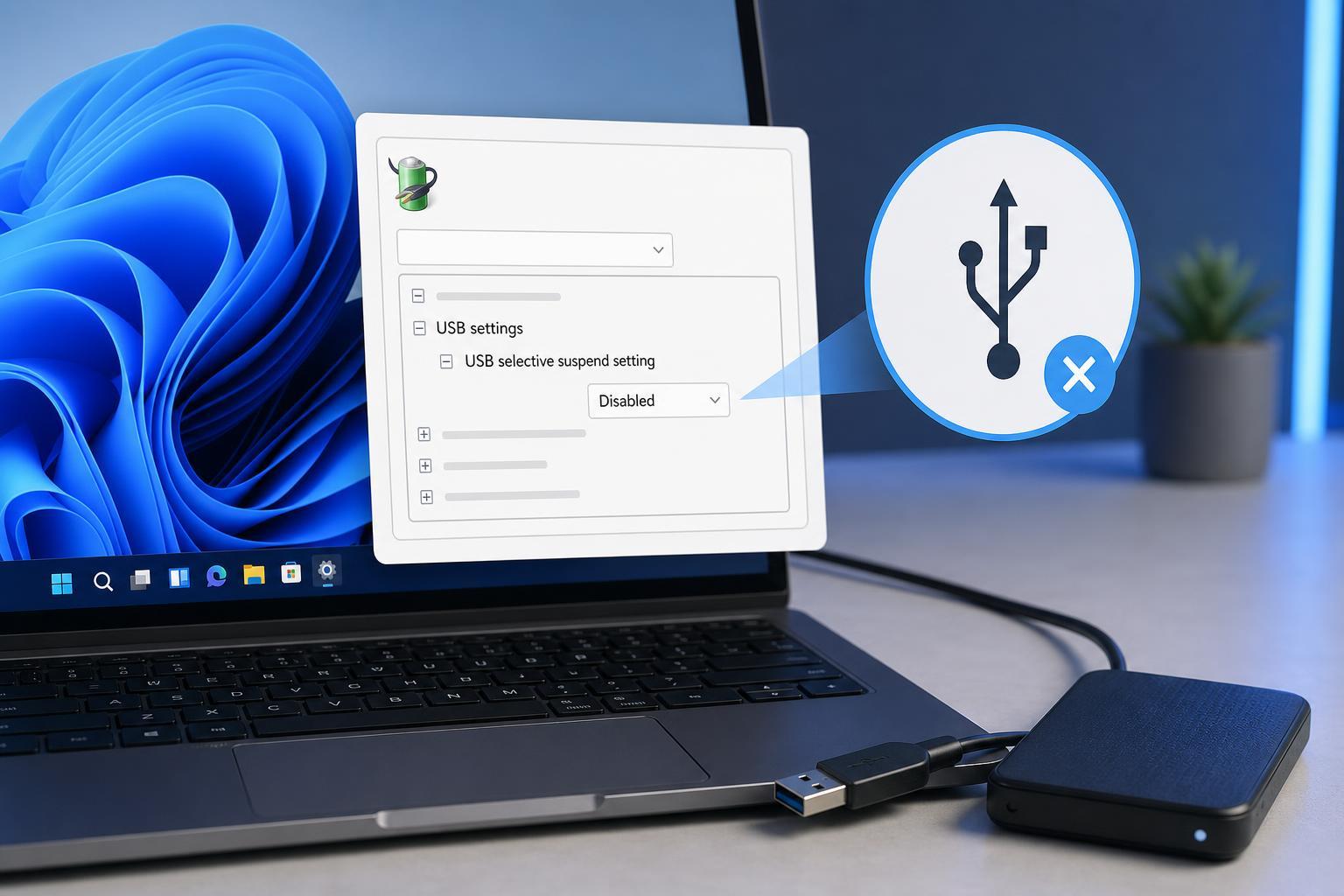
What USB Selective Suspend Does
When this feature is enabled, Windows may place a specific USB device or hub into a low-power state instead of keeping the whole USB bus fully active. The device can resume later when needed, but some hardware and drivers do not recover cleanly.
How to Disable USB Selective Suspend in Windows 11
- Press Windows + I to open Settings.
- Go to System, then select Power & battery.
- Scroll down and open Additional power settings. This opens the classic Power Options window.
- Next to your active power plan, click Change plan settings.
- Click Change advanced power settings.
- In the Power Options dialog, expand USB settings.
- Expand USB selective suspend setting.
- Set both On battery and Plugged in to Disabled if available.
- Click Apply, then OK.
If You Do Not See the USB Settings Option
Some Windows 11 systems hide this setting depending on the active power plan, device type, or manufacturer power configuration. If USB settings are missing, try switching to a different power plan first, then check the Advanced settings again.
- Open Control Panel > Hardware and Sound > Power Options.
- Select Balanced or another available plan if one is not already active.
- Open Change plan settings, then Change advanced power settings.
- Look again for USB selective suspend under USB settings.
When Disabling It Makes Sense
- USB peripherals that disconnect after idle time
- External SSDs or hard drives that briefly disappear
- USB audio interfaces or adapters that crackle or reset
- Wireless dongles, controllers, or keyboards that become unresponsive
- Docks and hubs that behave better with power saving disabled
Things to Check If the Problem Continues
Disabling USB Selective Suspend fixes a lot of power-related USB issues, but it is not the only possible cause. If the problem continues, the next most useful checks are the device driver, the USB port itself, and any power-saving options for the device.
- Try a different USB port, preferably one directly on the PC rather than on a hub.
- Unplug the device and reconnect it firmly.
- Open Device Manager and check for driver updates for the USB device, hub, or chipset.
- If the device has its own power management option in Device Manager, make sure Windows is not allowed to turn it off.
- Test the device without a dock, hub, or extension cable if possible.
Should You Turn It Off Permanently?
For many desktop PCs, disabling USB Selective Suspend causes no real downside and can make troublesome peripherals more reliable. On laptops, the trade-off is reduced power saving, which may slightly shorten battery life.
If the setting helps, you can leave it disabled. If it does not change anything, the issue is probably elsewhere and you should keep troubleshooting the hardware, cable, port, or driver instead.





