
When Facebook Messenger stops showing messages, the problem can range from a temporary sync issue to an app setting, network problem, or account-related glitch. The good news is that most cases can be fixed without anything complicated.
This guide covers the four most useful fixes to try first, along with a few checks that help you narrow down whether the issue is on your device, in the app, or on Facebook’s side.
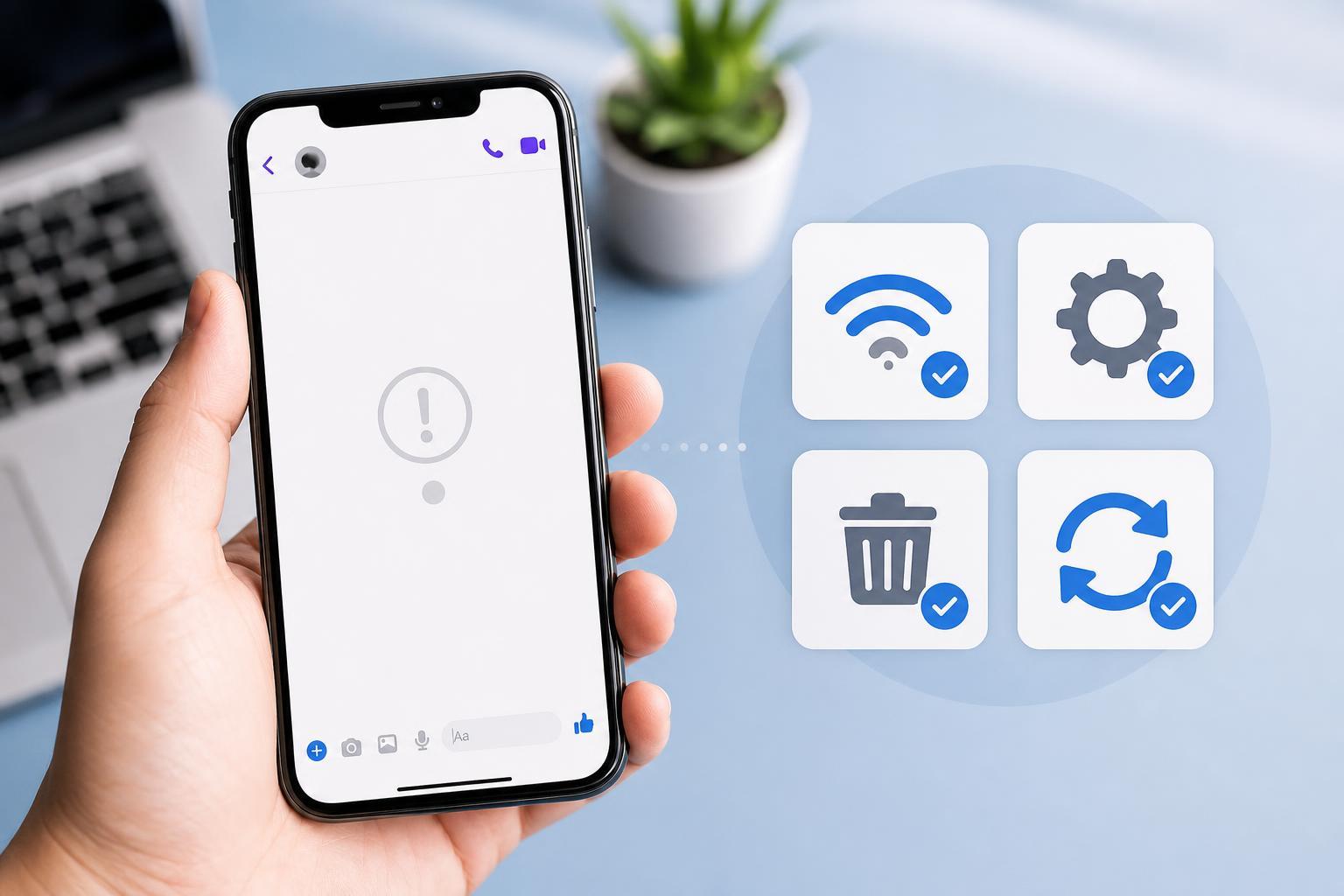
1. Check Your Internet Connection and Messenger Sync
Messenger needs a stable connection to load new conversations and update existing ones. If your connection is weak, switching between Wi‑Fi and mobile data, or briefly dropping in and out, messages may appear late or not load properly.
- Open a website or another app that uses the internet to confirm your connection is working.
- Switch between Wi‑Fi and mobile data to see whether one connection is more reliable.
- If you are on Wi‑Fi, move closer to the router or try another network.
- Open Messenger again and pull down to refresh the conversation list if you are on a phone.
2. Make Sure Notifications, Chat Filters, and Message Requests Are Not Hiding Them
Sometimes messages are not actually missing. They may be sitting in Message Requests, filtered conversations, archived chats, or muted threads. On Facebook Messenger, this can make it look like new messages never arrived.
- Open Messenger and check the search bar for the person or group you expect a message from.
- Look in Message Requests, spam, and archived chats.
- Check whether the conversation is muted or hidden under a filter such as unread or requests.
- If you use Facebook on a browser, compare what you see there with the mobile app.
3. Clear the App Cache or Reinstall Messenger
If Messenger has cached damaged data, it may fail to load conversations correctly. Clearing the app cache can fix display issues without removing your account. If that does not help, reinstalling the app gives you a fresh copy and removes corrupted local data.
- On Android, open Settings, go to Apps, find Messenger, and clear the cache.
- On iPhone, you usually need to offload or delete the app and reinstall it, since iOS does not offer the same cache-clearing option.
- After clearing data or reinstalling, sign back in and check whether messages load correctly.
- If the problem returns immediately, the issue may be tied to the account or a broader service problem rather than the app installation.
4. Update Messenger and Check for Account or Service Issues
An outdated version of Messenger can break message syncing, especially after Facebook changes something on the server side. Updating the app is one of the simplest ways to fix display problems. If the app is already current, the issue may be on Facebook’s side or linked to your account session.
- Open the App Store or Google Play Store and check for a Messenger update.
- If you use Messenger in a browser, try another browser or open a private/incognito window.
- Log out of Messenger and sign back in if the app keeps loading old conversations or missing new ones.
- Check whether other people are reporting Messenger problems, which can indicate a temporary outage.
How to Tell Whether the Problem Is on Your Device or Facebook’s Side
- If messages are missing on one device but appear on another, the problem is local to that device or app installation.
- If messages are missing everywhere, it is more likely an account sync issue or a service outage.
- If only one conversation is affected, check whether the chat is muted, archived, or filtered into requests.
- If many conversations are missing at once, focus on connection, app updates, and service status first.
When You May Need to Wait
If nothing is wrong with your app, network, or account settings, Messenger may simply be experiencing a temporary server issue. In that case, messages usually reappear once the service recovers. If the problem has lasted for hours and affects many users, waiting is often the most practical option.
What to Try First
Start with the simplest checks: confirm the internet connection, look in Message Requests and archived chats, then update or reinstall the app if needed. Those steps solve most cases where Facebook Messenger is not showing messages. If the problem happens on every device and with multiple conversations, the cause is more likely to be on Facebook’s side or tied to your account session.





