
If Steam’s CAPTCHA box won’t load, keeps failing, or refuses to verify your login, the problem is usually not the CAPTCHA itself. It is often caused by browser issues, blocked scripts, network filtering, or a temporary Steam-side login problem. The good news is that most cases can be fixed with a few targeted checks.
This guide walks through the most useful fixes first, then moves to more advanced steps if Steam still won’t accept the verification.
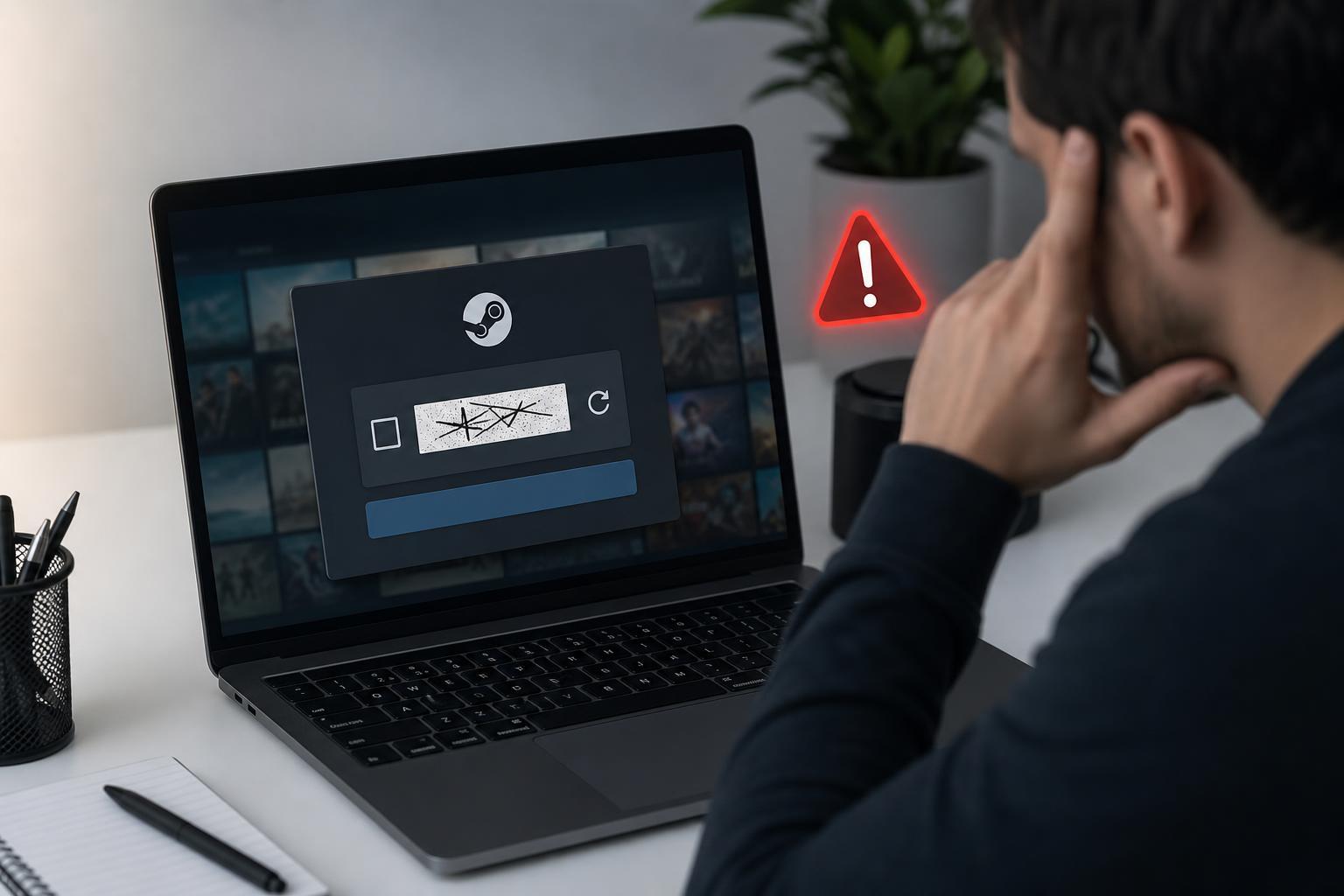
What Usually Causes Steam CAPTCHA to Fail
Steam CAPTCHA problems typically happen when the verification page cannot load correctly or when Steam does not trust the connection long enough to complete login. That can happen in the Steam client, in a web browser, or during password reset and account recovery pages.
- Ad blockers, privacy extensions, or script blockers interfering with the CAPTCHA
- Corrupted browser cache or cookies
- VPNs, proxies, or unusual network routing
- Incorrect system date and time
- Temporary Steam login or account verification issues
- Outdated Steam client files or a damaged local web cache
- DNS or network filtering that blocks verification services
Try These Quick Fixes First
- Close the Steam login window and open it again after a minute or two. If Steam’s verification service is temporarily unhappy, a fresh attempt may succeed.
- Try signing in from a different method. If the browser login is failing, test the Steam desktop client. If the client is failing, try the Steam website in a browser.
- Disable ad blockers, privacy tools, and script-blocking extensions for Steam pages.
- If you are using a VPN or proxy, turn it off and try again.
- Check that your computer’s date, time, and time zone are correct. A bad clock can break secure login pages.
Fix Browser-Based Steam CAPTCHA Problems
If the CAPTCHA is failing in a browser, start by cleaning up the browser session. Steam login pages rely on cookies and scripts, and those can break when privacy settings are too strict or cached data is corrupted.
- Open your browser’s settings and clear cookies and cached data for Steam or for the entire browser session if needed.
- Restart the browser and try logging in again in a private/incognito window to test whether extensions or stored site data are the cause.
- Temporarily disable browser extensions, especially ad blockers, anti-tracking tools, script blockers, password managers, and security add-ons.
- Make sure the browser allows third-party cookies and JavaScript for Steam’s login pages.
- If one browser fails repeatedly, try another one such as Edge, Chrome, Firefox, or Opera to compare the result.
Fix Steam Client CAPTCHA Problems
If the Steam desktop client is the place where verification is failing, the built-in browser component or cached login data may be corrupted. In that case, a clean client refresh often helps.
- Fully exit Steam from the system tray so it is not still running in the background.
- Reopen Steam and try the login again.
- If the problem continues, clear Steam’s browser cache through the client’s settings if the option is available on your version.
- If needed, sign out and back in after removing saved login data from the client.
- Use Steam’s repair or reinstall approach only if the client itself appears damaged or other web-based Steam features are also failing.
Check Your Network and DNS
A CAPTCHA can fail even when everything looks normal locally if your network is filtering parts of the verification process. This is more common on workplace, school, public, or heavily filtered home networks.
- Disconnect from a VPN or proxy if you are using one.
- Try a different internet connection, such as a mobile hotspot, to see whether the current network is the problem.
- Restart your router only if you suspect a network session issue or you have had other connection problems alongside Steam login failures.
- Temporarily disable security software web filtering features if they may be inspecting encrypted traffic.
- If the problem persists, switch to a reliable DNS service or return DNS settings to automatic if they were customized recently.
Account and Security Checks
Sometimes the CAPTCHA is only one part of a larger account verification issue. If Steam is asking for repeated verification, the account may be flagged for suspicious activity, or your login attempts may be triggering extra checks.
- Make sure you are entering the correct email, password, and Steam Guard code if prompted
- Check your email for any Steam security messages or recovery prompts
- Avoid repeated rapid login attempts, which can make verification harder
- If you recently changed password, email, or security settings, try logging in again after confirming the changes were fully applied
When Nothing Seems to Work
If Steam CAPTCHA still will not work after you have tried a different browser, disabled extensions, removed VPNs, and tested another network, the issue may be on Steam’s side or tied to the account’s temporary security state.
- Wait a short while and try again later, especially if Steam services seem unstable.
- Check whether Steam community or login features are having wider issues.
- Try logging in from the Steam client if the browser fails, or from the browser if the client fails.
- If account recovery is involved, complete the recovery process using the official Steam support pages.
- Contact Steam Support with a clear description of what happens, including whether the CAPTCHA never loads or loads but fails to verify.
What This Usually Means in Practice
Most Steam CAPTCHA failures are solved by one of four things: removing extension interference, clearing bad browser data, disabling VPN or proxy routing, or switching to a different network. If the problem only happens in one browser or one device, that is a strong sign the issue is local rather than with Steam itself.
If the CAPTCHA never appears at all, focus on browser scripts, cookies, and extensions. If it appears but fails after submission, focus on network trust, time settings, VPNs, or temporary Steam verification issues.





