
Windows has used more than one built-in screenshot tool over the years, and that can make it confusing to know which one you should use. Snipping Tool and Snip & Sketch look similar at a glance, but they were built at different times and offer different strengths.
If you are trying to decide which app is better for taking screenshots, marking them up, or quickly sharing them, the differences are worth understanding.
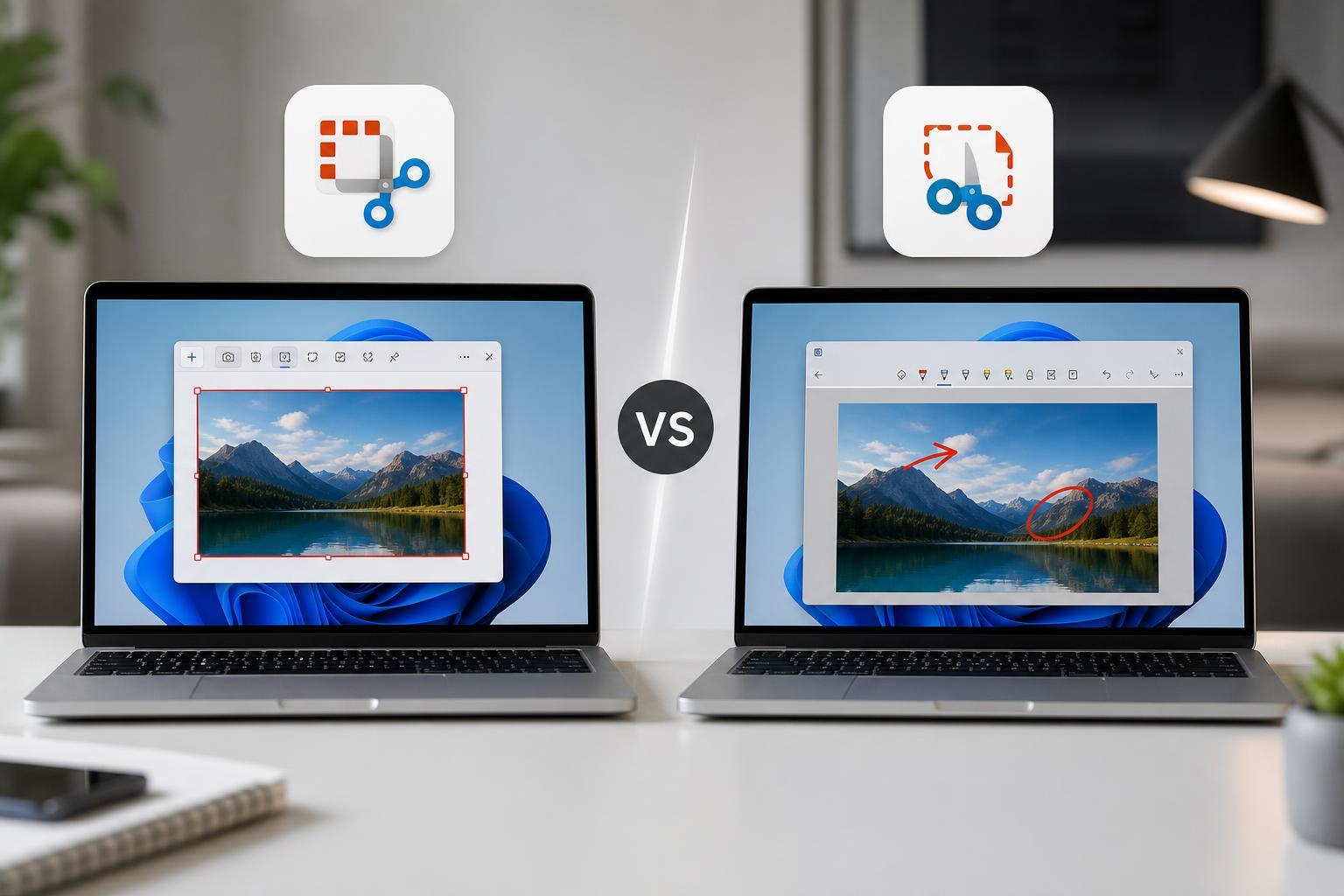
What Snipping Tool and Snip & Sketch Are
Snipping Tool is the older built-in screenshot app in Windows. It was designed for quickly grabbing part of the screen and saving or copying it without needing extra software.
Snip & Sketch was introduced later as a more modern screenshot and annotation tool. It added a cleaner interface, faster access to editing, and better support for touch and pen input.
The Main Differences
- Snipping Tool is the older classic app; Snip & Sketch is the newer redesign that replaced it for many users in Windows 10.
- Snip & Sketch includes stronger markup and annotation tools, especially for quick editing after taking a screenshot.
- Snipping Tool is simpler and more straightforward for basic capture tasks.
- Snip & Sketch was designed to make screenshotting faster with a more modern workflow and better keyboard shortcut support.
- In newer Windows builds, the features are blended into the updated Snipping Tool app, which can make the naming confusing.
Capture Features Compared
Both tools let you capture common screenshot types such as a rectangular area, a freeform selection, a window, or the full screen. That means for basic screenshot capture, they overlap a lot.
The difference is more about workflow than capture style. Snip & Sketch makes it easier to grab a screenshot and immediately jump into markup. The older Snipping Tool is more bare-bones and focused on capture first, editing second.
- Rectangular snips: supported by both
- Freeform snips: supported by both
- Window snips: supported by both
- Full-screen snips: supported by both
- Delay timer: available in Snipping Tool and later versions of Snip & Sketch-style tools
Editing and Annotation
This is where Snip & Sketch usually felt like the bigger upgrade. After taking a screenshot, it opened into an editor where you could crop, draw, highlight, and write on the image much more easily than in the classic Snipping Tool.
The older Snipping Tool had limited markup features. It was fine for simple screenshots, but it was not as convenient if you needed to quickly circle something, add arrows, or save a screenshot with visible notes.
Keyboard Shortcuts and Speed
Snip & Sketch was closely tied to the Windows + Shift + S shortcut, which became the fastest way to start a screenshot on many Windows 10 and Windows 11 systems. That shortcut opens the snipping overlay directly, without making you hunt for the app first.
Snipping Tool also gained shortcut-based access over time, but the newer workflow is generally more immediate and better integrated with Windows notifications and clipboard behavior.
Which One Is Better for Different Tasks?
- Use Snipping Tool if you just want a simple built-in screenshot app and do not need much editing.
- Use Snip & Sketch-style tools if you want faster markup, better annotation, and a more modern capture workflow.
- Use the updated Snipping Tool in Windows 11 if you want the newer combined experience with the familiar name.
- Use third-party screenshot tools if you need advanced features such as scrolling captures, automated workflows, or cloud sharing.
How the Windows 11 Version Changes Things
Windows 11 changed the picture by folding many Snip & Sketch features into the modern Snipping Tool app. That means the old name and the newer interface are no longer as separate as they once were.
If you are reading an older guide, it may talk about Snip & Sketch as though it is a separate app. On a newer PC, you may instead find those features inside the current Snipping Tool app.
Which One Should You Use?
If your goal is only to capture something on screen, either tool can do the job. If you want the easiest path to quick editing and visual notes, the Snip & Sketch approach is the more capable one.
For most Windows 11 users, the practical answer is simple: use the built-in Snipping Tool and its shortcut workflow. For Windows 10 users, Snip & Sketch is usually the better pick if both are available, while the classic Snipping Tool is still fine for basic captures.
The Short Version
- Snipping Tool is the older, simpler screenshot app.
- Snip & Sketch was the newer, more flexible screenshot and markup tool.
- Both can capture rectangles, windows, freeform shapes, and full screens.
- Snip & Sketch is better for quick annotations and editing.
- Windows 11 combines much of this into the modern Snipping Tool app.





