
Windows has had more than one version of Sticky Notes, and the differences are bigger than just the look of the app. The newer version is more closely tied to Microsoft services and modern Windows features, while the old version was a simple desktop note tool with a more limited but straightforward design.
If you are wondering which one you should use, or why your notes suddenly look different after an update, this guide breaks down the practical differences between New Sticky Notes and the classic version.
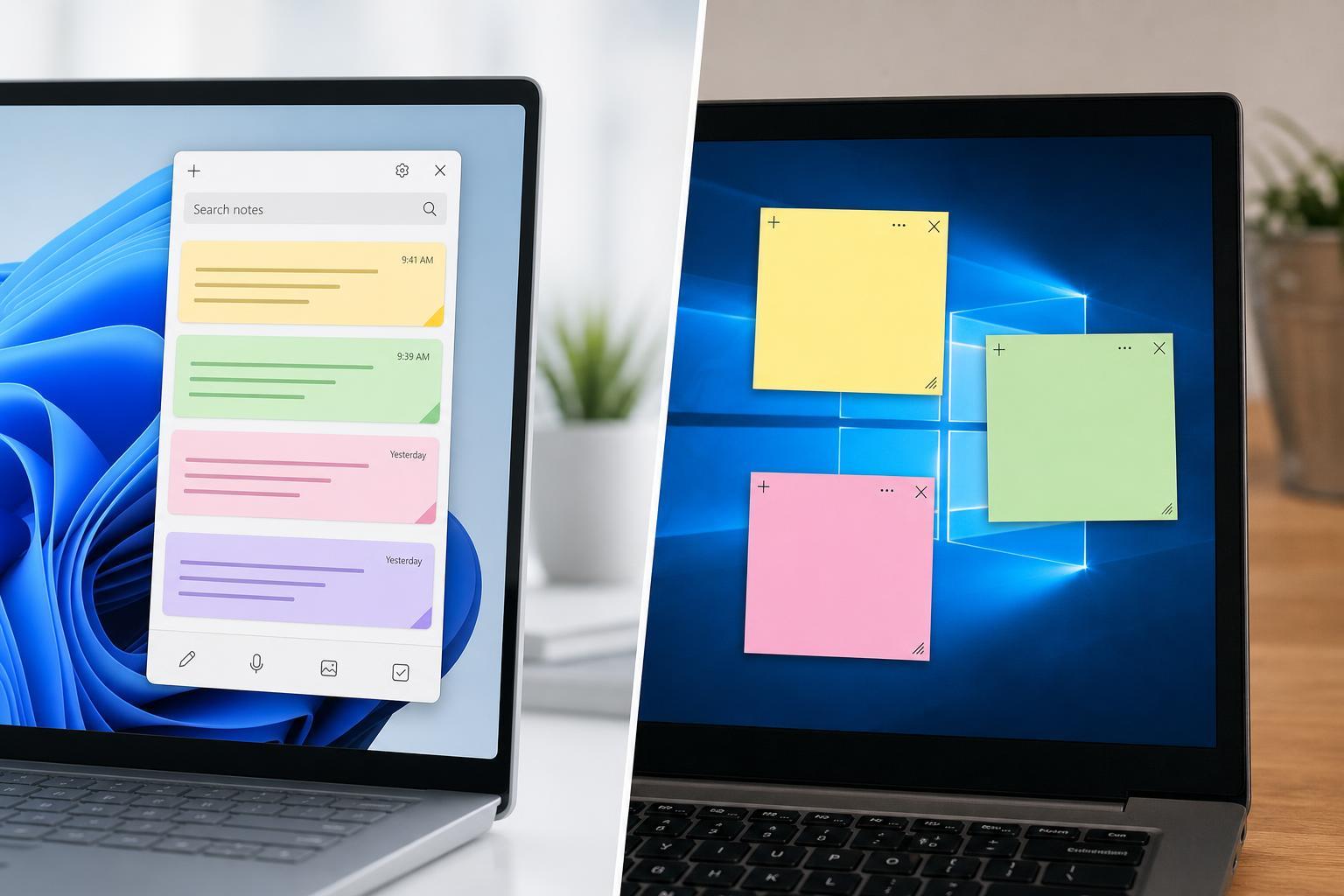
What Changed Between New and Old Sticky Notes?
The biggest change is that New Sticky Notes is designed as a modern Microsoft app, while the old Sticky Notes was a more lightweight desktop utility. That affects how the app looks, where your notes are stored, whether they sync, and how easily you can use them across multiple devices.
Old Sticky Notes: Simple, Local, and Familiar
The classic Sticky Notes app was built for quick reminders without much setup. It opened fast, stayed on the desktop, and let you jot down short notes without needing to sign in or use extra cloud features.
- Mostly local notes stored on the PC
- Very simple interface with fewer buttons and options
- Fast to open and easy to use for quick reminders
- No modern cross-device syncing in the older experience
- Good for users who wanted a plain desktop note
New Sticky Notes: More Connected and Feature-Rich
The newer Sticky Notes app is designed to fit better with Microsoft’s modern Windows apps and cloud services. It usually includes more integration with your Microsoft account, which makes it easier to keep notes available across devices and restore them after signing in on a new PC.
- Can sync notes through a Microsoft account in supported versions
- Better fit with modern Windows app design
- More likely to include richer note management features
- Easier to recover notes when moving to another device
- May include updates that change the interface over time
Visual and Interface Differences
The old version had a very plain, compact look. The new version still aims to be quick, but it generally feels more polished and modern. You may notice differences in colors, layout, controls, and how the note windows behave.
- Classic Sticky Notes: plain, lightweight design
- New Sticky Notes: more modern styling and updated UI
- New version may offer better organization tools depending on the release
- Classic version often feels more immediate and less cluttered
Storage and Syncing
This is one of the most important differences. Old Sticky Notes was mainly about keeping notes on the local machine. New Sticky Notes may store notes in a way that allows cloud syncing, which helps keep them available when you switch devices or reinstall Windows.
- Open Sticky Notes and check whether you are prompted to sign in.
- Look for account or sync options in the app settings.
- If notes appear on another Windows device after signing in, syncing is active.
- If nothing syncs, you may be using an older local-only version or sync may be disabled.
Feature Differences You’re Most Likely to Notice
In everyday use, the feature gap usually shows up in a few practical areas rather than in one dramatic change.
- Sign-in and cloud sync support
- Different note recovery behavior after Windows updates
- Changes to formatting, shortcuts, or note management tools
- Possible integration with other Microsoft services
- Different performance and startup behavior
Which One Should You Use?
The better choice depends on how you take notes. The old version is attractive if you want something tiny, simple, and local. The new version is better if you want your notes to follow you across devices or you prefer a more modern Windows app experience.
- Choose the old/classic version if you want simplicity and local-only notes
- Choose the new version if you want syncing and modern account-based features
- Choose the newer app if you often move between PCs
- Choose the classic feel if you prefer minimal distractions
How to Tell Which Sticky Notes You Have
If you are not sure which version is installed, open Sticky Notes and look for signs of a newer Microsoft app, such as sign-in prompts, account settings, or a more modern interface. The older version usually feels more basic and may behave like a simple desktop utility rather than a connected app.
- Open Sticky Notes from the Start menu.
- Check whether the app asks you to sign in with a Microsoft account.
- Look for sync, settings, or profile options.
- Compare the interface to screenshots of classic Sticky Notes if needed.
The Bottom Line
New Sticky Notes is mainly about syncing, modern design, and better integration with Microsoft’s ecosystem. Old Sticky Notes is about simplicity, speed, and a very straightforward desktop note experience. If you only need quick reminders on one PC, the classic style may still feel ideal. If you want your notes to stay with you across devices, the newer version is usually the better fit.





