
Copilot+ PCs are Microsoft’s new class of Windows devices built around AI features, newer processors, and tighter integration with Windows 11. They sound impressive on paper, but they are not the right choice for everyone.
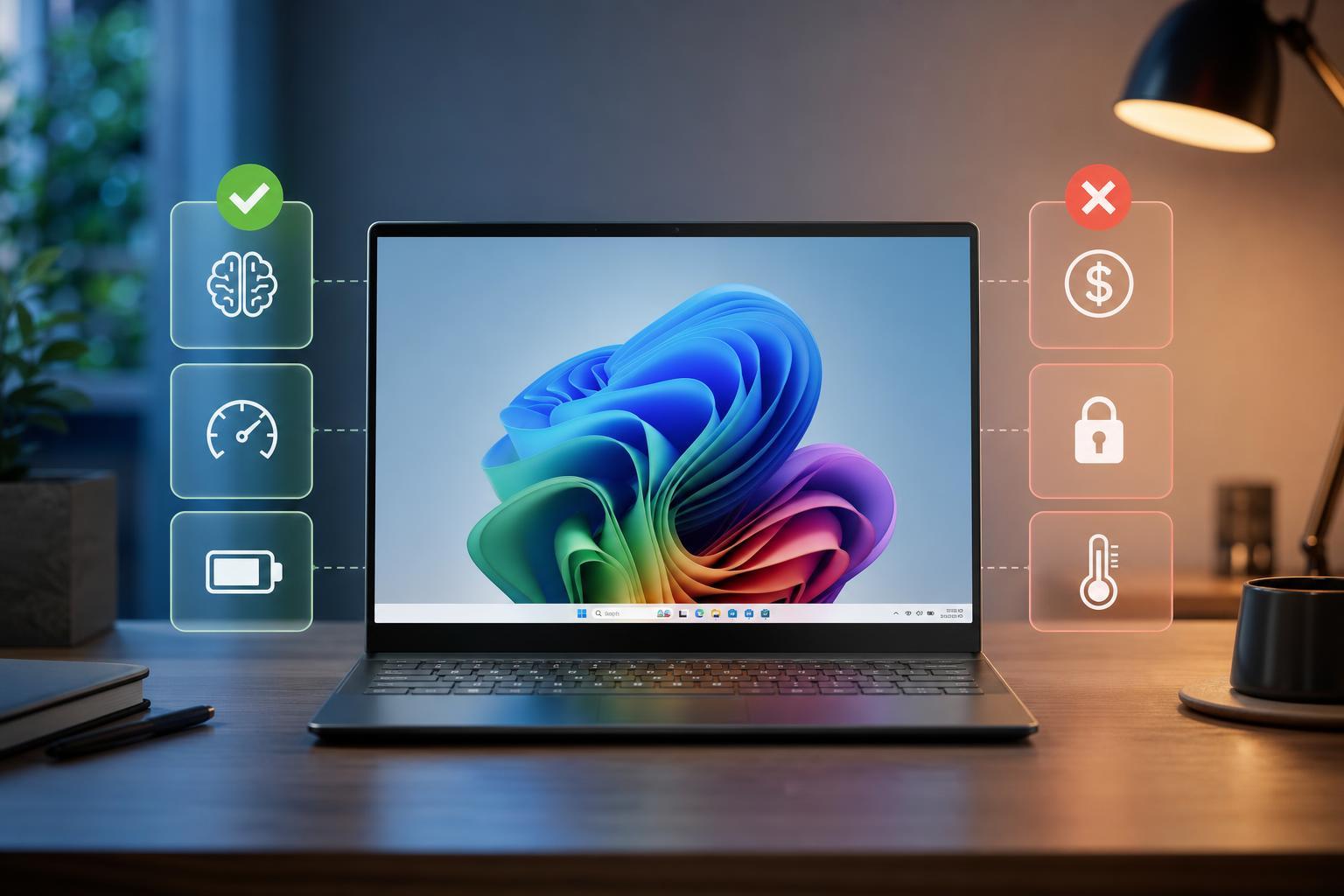
If you are trying to decide whether to be excited about Copilot+ PCs, the honest answer is that there are real benefits—especially in battery life, on-device AI features, and upcoming software support. But there are also important limits, including app compatibility questions, hardware restrictions, and some features that may not matter to every buyer.
What Copilot+ PCs Are
Copilot+ PCs are Windows devices designed to meet Microsoft’s hardware requirements for a new wave of AI-focused features. In practice, that means laptops and some other Windows devices built with newer chips that include a powerful neural processing unit, or NPU, along with enough memory and storage to support Microsoft’s AI tools.
The idea is simple: instead of sending every AI task to the cloud, the PC can handle more of the work locally. That can make some features faster, more private, and available even when you are offline.
Why You Should Be Excited
- Better battery life on many models, because newer ARM-based chips are designed for efficiency as well as performance.
- On-device AI features that can respond faster than cloud-based tools for certain tasks.
- New Windows features built specifically for this hardware category, which means Copilot+ PCs may get software advantages other Windows PCs do not.
- Thin-and-light laptop designs that can combine decent performance with quiet operation and long unplugged use.
- Potentially better webcam, image, and productivity tools as Microsoft expands the platform over time.
The Biggest Reasons to Hold Back
- Not every app runs perfectly on every Copilot+ PC, especially if the device uses an ARM-based processor and depends on app translation layers.
- Some AI features may sound more useful than they actually are in everyday work.
- The first wave of devices can be more expensive than similarly sized traditional Windows laptops.
- Feature availability can be uneven across regions, apps, and Windows versions.
- If you rely on older peripherals, niche software, or specialized work tools, compatibility should be checked carefully before buying.
The Performance Question
One of the main selling points of Copilot+ PCs is responsiveness, especially for everyday tasks. For many people, that claim will hold up. These devices are often optimized for low power use, fast wake times, and smooth general productivity.
But performance is not one thing. A machine can be excellent at email, document work, and video calls while still being a poor match for specialized software, heavy gaming, or certain professional workflows. That is why benchmarks alone do not tell the whole story.
Why Compatibility Still Matters
Compatibility is the issue that most buyers should investigate first. If you use mainstream apps, you may never notice a problem. But if your workflow depends on older software, custom drivers, obscure plugins, or certain game anti-cheat systems, the risk is higher.
- List the exact software you use every week, including VPNs, printers, scanners, audio tools, and creative apps.
- Check whether those apps are native for ARM, supported under emulation, or not supported at all.
- Confirm that your printer, dock, storage device, or other accessory has working drivers for the platform.
- Look for reports from users with the same model or same software version, not just general compatibility claims.
- If the device is for work, test business-critical apps before committing if you can.
Who Should Be Excited
- People buying a new laptop for school, web work, travel, and general productivity.
- Users who care about battery life more than raw compatibility with specialized software.
- Buyers interested in Microsoft’s newest Windows features and willing to live with early-platform tradeoffs.
- People replacing an aging laptop and already using modern cloud-based apps.
- Users who prefer thin, quiet devices and do not need a dedicated gaming or workstation machine.
Who Should Be Cautious
- Gamers who rely on broad game compatibility, anti-cheat systems, or launchers that have a mixed support record.
- Creative professionals using niche plugins, capture tools, or hardware-specific drivers.
- IT users who need guaranteed compatibility with enterprise software and peripherals.
- Anyone who needs a desktop replacement with maximum upgrade flexibility.
- Buyers who already own a fast Intel or AMD laptop and expect a huge upgrade from AI features alone.
What Copilot+ PCs Are Not
Copilot+ PCs are not automatically the fastest Windows machines for every task. They are not a universal upgrade from every existing laptop. And they are not a guarantee that AI features will be essential to your daily work.
They are best understood as a new hardware direction for Windows: more local AI processing, more efficient designs, and a tighter link between hardware and software features. That is exciting if you are in the target audience, but less meaningful if your priorities are compatibility, value, or raw power.
How to Decide If One Is Right for You
- Start with your actual software, not the marketing.
- Decide whether battery life, portability, or AI features matter enough to shape your purchase.
- Check app and peripheral compatibility before buying.
- Compare pricing against similarly equipped Intel or AMD laptops.
- Choose Copilot+ only if the hardware benefits match how you actually use your PC.
The Bottom Line
Copilot+ PCs are worth paying attention to because they point to where Windows laptops are going: more efficient, more AI-aware, and more tightly integrated with on-device processing. For the right user, that is a real advantage.
But excitement should be tempered with caution. Early Copilot+ devices may not fit every workflow, and the value of the new AI features depends heavily on what you do every day. If you want a lighter, longer-lasting Windows laptop and your apps are compatible, they are promising. If you need maximum software flexibility or you are happy with your current machine, you can afford to wait and watch.





