
If you want to check how your Instagram profile looks to a follower, a stranger, or someone you’ve blocked, there are a few different ways to do it. Instagram does not offer a perfect one-click "view as" button for every situation, but you can still inspect your profile from another perspective and verify what different people can see.
This is useful if you’re trying to clean up your profile, test privacy settings, or make sure your bio, posts, highlights, and story settings show the right information to the right audience.
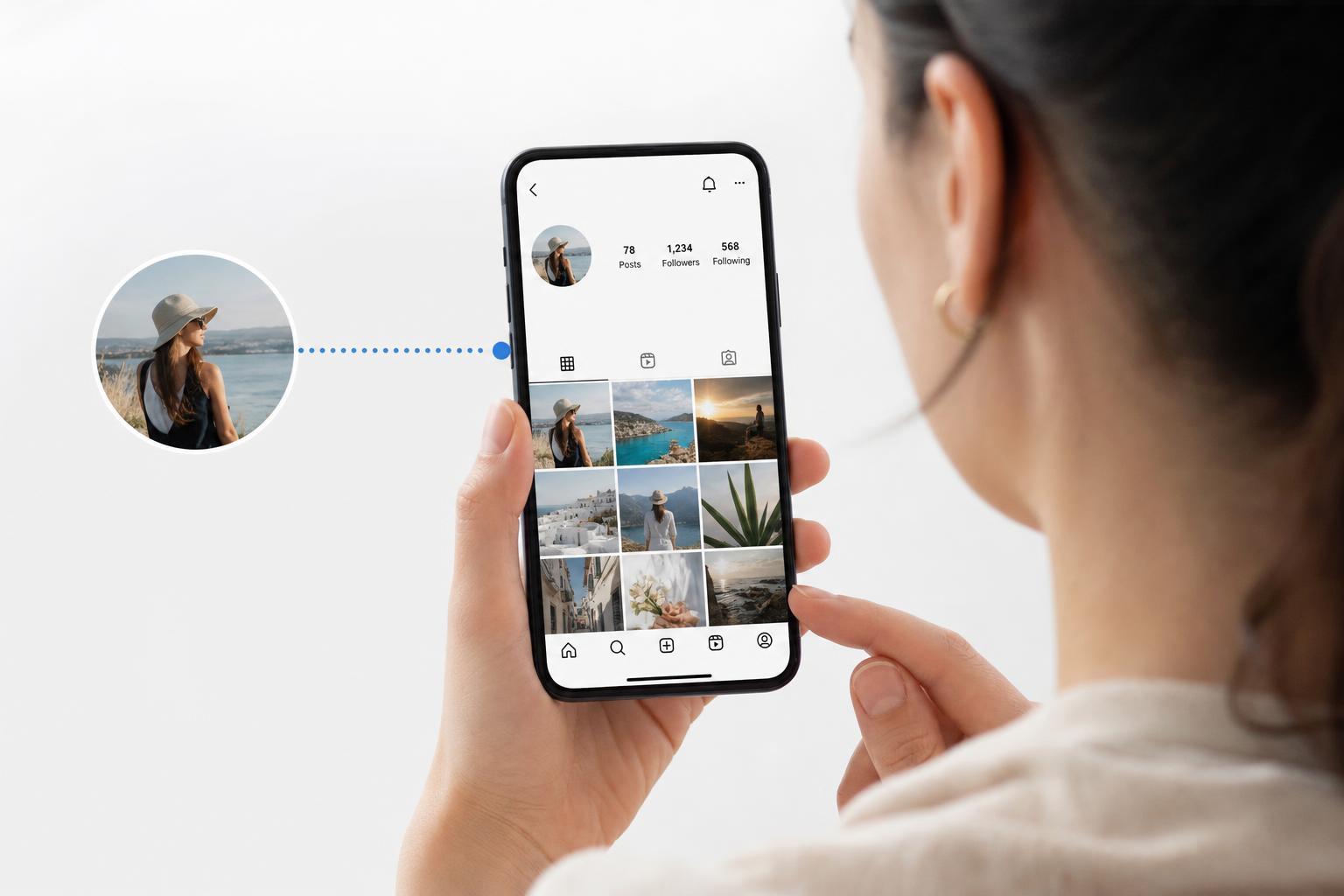
What Instagram Lets You Check
Instagram does not provide a universal "view profile as" feature for personal accounts in the same way some other platforms do. What you can see depends on the account type, privacy settings, and whether the other person follows you, is restricted, or is blocked.
- Your public profile as anyone on the internet would see it
- Your private profile as a non-follower would see it
- How a specific post, story, highlight, or reel appears
- Whether blocked users can still find your account
- How your profile looks when viewed from another account
The Easiest Way: Check Your Profile From Another Account
The simplest way to see your Instagram profile as someone else does is to view it from a different account. This could be a second account you own, a friend’s account, or a browser session where you are not logged into your main account.
- Open Instagram in the app or a browser while signed out of your main account, or switch to a second account you control.
- Search for your username.
- Open your profile page and review what is visible.
- Check your bio, profile photo, posts, reels, story highlights, tagged posts, and follower information.
- If your account is private, confirm that non-followers only see the private account notice instead of your full feed.
How to View Your Instagram Profile in a Browser Without Logging In
If your account is public, you can often search for it in a web browser and open the profile without logging in. This gives you a quick look at how your page appears to someone who is not following you.
- Open a browser and go to Instagram's website.
- Search your username through a search engine if needed.
- Open your profile page.
- Review the visible photo, bio, post grid, and any publicly available content.
- If Instagram asks you to log in, use a different account or sign out first.
Check How a Private Account Appears to Non-Followers
If your account is private, the most important thing to verify is what a non-follower sees. This is especially important if you recently switched from public to private, or if you want to be sure old content is no longer open to everyone.
- Open your profile from an account that does not follow you.
- Confirm that your posts are hidden behind the private account message.
- Check whether your bio, username, and profile picture still appear.
- Look at any highlights or tagged content that may still be visible in limited form.
- Review your follower and following counts if you care about how much information is exposed.
How to Check Stories, Highlights, and Reels
Your profile may look different depending on which content type you’re checking. Stories and highlights have their own visibility rules, and reels can behave differently from posts if they are shared broadly.
- Stories: visible only to people allowed by your story privacy settings
- Highlights: can inherit story visibility rules, so test them separately
- Reels: may remain visible according to your account privacy and sharing settings
- Tagged posts: may show up in your profile depending on your tagged-post settings
If you want to know exactly how one of these appears, open the relevant section from a second account and confirm whether it is visible, hidden, or partially accessible.
Use Instagram’s Privacy Settings to Control What Others See
If your goal is not just to view your profile as someone else but to control what they see, review the main privacy settings that affect your profile view.
- Open Instagram and go to your profile.
- Tap the menu icon.
- Open Settings and privacy.
- Review Privacy, Story, Reel, Tagging, and Mentions settings.
- Adjust each section to match the audience you want.
- Account privacy: public or private
- Story privacy: who can view your stories
- Close Friends: who can see selected stories
- Tags and mentions: who can tag or mention you
- Comment controls: who can interact with your posts
What Blocked or Restricted People May See
If you want to know how your profile appears to a blocked or restricted person, the answer is different from a normal visitor. Blocking removes most access, while restricting changes interaction behavior without fully hiding the profile.
- Blocked users may not be able to view your profile normally
- A blocked person may still find signs that the account exists, but not access the content as usual
- Restricted users can often still see the profile, but their comments and interactions are limited
- The exact result depends on Instagram’s current behavior and app version
Common Reasons Your Profile Looks Different
If your profile appears to change depending on who is viewing it, that is usually caused by account status or visibility settings rather than a bug.
- Your account is public for some viewers and private for others because of follow status
- A story or highlight has an audience limit
- A post was removed, archived, or restricted
- You are seeing cached data in the app or browser
- The viewer is blocked, restricted, or not approved as a follower
A Practical Checklist Before You Share Your Profile
If you are checking your profile before posting it publicly, applying for a job, or sharing it with someone new, go through a quick review first.
- Confirm your profile photo and bio say what you want them to say
- Check for old highlights you may no longer want public
- Review tagged posts and tagged-photo settings
- Open your profile from a non-follower account
- Look at your story and reel visibility settings
- Make sure your linked accounts or contact info are appropriate
Choosing the Right Method
The best method depends on what you need to verify. A second account is the most reliable option for checking real-world visibility, while a browser view is the fastest for a public profile. For privacy changes, test from an account that does not follow you so you can confirm the difference clearly.





