
Instagram stickers are one of the easiest ways to make Stories more interactive and visually useful. You can add things like polls, questions, music, locations, mentions, GIFs, and more to help your content stand out and get more engagement.
This guide shows you how to add stickers to Instagram Stories, what you can use them for, and what to check if sticker options are missing or not working.
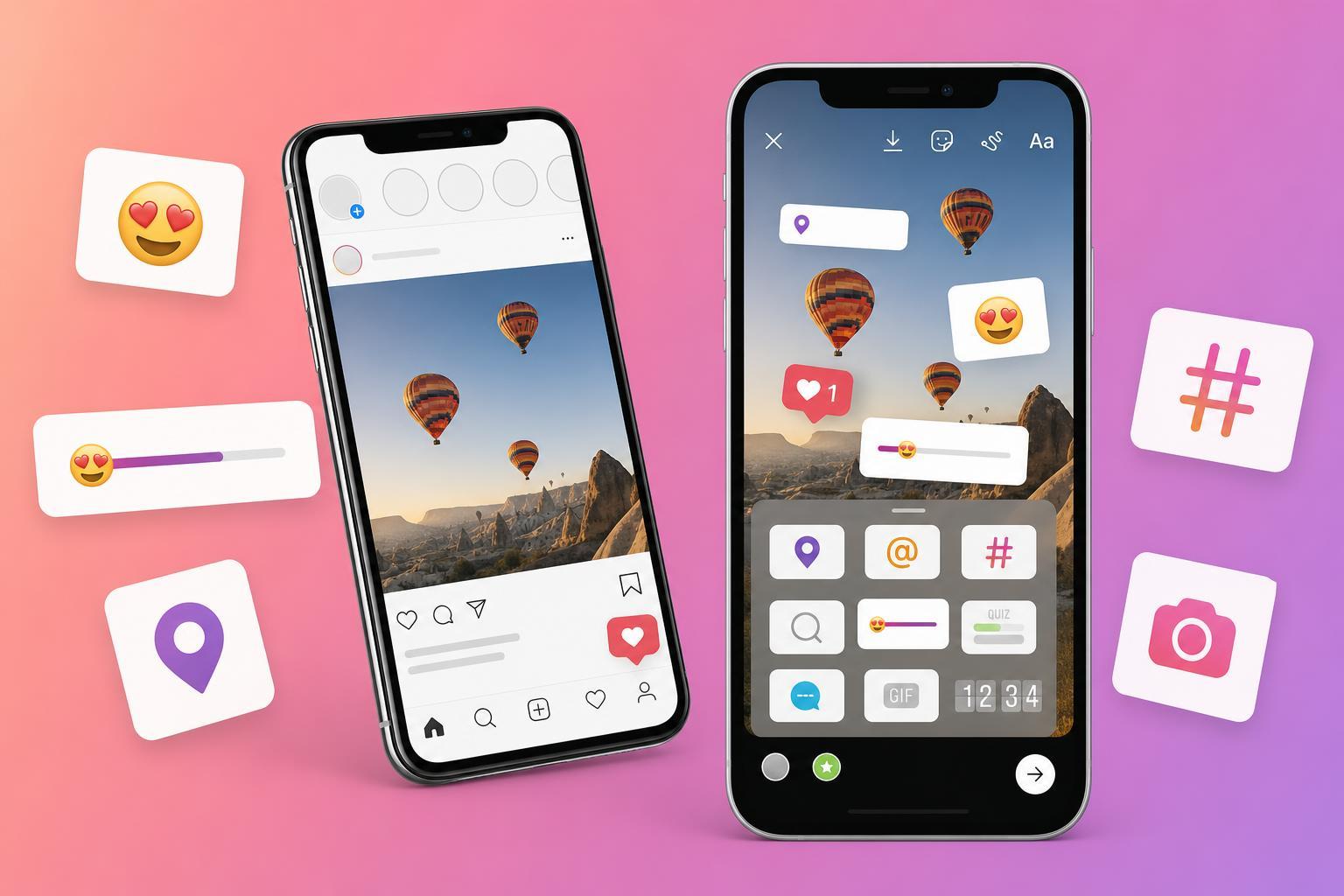
What Instagram Stickers Can Do
Instagram stickers are interactive elements you place on top of a Story. Some are decorative, while others let viewers respond, vote, tap a location, or discover more content. In many cases, stickers are one of the easiest ways to make a Story more engaging without editing the image or video itself.
- Poll stickers let viewers choose between two options.
- Question stickers let viewers send you a response.
- Emoji slider stickers let people react with a quick rating.
- Music stickers add a song or audio clip to a Story.
- Location stickers tag a place.
- Mention stickers tag another account.
- GIF stickers add animated search-based graphics.
- Countdown stickers let you build anticipation for an event.
- Link stickers direct viewers to a website or page.
- Hashtag stickers can help categorize a Story topic.
How to Add Stickers to an Instagram Story
- Open Instagram and swipe right from the home feed, or tap the plus button and choose Story.
- Take a photo or record a video, or upload one from your gallery.
- Tap the sticker icon at the top of the screen. It usually looks like a square smiley face or sticker sheet.
- Choose the sticker you want, such as Poll, Location, Mention, GIF, Music, or Link.
- Customize the sticker if needed. Some stickers let you type text, choose options, or search for content.
- Drag the sticker to the place you want on the Story.
- Pinch to resize or rotate it if Instagram allows it.
- Tap Your Story to publish it, or choose Close Friends if you want a smaller audience.
How to Add Specific Sticker Types
Different stickers are added the same basic way, but each one has its own purpose. Here are the most commonly used ones and how to use them.
- Poll sticker: Ask a question with two answer choices.
- Question sticker: Let viewers type a response you can review later.
- Emoji slider: Ask viewers to rate something with a reaction slider.
- Mention sticker: Tag another Instagram account so viewers can tap through.
- Location sticker: Add a place name or venue.
- Music sticker: Search for a song and add a clip to your Story.
- GIF sticker: Search for an animated sticker to add movement.
- Link sticker: Add a tap-through link to a website, product page, or article.
- Countdown sticker: Set a date and time for an event or launch.
How to Add Stickers to Instagram Posts
Instagram stickers are mainly designed for Stories, not regular feed posts. If you mean a feed post, Instagram does not work the same way as Story stickers. You can add text, tags, and location information to a post, but the full sticker-style tools are generally available in Stories and Reels-related creation tools rather than standard posts.
How to Add Stickers to Reels and Other Instagram Content
Some sticker-like tools also appear when creating Reels or using Instagram’s creation features. The exact options depend on the version of the app you have. In general, the steps are similar: create the content, look for the sticker or overlay icon, choose the element you want, and place it on the video before publishing.
If Instagram Stickers Are Missing or Not Working
If the sticker tray is empty, certain stickers are missing, or a sticker will not load correctly, the cause is often tied to app version, account eligibility, or a temporary Instagram issue.
- Update Instagram to the latest version from the App Store or Google Play.
- Check whether the missing sticker is available in your region or for your account type.
- Sign out and back in if the app seems out of sync.
- Make sure Instagram has permission to use photos, camera, microphone, or location if the sticker needs them.
- Try creating the Story again using a different photo or video.
- If a music or GIF sticker is unavailable, the feature may not be supported for that account or may be restricted in your area.
Tips for Using Stickers Well
- Keep important stickers away from the very top and bottom edges, where app controls may overlap them.
- Use one or two interactive stickers instead of crowding the Story.
- Make link or poll stickers easy to spot so people know they can tap them.
- Match sticker color and placement to the background so the Story still looks clean.
- Use location and mention stickers only when they are genuinely relevant to the content.
- For long Stories, keep the main sticker on the first frame so viewers notice it right away.
What to Remember Before You Post
Before publishing, preview the Story to make sure the sticker is readable, properly placed, and not blocking important parts of the image or video. If you are using a clickable sticker such as a link, poll, or countdown, check that the text makes sense at a glance.
Best Uses for Instagram Stickers
- Promoting a new product or event with a countdown sticker.
- Collecting feedback with polls or questions.
- Tagging locations for travel, food, or event content.
- Adding music to make a Story feel more polished.
- Using GIFs or mentions to make content feel more lively and shareable.





