
Copilot in Microsoft Edge can help you summarize pages, compare information, draft text, and ask questions without leaving your browser. If you want a quick way to work with web content, it is one of the most useful built-in features in Edge.
This guide shows where to find Copilot in Edge, how to use it on a webpage, and a few practical ways to get better results.
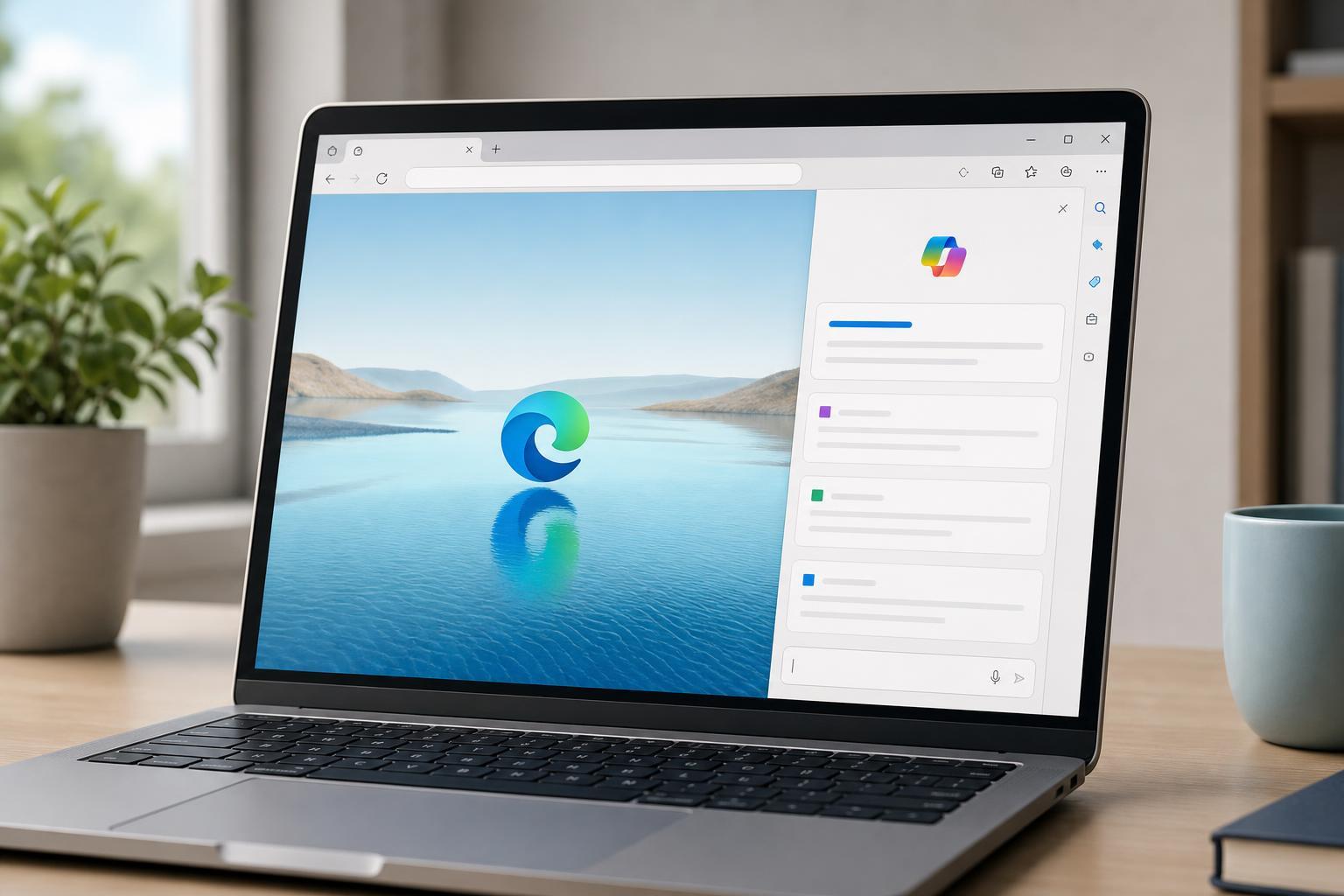
Open Copilot in Microsoft Edge
- Open Microsoft Edge on your PC or Mac.
- Look for the Copilot button in the top-right corner of the browser window.
- Click the button to open the Copilot sidebar.
- If prompted, sign in with your Microsoft account to unlock the full experience.
If you do not see the button, Edge may need an update, or the sidebar may be hidden. In many cases, updating Edge brings the feature back to the toolbar automatically.
Use Copilot on the page you are reading
One of the most useful parts of Copilot in Edge is that it can understand the page you currently have open. That makes it helpful for long articles, product pages, support pages, and research tabs.
- Open the webpage you want help with.
- Click Copilot in the top-right corner.
- Ask a question about the page, such as "Summarize this article" or "What are the main points?".
- Use follow-up questions to narrow the answer, such as asking for details, comparisons, or a simpler explanation.
Common things Copilot can do in Edge
- Summarize long articles and web pages
- Explain unfamiliar terms in simpler language
- Compare information across products or sources
- Draft emails, messages, or notes based on what you are viewing
- Help you find related information faster
- Answer questions about the current page without copying text manually
Ask better questions for better answers
Copilot is most useful when your prompt tells it exactly what you want. A small change in wording can make the answer much more helpful.
- Instead of: "Explain this"
- Try: "Explain this in simple terms for a beginner"
- Instead of: "Summarize this page"
- Try: "Summarize the key steps on this page in 5 bullet points"
- Instead of: "Compare these"
- Try: "Compare the pros and cons of the two options mentioned here"
Use Copilot for research and shopping
Copilot in Edge can be especially useful when you are comparing products, reading reviews, or trying to understand technical specs. It can help pull the main points together so you do not have to scan every page manually.
- Compare features between two products
- Summarize review pages
- Explain a spec or compatibility issue
- Help you decide which option is better for your needs
- Turn a confusing product page into a shorter checklist of important details
What to do if Copilot is missing in Edge
- Update Microsoft Edge to the latest version.
- Check whether the sidebar is hidden or collapsed.
- Sign in with a Microsoft account if you are not already signed in.
- Make sure your browser settings or company policies are not disabling the sidebar.
- If needed, reinstall or repair Edge from Microsoft’s official installer.
If you are using a work or school computer, the feature may be restricted by an administrator. In that case, the missing button is usually a policy issue rather than a browser problem.
Get more out of Copilot in daily browsing
- Use it to summarize long help pages before troubleshooting
- Ask for step-by-step instructions when a page is too dense
- Use follow-up questions instead of starting over each time
- Keep your prompts focused on one task at a time
- Double-check the browser page when the answer affects money, privacy, or system changes
A simple workflow that works well
- Open the page you want to understand.
- Launch Copilot from the Edge toolbar.
- Ask for a short summary first.
- Follow up with a second prompt for details, comparisons, or action steps.
- Use the original page to confirm anything important before acting on it.
That workflow keeps Copilot useful without treating it as a replacement for the page itself. For most people, that is the best way to use it: as a fast assistant for reading, sorting, and explaining web content.





