
Bing Image Creator lets you turn a text prompt into AI-generated artwork, illustrations, and concept images in just a few steps. If you want to make something fun, creative, or visually specific without using advanced design software, it is an easy place to start.
This guide shows you how to use Bing Image Creator, how to write prompts that produce better results, and what to do when the images you get do not quite match what you had in mind.
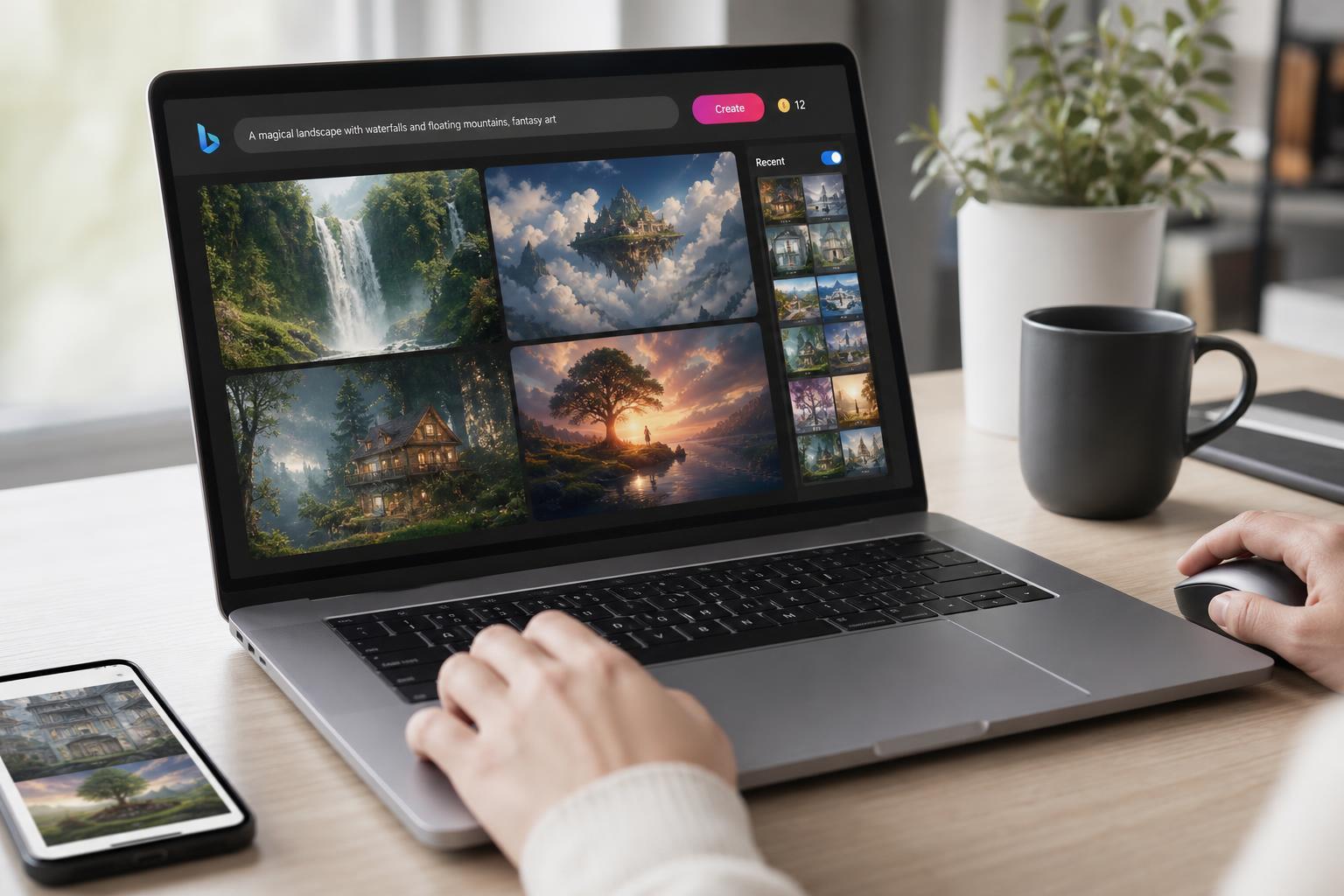
What Bing Image Creator Is
Bing Image Creator is a Microsoft tool that generates images from text descriptions. You type what you want to see, and the service creates several image variations based on your prompt. It is useful for quick concept art, social media visuals, wallpapers, story ideas, thumbnails, and creative experimentation.
How to Get Started
- Open Bing Image Creator in your browser and sign in with your Microsoft account if required.
- Type a description of the image you want to create in the prompt box.
- Be specific about the subject, style, and any important details you want included.
- Submit the prompt and wait for the image results to generate.
- Choose the version you like best, or refine your prompt and try again if the result is not close enough.
How to Write Better Prompts
The most important skill in using Bing Image Creator is prompt writing. A short prompt can work, but a more detailed one usually gives you more control over the final image.
- Start with the main subject: who or what should be in the image.
- Add a style: realistic, cartoon, watercolor, cyberpunk, pixel art, pencil sketch, and so on.
- Describe the scene or background: city street, mountain range, dark forest, studio backdrop.
- Include lighting details if they matter: soft daylight, neon glow, dramatic shadows, golden hour.
- Mention colors, mood, and composition when they are important to the result.
Example Prompts That Work Well
- A golden retriever wearing aviator goggles, standing on a snowy mountain, realistic style, soft sunlight
- A futuristic gaming room with neon blue lighting, clean desk setup, detailed concept art
- A cozy bookstore interior with warm lamps, wooden shelves, and rainy windows, watercolor style
- A fantasy forest with glowing mushrooms, mist, and a small stone bridge, cinematic atmosphere
- A retro space explorer poster, bold colors, vintage science fiction style
If you want better consistency, keep the prompt structured. For example: subject + style + setting + lighting + mood. That simple formula often works better than writing a long paragraph full of unrelated details.
How to Improve Weak Results
- Identify what is wrong with the image: the subject, style, background, colors, or composition.
- Adjust only the part that needs improvement instead of rewriting everything.
- Add more descriptive words if the image feels too generic.
- Remove conflicting details if the image looks confusing or cluttered.
- Try a different style keyword if the image looks too cartoonish, too realistic, or not artistic enough.
- Regenerate the image after each change and compare the results.
Common Mistakes to Avoid
- Being too vague, such as writing only “cool car” or “beautiful landscape”
- Including too many unrelated ideas in one prompt
- Using contradictory style terms, such as “photorealistic cartoon”
- Expecting exact text, logos, or highly specific branding details to appear perfectly
- Changing every part of the prompt after each bad result instead of isolating the problem
Best Uses for Bing Image Creator
When You Need More Control
Bing Image Creator is great for fast image generation, but it is not ideal when you need exact pixel-level control, precise branding, or strict editing tools. If you need to fine-tune layout, combine multiple images, or edit details manually, a dedicated image editor or design app may be a better fit.
A Simple Workflow for Better Images
- Decide what kind of image you want before you start.
- Write a short prompt with the main subject and style.
- Generate the first set of images.
- Pick the closest result and note what needs improvement.
- Revise the prompt with one or two targeted changes.
- Repeat until the image matches your idea closely enough.





