Microsoft Edge can open certain Office files directly in the browser instead of downloading them or handing them off to desktop apps. That can be convenient, but it is not always what you want. If you prefer Word, Excel, or PowerPoint files to open another way, you can change Edge settings or adjust how your computer handles those files.
This guide explains what the Office file viewer does, how to turn it off when possible, and what to check if files still open in Edge after you change the setting.
What the Office File Viewer Does
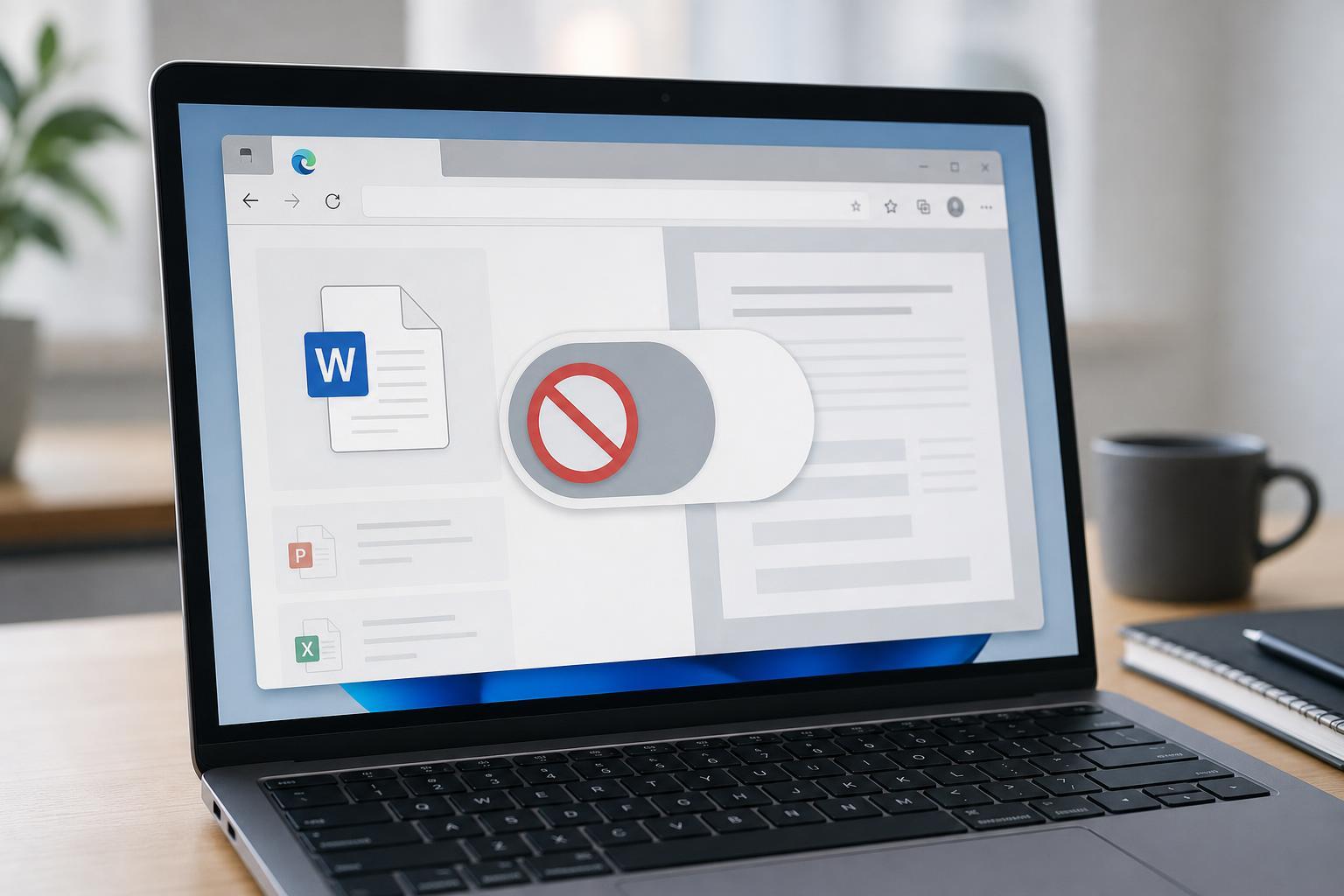
Microsoft Edge includes support for viewing some Office documents in the browser. When this feature is enabled, files such as .docx, .xlsx, and .pptx may open in a web-based viewer instead of being downloaded or opened in a desktop Office app.
Turn Off the Office Viewer in Edge
If Edge is opening Office files in its built-in viewer, start by checking the browser’s download and file-handling behavior.
- Open Microsoft Edge.
- Select the three-dot menu in the top-right corner and choose Settings.
- Go to Downloads or search within Settings for Office, PDF, or file handling options.
- Look for a setting related to opening Office files in the browser, and turn it off if available.
- Restart Edge and test an Office file again.
If you do not see a direct Office file viewer setting, Edge may be receiving the file from a website that forces browser viewing. In that case, changing the browser alone may not be enough.
Change How Office Files Open in Windows
If you want Office documents to open in desktop apps instead of Edge, set the default app for each file type in Windows.
- Right-click a .docx, .xlsx, or .pptx file in File Explorer.
- Choose Open with, then Select another app.
- Pick Word, Excel, or PowerPoint.
- Check Always use this app to open .docx files, or the equivalent for the file type.
- Repeat for other Office file types you want to change.
This affects files opened from File Explorer and many downloads, but it may not override a website’s own viewer behavior if the site is designed to open files online.
If Files Open from OneDrive, SharePoint, or Outlook
Microsoft services often prefer web viewing because it makes sharing and collaboration easier. If you are opening files from OneDrive, SharePoint, or Outlook on the web, the document may still open in Edge even after you change Windows defaults.
- OneDrive and SharePoint commonly open files in the browser for quick viewing and editing.
- Outlook on the web may open attachments in Edge instead of downloading them.
- Some organizations enforce browser-based viewing through Microsoft 365 policies.
Try Downloading the File Instead
If you only want the file saved locally, use the website’s download option rather than opening it in the browser viewer.
- Find the download button or menu on the page hosting the document.
- Save the file to your PC.
- Open it from File Explorer instead of clicking the browser preview link.
- If needed, set the desktop Office app as the default for that file type.
When the Viewer Still Comes Back
If Edge continues to open Office files after you have changed your settings, the cause is usually one of these:
- The file is being opened from a Microsoft 365 website that prefers browser viewing.
- Your organization manages Microsoft Edge or Office behavior with policy settings.
- The file association in Windows was not changed for that exact file type.
- The document is being opened through a cloud service preview link rather than a direct file link.
A Practical Way to Test the Change
To check whether the Office viewer is truly disabled, test with a file stored locally on your computer, not one opened from a website.
- Download a .docx, .xlsx, or .pptx file to your PC.
- Double-click it from File Explorer.
- Confirm whether it opens in Word, Excel, PowerPoint, or Edge.
- If it still opens in Edge, recheck the default app setting for that file type.
Using a local file helps you separate browser behavior from website behavior, which makes it easier to see whether the change worked.
Which Fix Should You Try First?
In most cases, the fastest path is to change the default app in Windows for the Office file types you use most. If the issue only happens in OneDrive, SharePoint, or Outlook, then the browser is probably not the only thing controlling the behavior.