
If your iPhone keeps installing apps you did not choose, the cause is usually Apple’s automatic app download setting or downloads syncing from another Apple device using the same Apple ID. The good news is that you can stop this behavior in a few minutes.
This guide shows how to turn off automatic app downloads on iPhone, how to check related App Store settings, and what to do if apps still appear after you disable the feature.
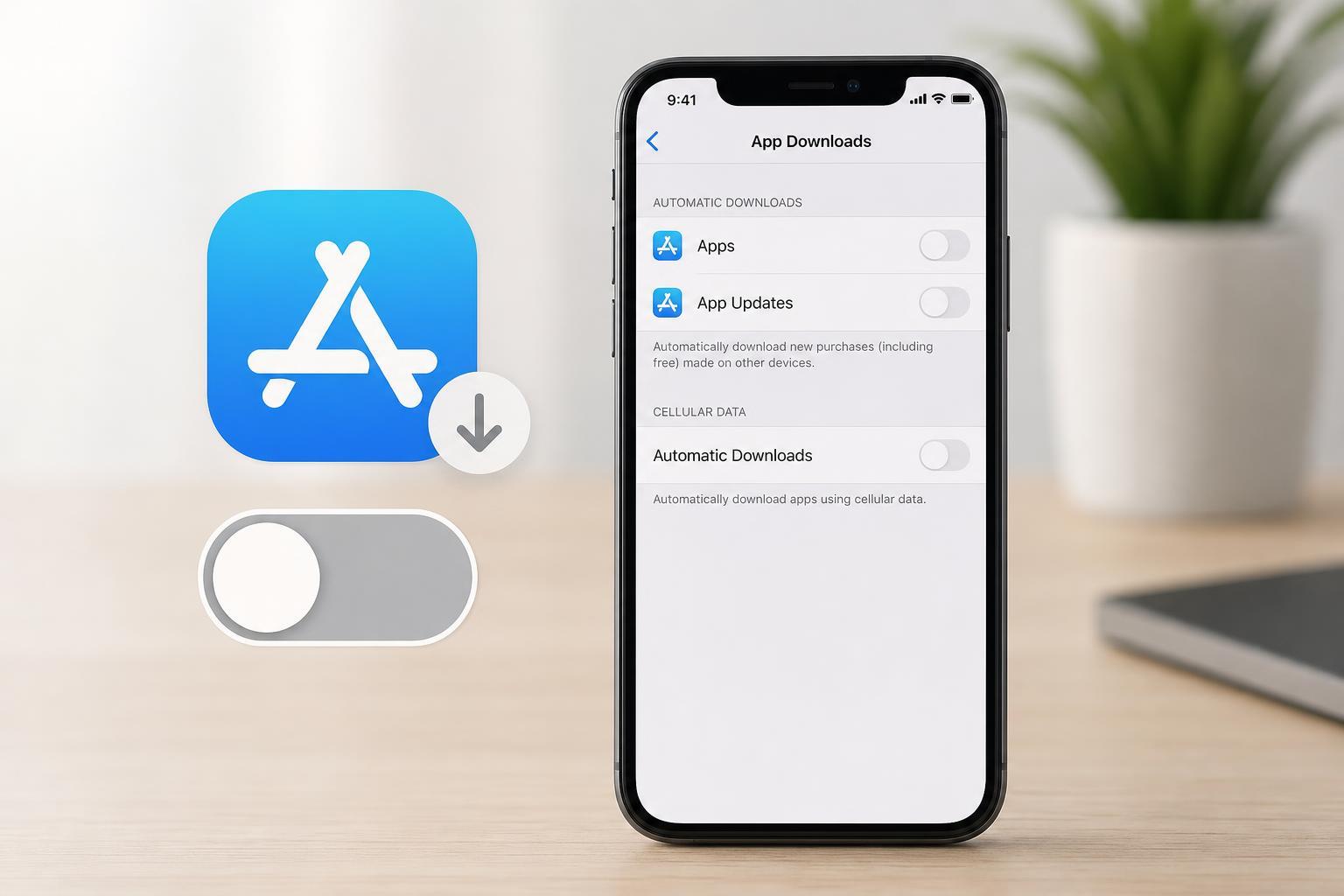
Turn Off Automatic App Downloads
- Open Settings on your iPhone.
- Scroll down and tap App Store.
- Under Automatic Downloads, find App Downloads.
- Turn off App Downloads.
Once this setting is off, your iPhone should no longer automatically download apps that you get on other Apple devices signed in with the same Apple ID.
Check Other Download Settings
If apps still seem to download on their own, there are a few related settings worth checking in the same App Store menu.
- Automatic Updates: this controls whether installed apps update by themselves, not whether new apps are downloaded.
- App Updates over cellular data: this can affect how apps update if Wi-Fi is unavailable.
- App Downloads on other Apple devices: if you use the same Apple ID on an iPad or another iPhone, app activity on those devices can appear to carry over in some situations.
If Apps Keep Appearing Anyway
If disabling App Downloads does not fully solve the problem, the issue is usually one of these:
- You are signed into the same Apple ID on multiple Apple devices.
- Family Sharing is allowing someone else’s purchases to appear on your device.
- You may be seeing apps that were previously downloaded and restored from an iCloud backup.
- An app may have been reinstalled from the App Library or Home Screen accidentally rather than downloaded automatically.
- Go to Settings and tap your Apple ID name at the top.
- Check which devices are signed in to your account.
- Review Family Sharing settings if you share purchases with family members.
- Open the App Store and make sure App Downloads is still turned off.
- If needed, remove any unwanted apps manually from the Home Screen or App Library.
Prevent Related App Store Changes
If your goal is to keep your iPhone more predictable and reduce surprise changes, you may also want to review these settings:
- Automatic Updates, if you want to approve app updates yourself
- Password and Face ID requirements for App Store purchases
- Screen Time restrictions if a child uses the device
- Family Sharing purchase settings if multiple people use the same Apple account ecosystem
When to Check iCloud and Backup Settings
If a newly set up iPhone seems to be getting apps you did not request, the phone may be restoring apps from an iCloud backup rather than downloading them automatically in real time. That is a different process from App Downloads, and it can make a new phone look like it is reinstalling apps on its own.
In that case, review how the device was set up and whether you chose to restore from a backup during setup. Restoring from backup can bring back apps and app layout from your previous iPhone.
What to Do If the Setting Won’t Stay Off
If App Downloads keeps turning back on, it may help to update iOS, sign out of the App Store and sign back in, or review device management settings if the phone belongs to a school or workplace.
Quick Summary
- Open Settings and go to App Store.
- Turn off App Downloads under Automatic Downloads.
- Check related account, Family Sharing, and backup settings if apps still appear.
- Use separate Apple IDs if you want complete separation between devices.





